

In this tutorial, we will guide you through the process of adding a key to a property. Let's look at the steps:
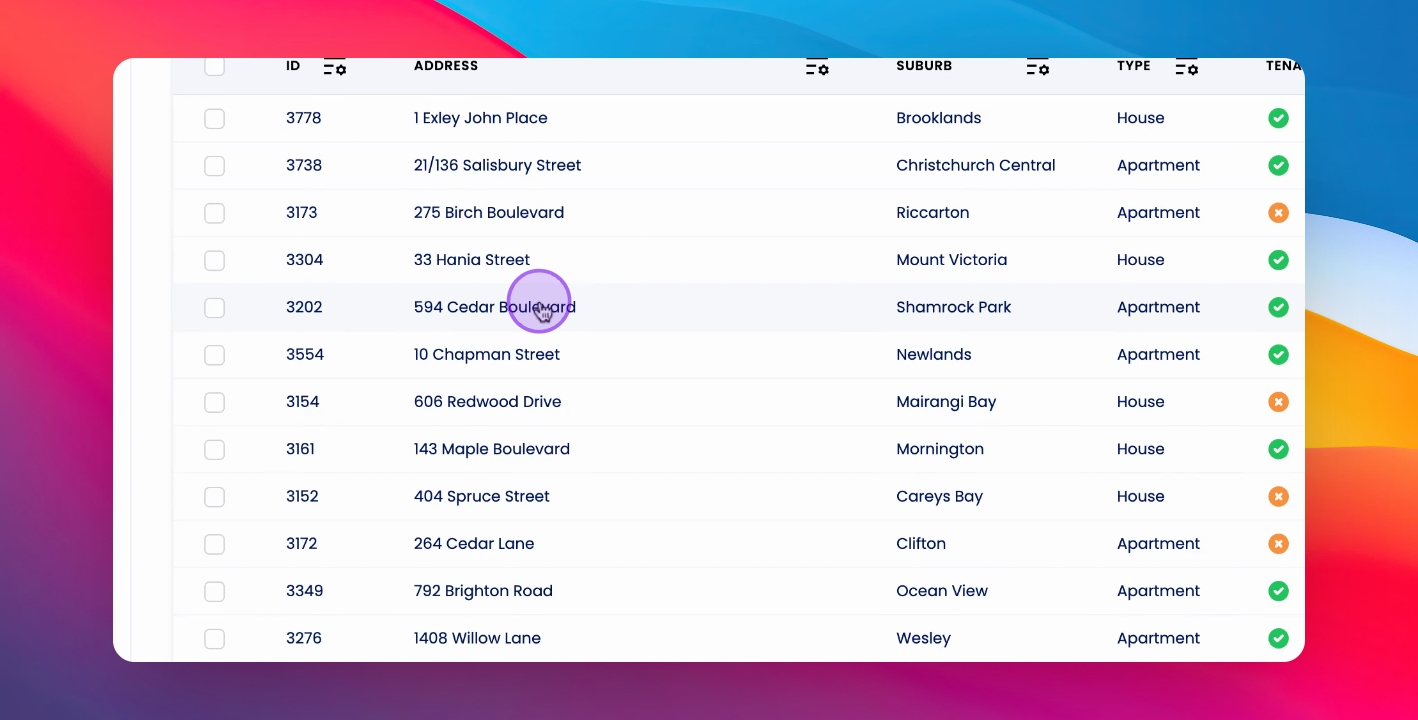
Step 1: Go to Property
Go to the relevant property.
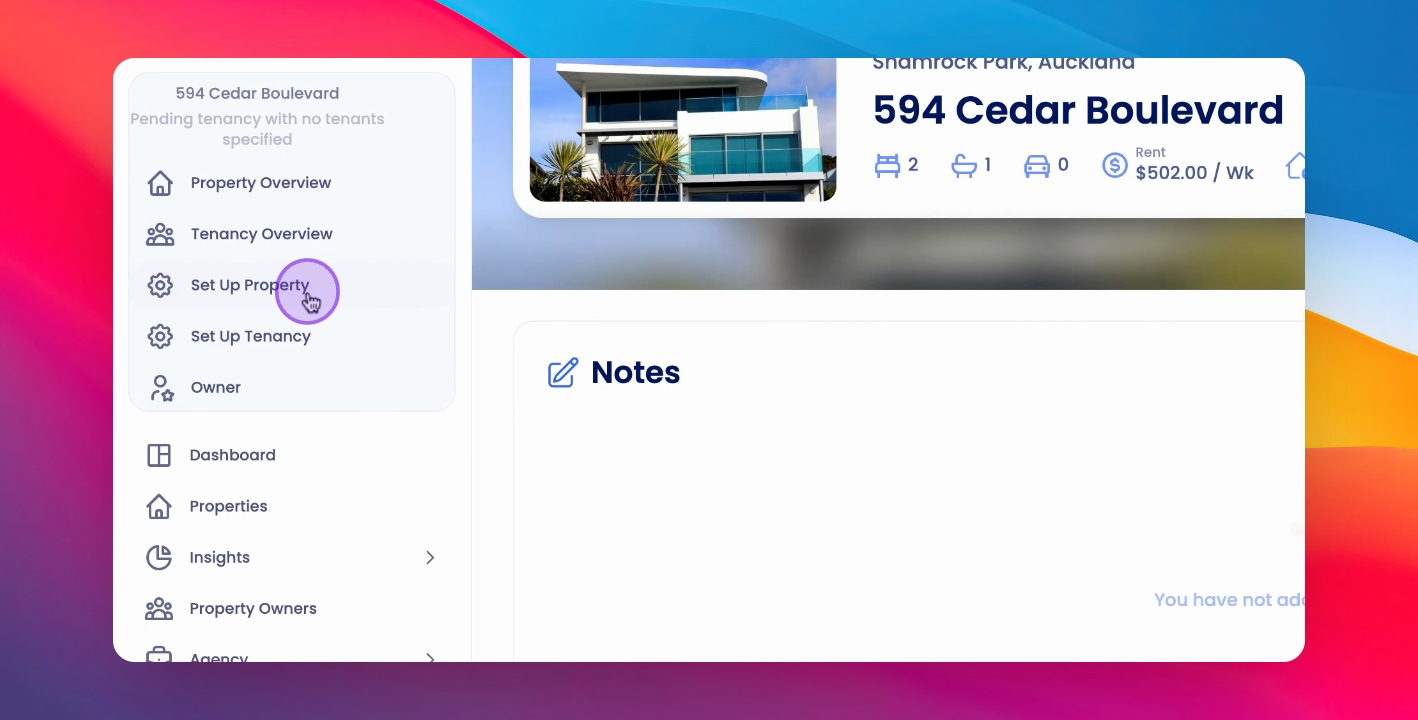
Step 2: Open Property Setup
Click Property Setup.
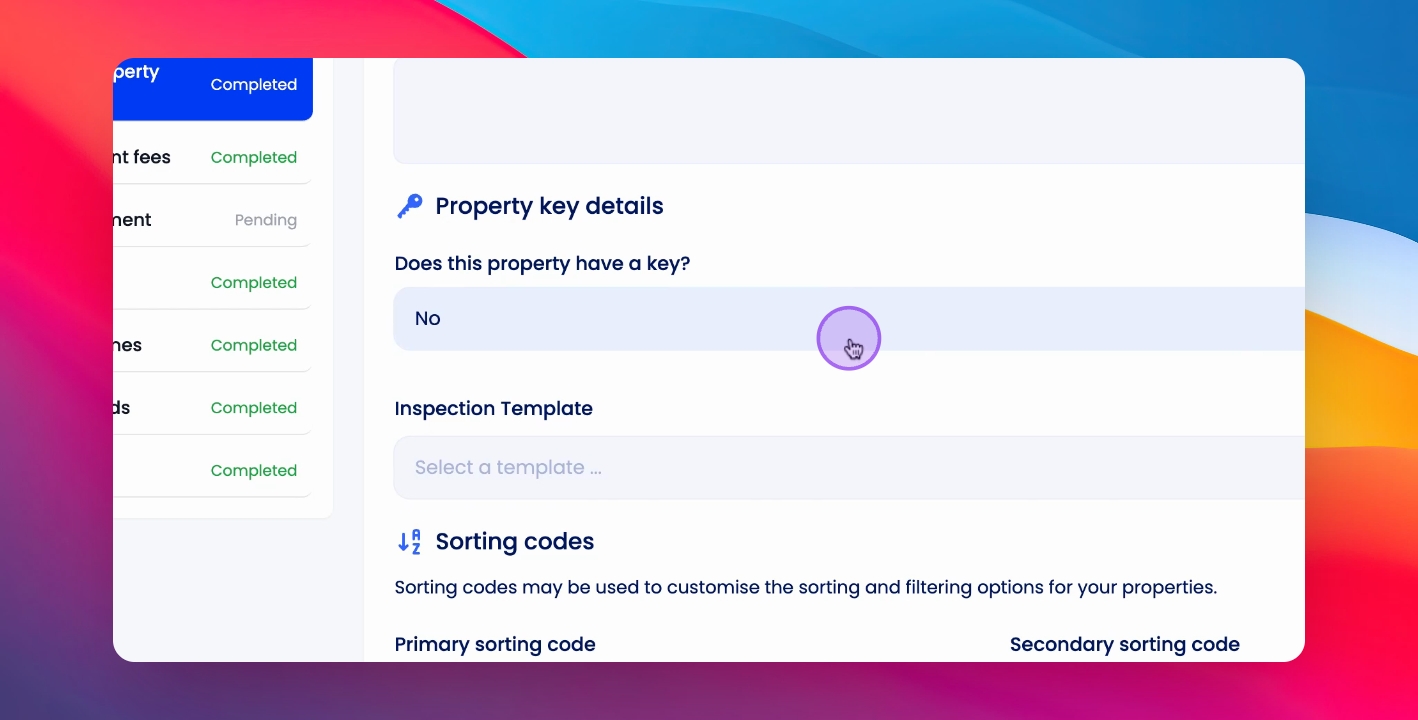
Step 3: Access Key Details
Under General Property Details, scroll down to Property Key Details.
Step 4: Confirm Property Key
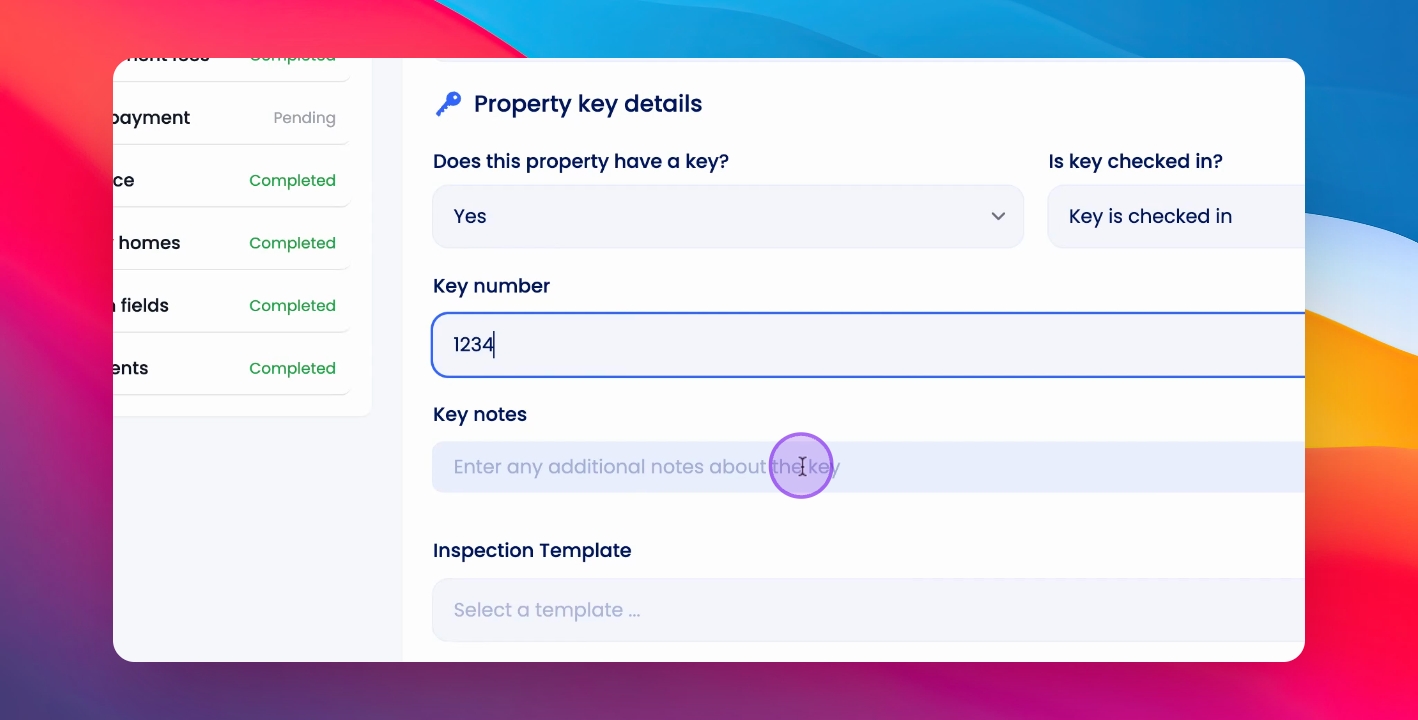
Select yes, this property does have a key.
Step 5: Key Status
Specify whether the key is checked in or checked out.
Step 6: Enter Key Number
Enter the key number.
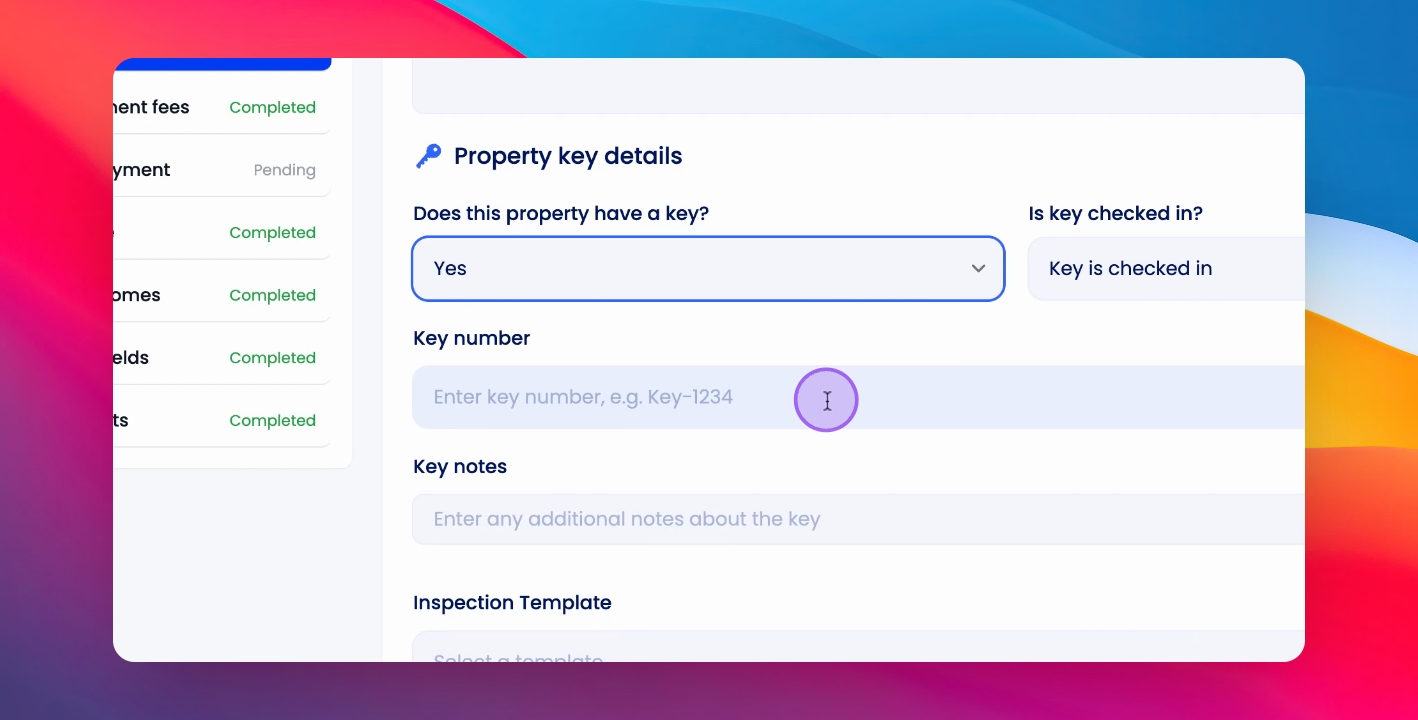
Step 7: Add Key Notes
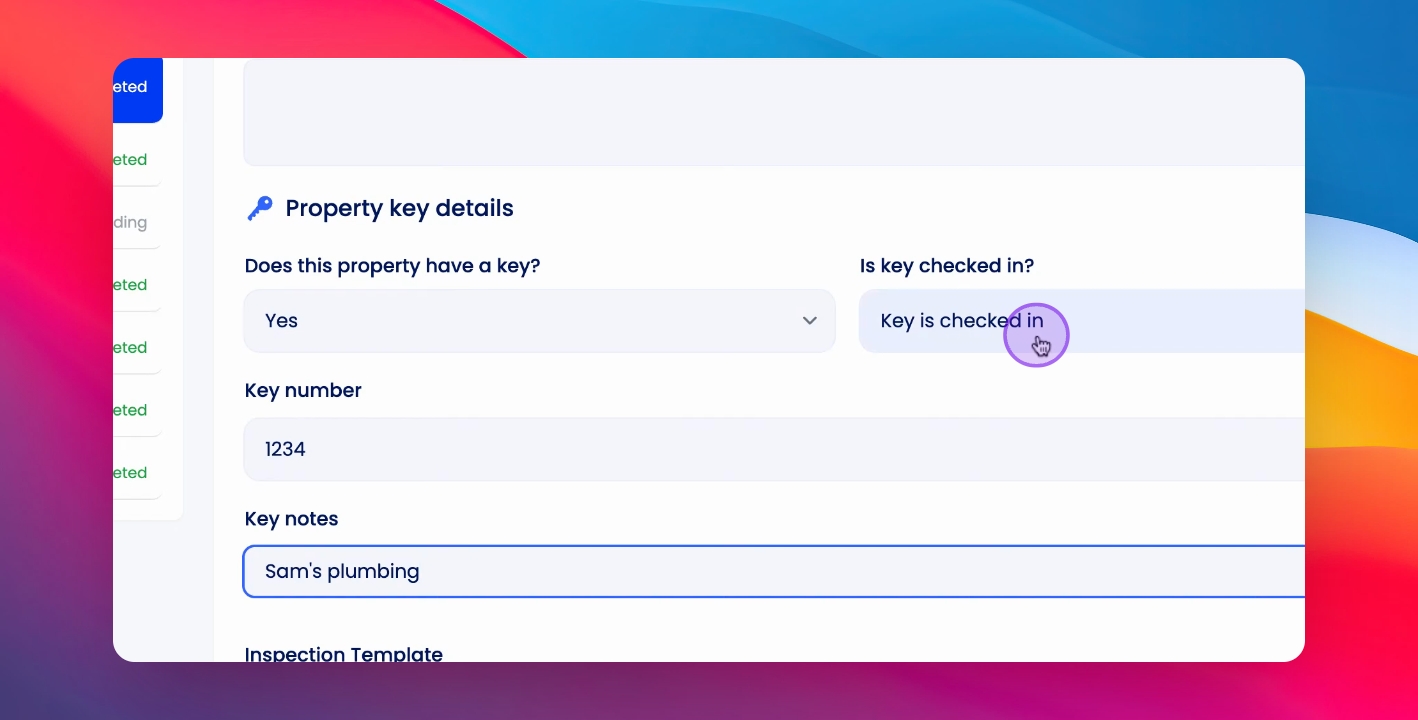
Add any notes regarding the key.
Step 8: Specify Key Holder
This is where you can specify who has checked the key in or out.
Step 9: Save Changes
Click Save to update the key information.
This will create a record in the property timeline and update the key fields on all relevant key tables.