TL;DR
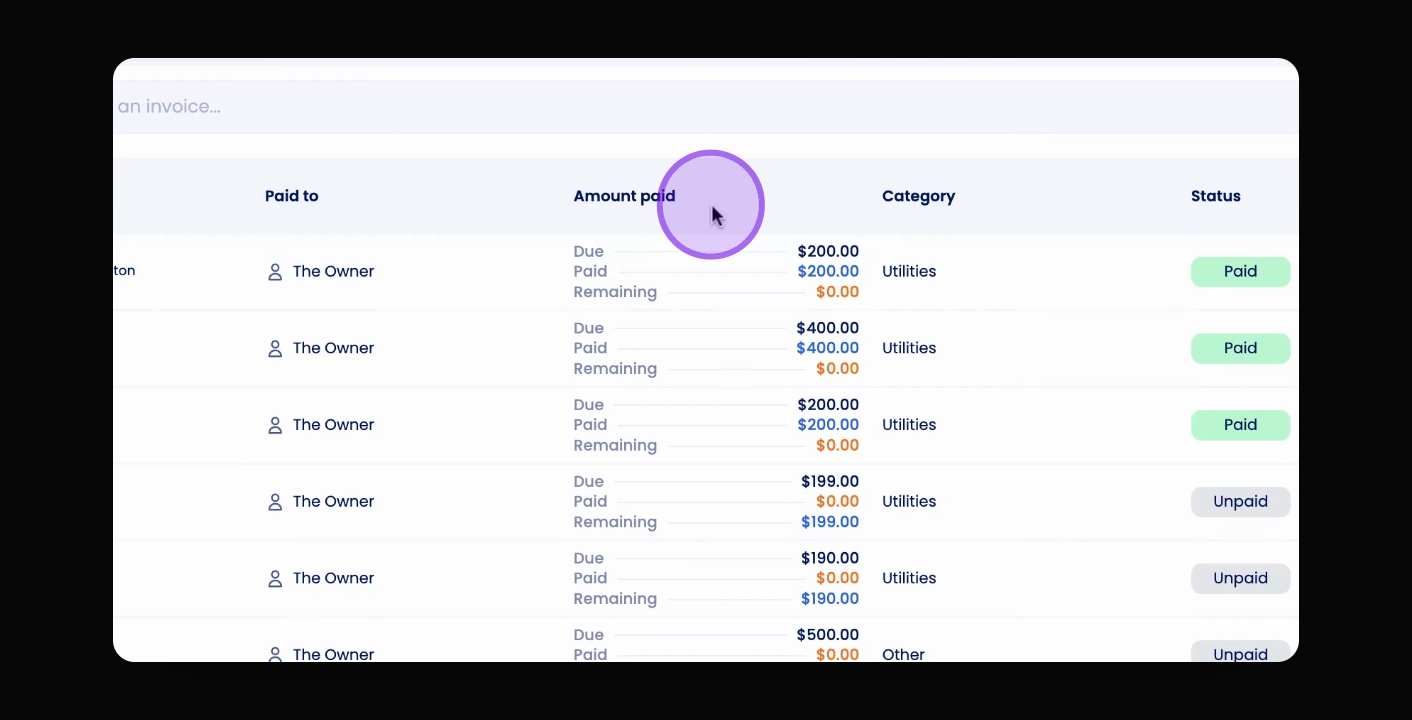
You can search by tenant names, addresses, or invoice amounts.
Let's Do It Together!
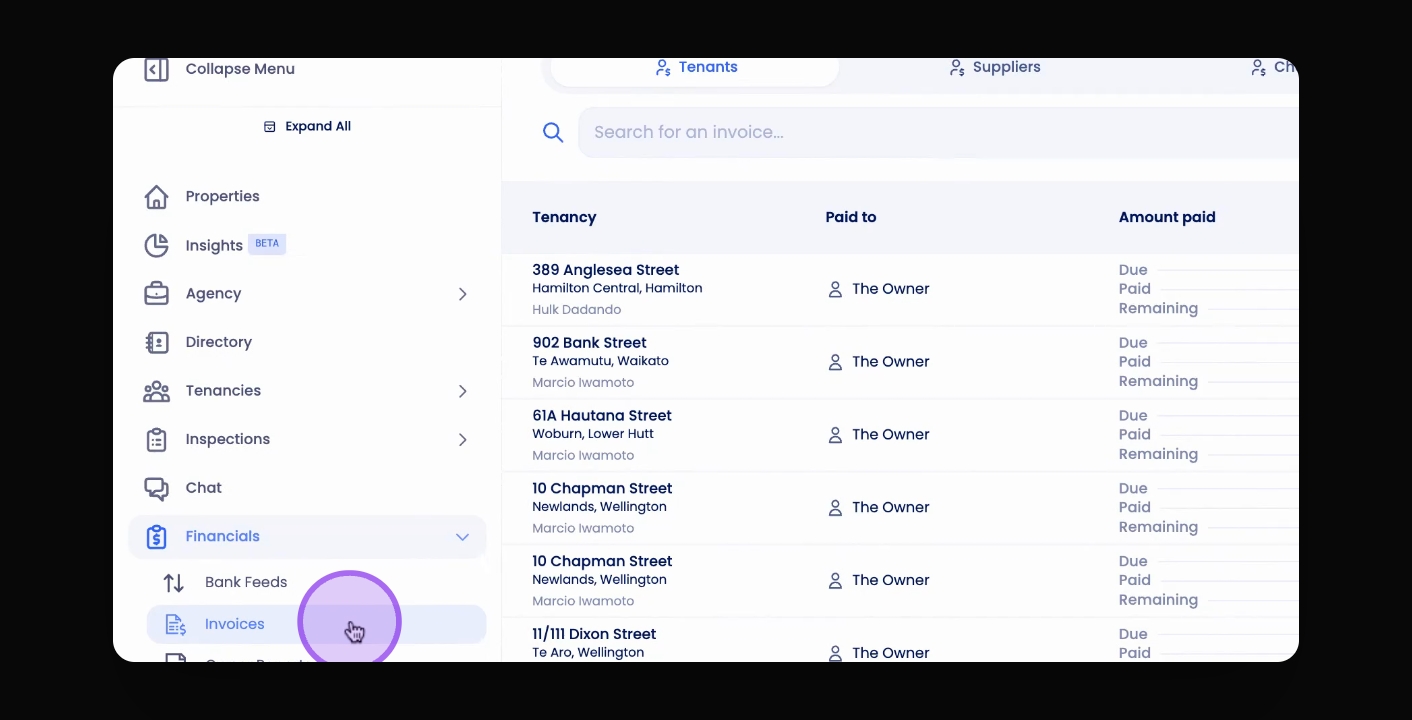
Step 1: Access Invoices
Click the Invoice button on the navigation bar.
Ensure the Tenants tab is selected.
Step 2: Filter Invoices
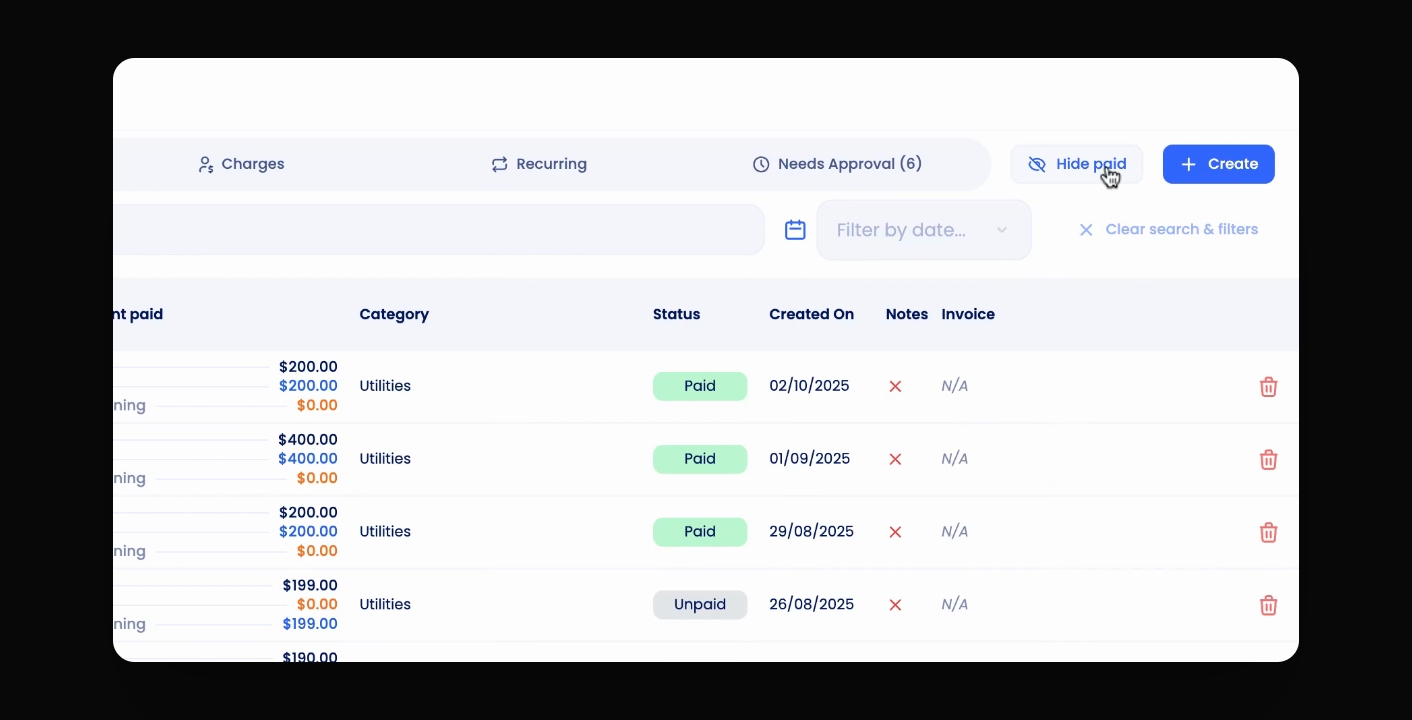
Click the button to hide all paid invoices, showing only outstanding invoices.
Click the button again to show all invoices.
Step 3: Search Invoices
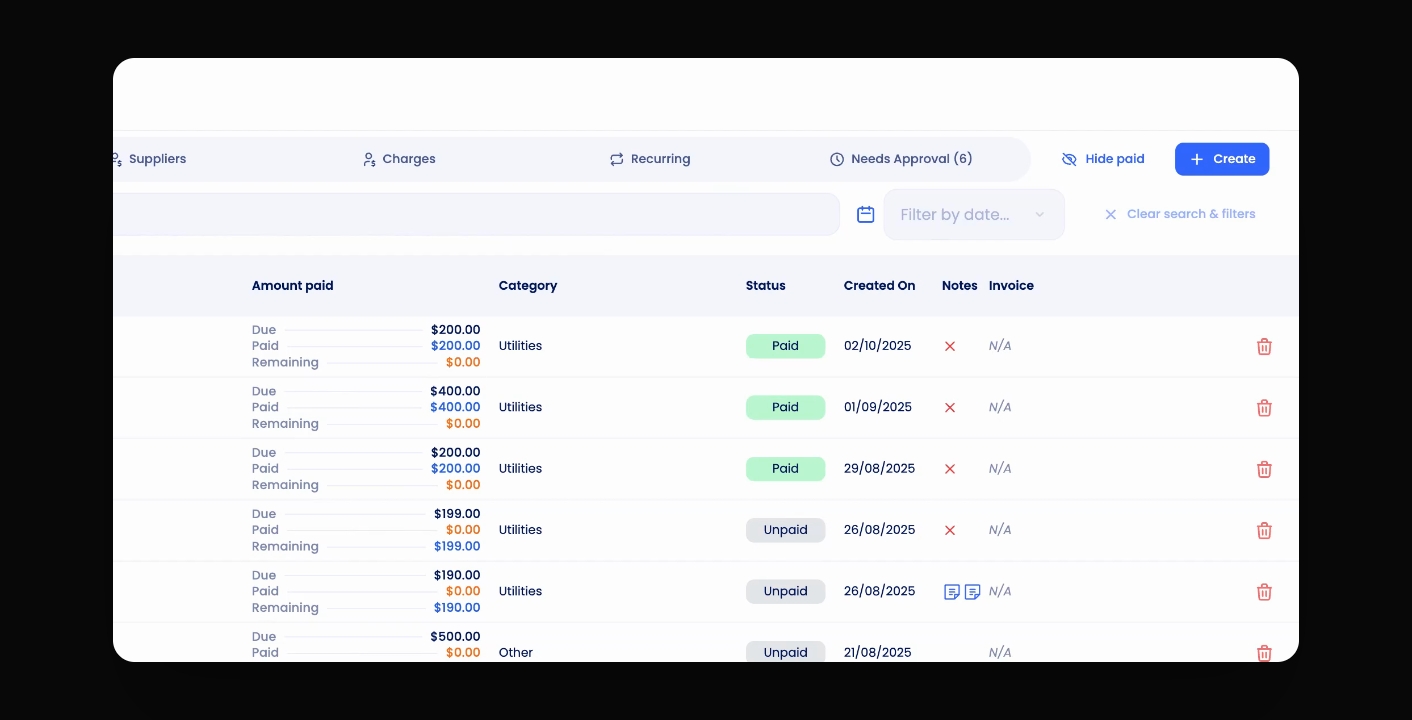
Use the search bar at the top of the page to find tenant names, property addresses, or invoice amounts.
Next to the search bar, use the date filter if needed.
Click Clear in search to reset searches and show all invoices.
Step 4: Review Invoice Notes
Look for the Notes icon next to any invoices with notes.
Hover over the icon to view the attached notes.
Step 5: Understand Invoice Status
Check the status of invoices, which can be either Paid or Unpaid.
Paid means the full amount has been settled by the tenant.
Unpaid indicates some or all amounts remain unpaid.
A tenant can partially pay an invoice, but the status will still show as unpaid. Check the Amount Paid column to see any partial payments.