

TL;DR
1
Navigate to Inspections
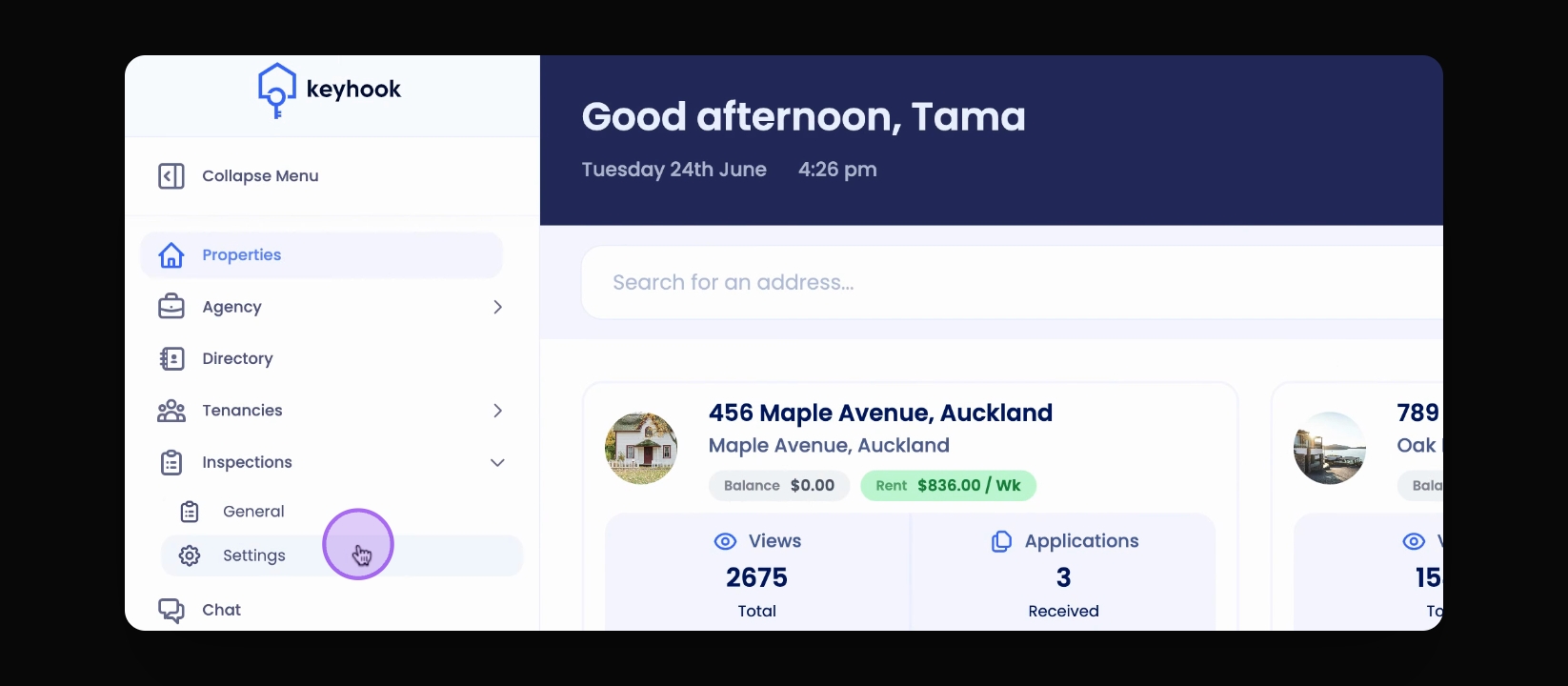
Go to Inspections in Keyhook and click Settings.
2
Add Quick Note
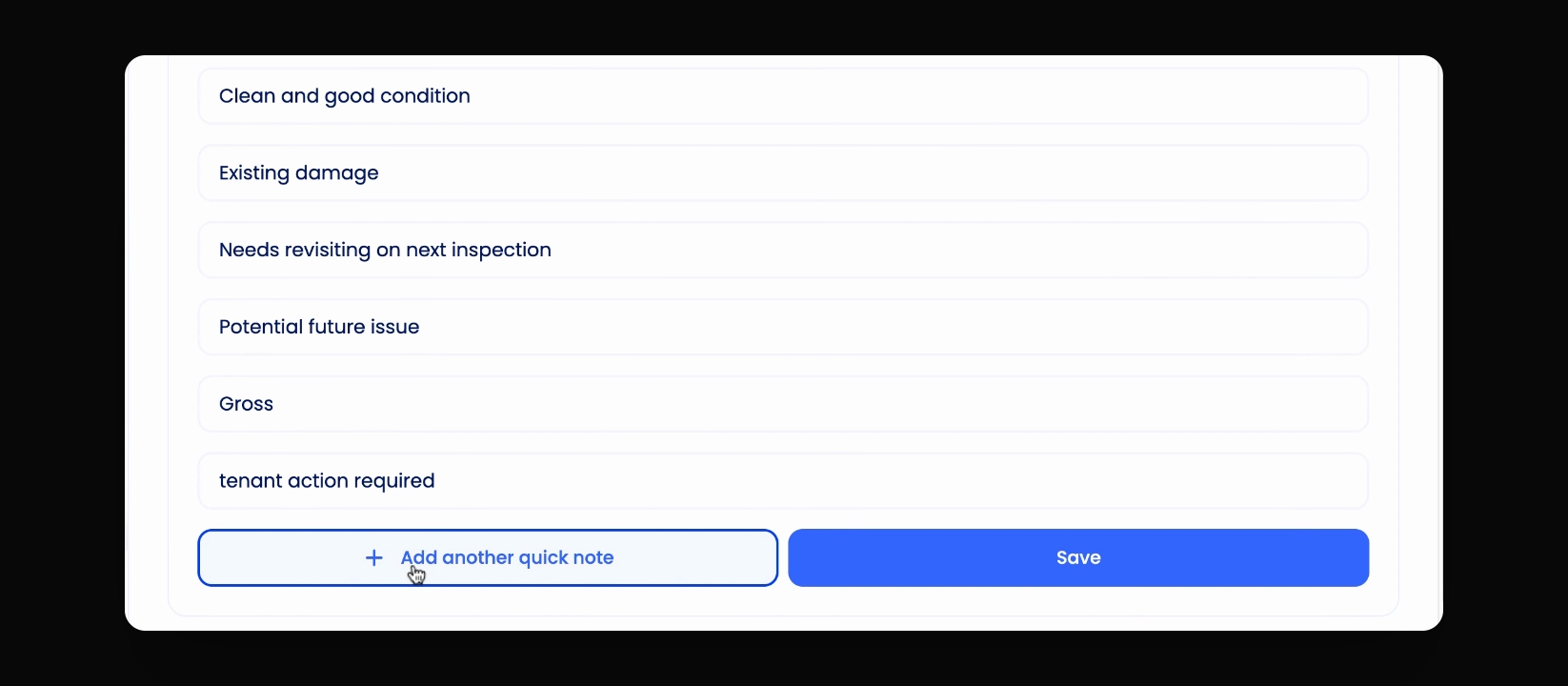
Click the button to add a new Quick Note and save it.
3
Utilize Quick Notes
Use Quick Notes during inspections or for reports.
Let's Do It Together!
Step 1: Access Inspections Settings
In Keyhook, navigate to Inspections from the left-hand menu.
Click on Settings.
Step 2: Add a Quick Note
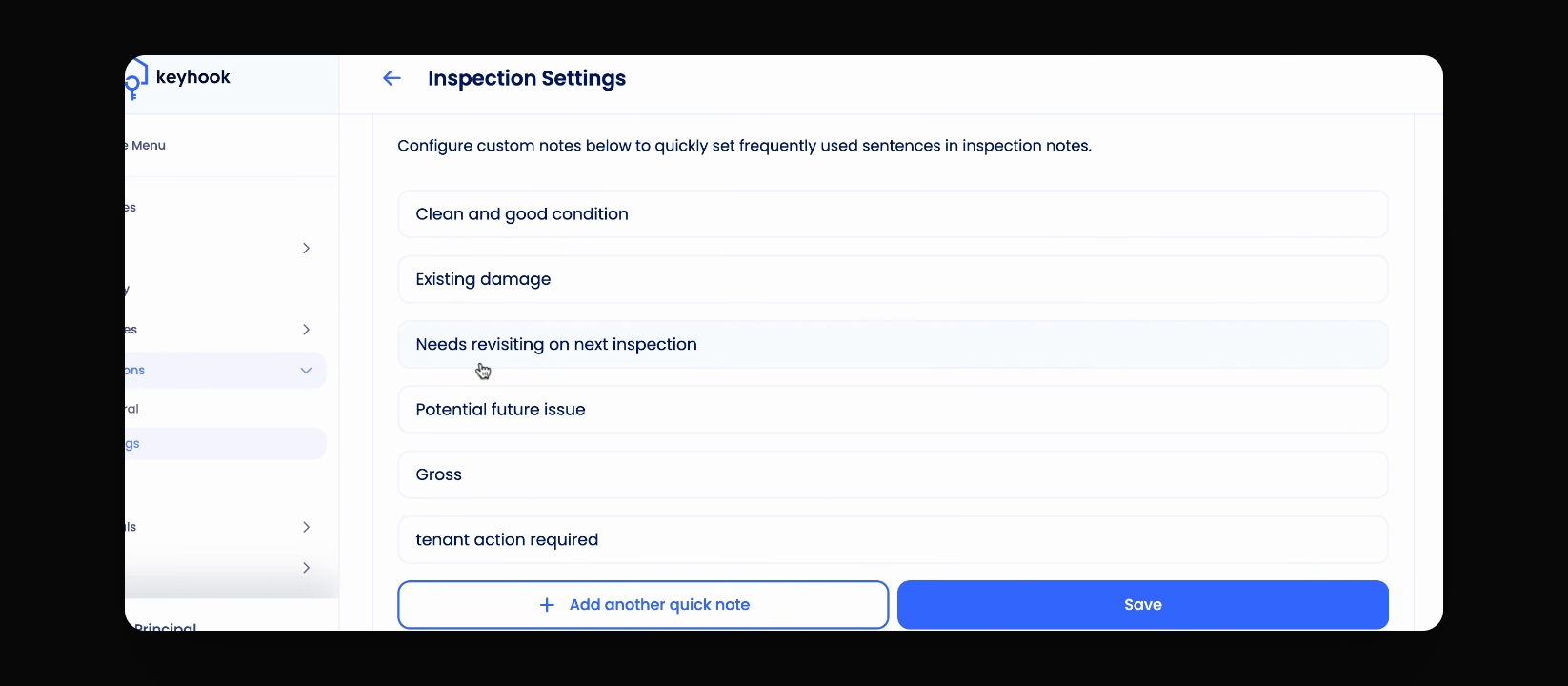
Observe the existing Quick Notes displayed.
Click the button to add a new Quick Note.
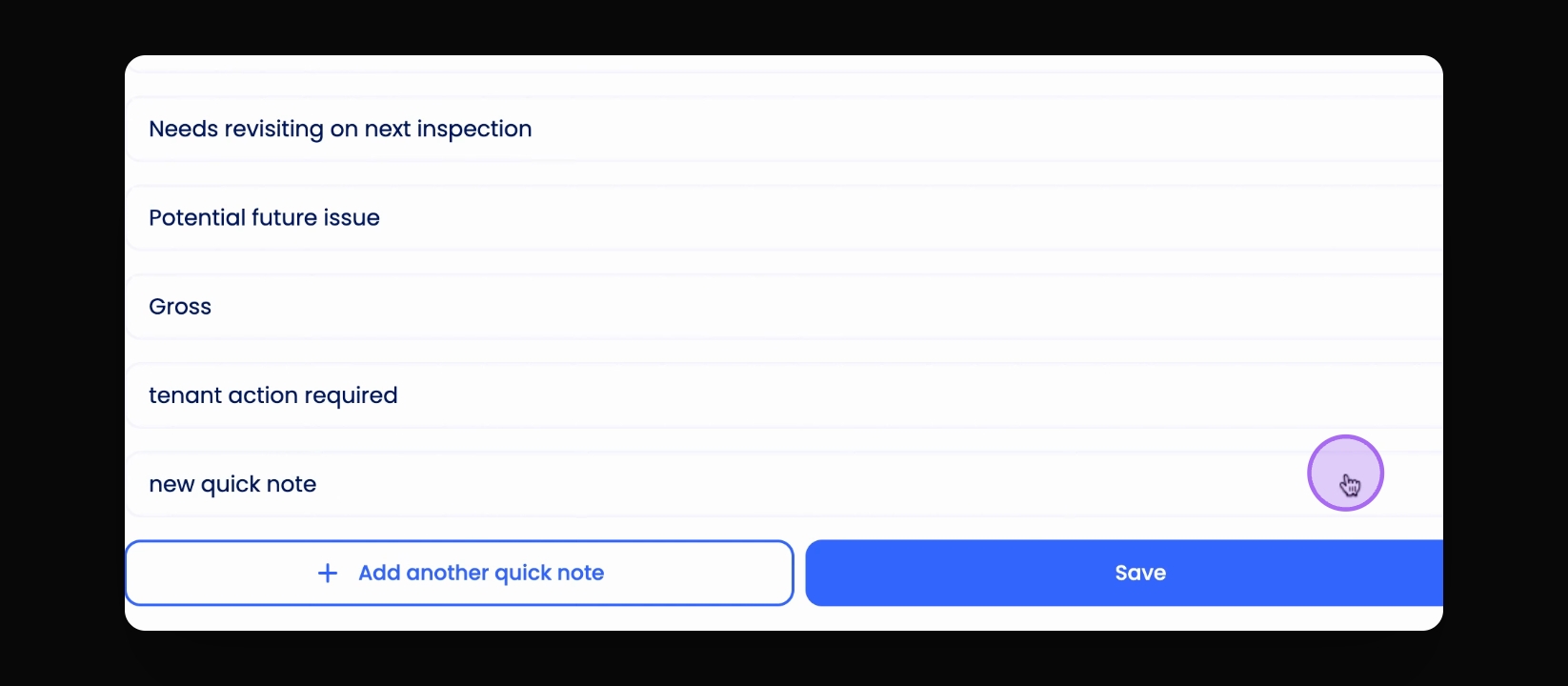
Once you're ready, click the blue tick and press Save.
Step 3: Use Quick Notes
You can use Quick Notes during an inspection.
Alternatively, add them to the inspection report afterward.