

TL;DR
Make sure to select and verfiy the appropriate tenancy
Then Select Tenancy Extensions
This will be under the Extension section
Verify the details
This is essential to confirm the details and send it to tenants approval
Once the tenants signs the document. The tenancy will be extended
Let's do it together!
Step 1: Navigate to Actions
Begin by going to your property, then click on Actions followed by selecting Tenancy Extensions.
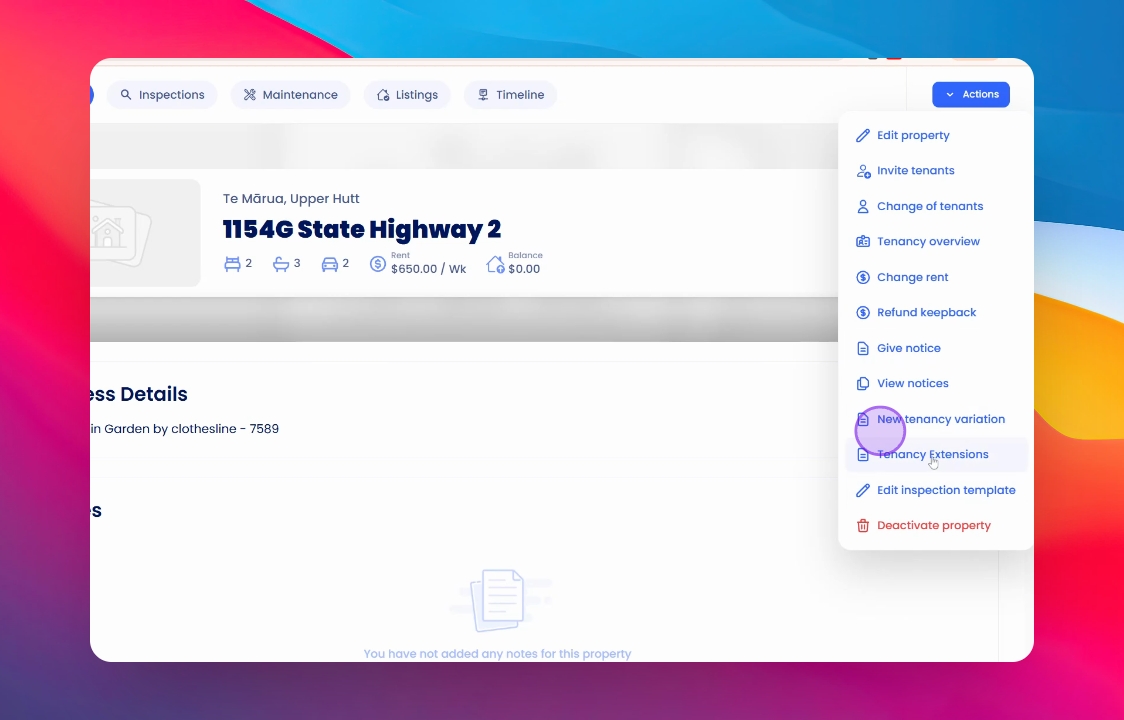
Step 2: Review Previous Extensions
Here, you will find any previous extensions listed for your reference.
Step 3: Select New Extension Date
Next, select the new date for the extension. Ensure you scroll down to review the details and type in the new date appropriately.
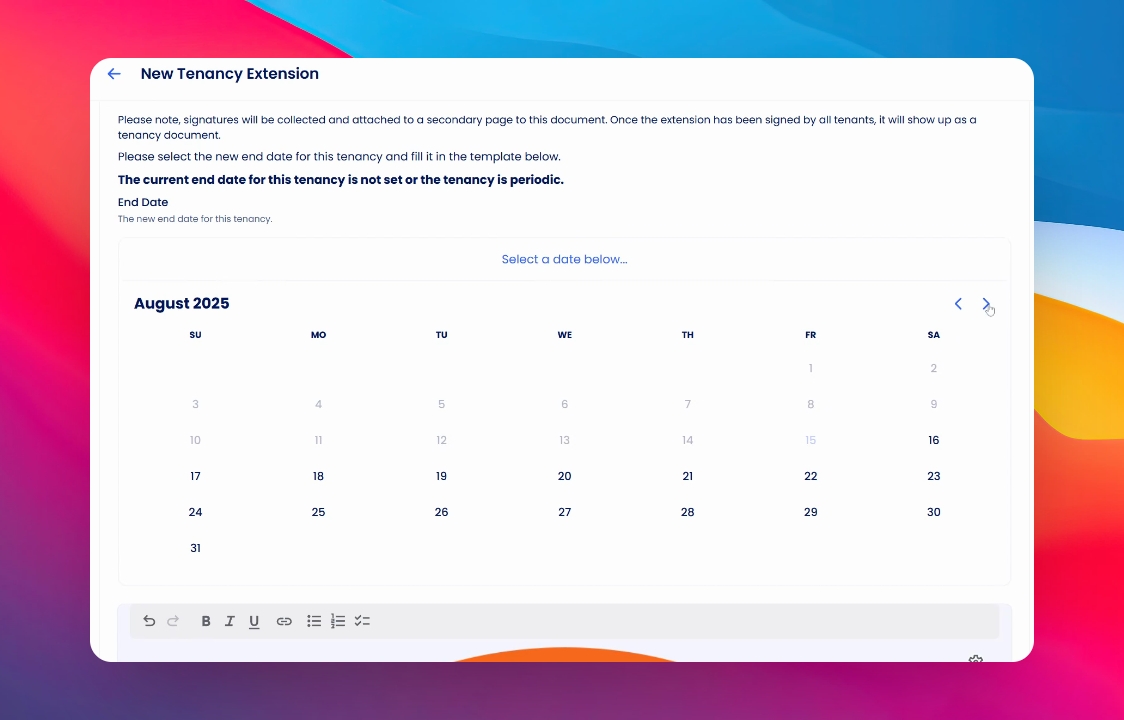
Update the email body as well
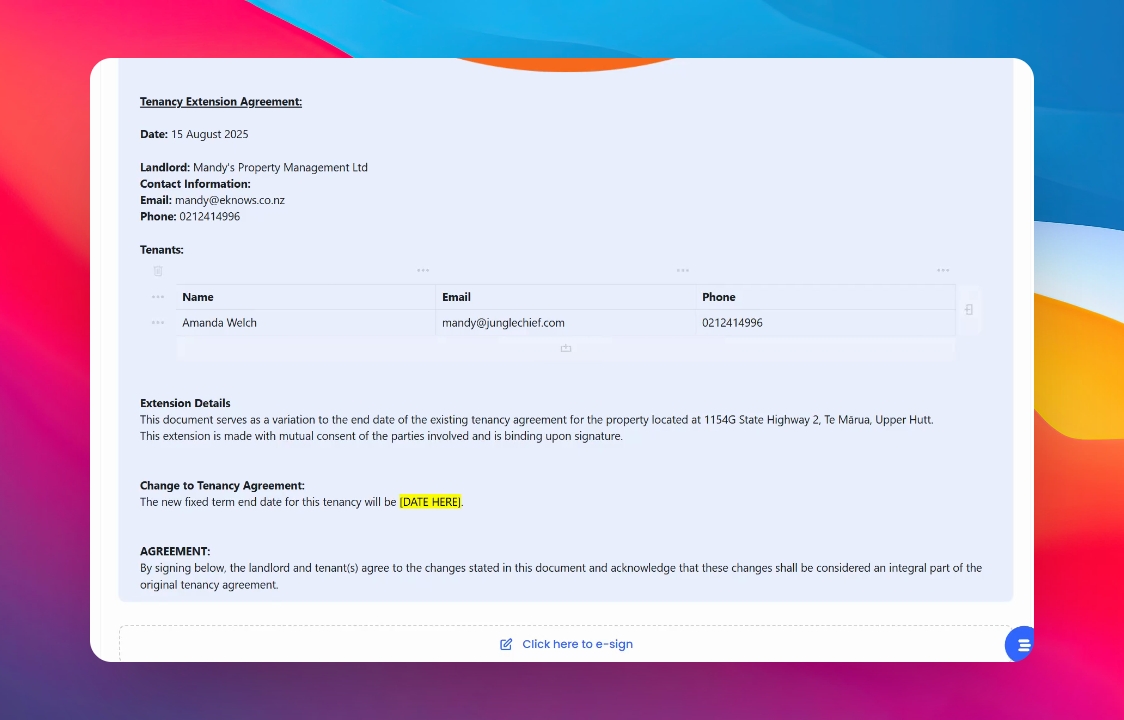
Step 4: E-Sign and Save
Click into E Sign and save your changes. This action will automatically notify the tenant through the tenancy portal.
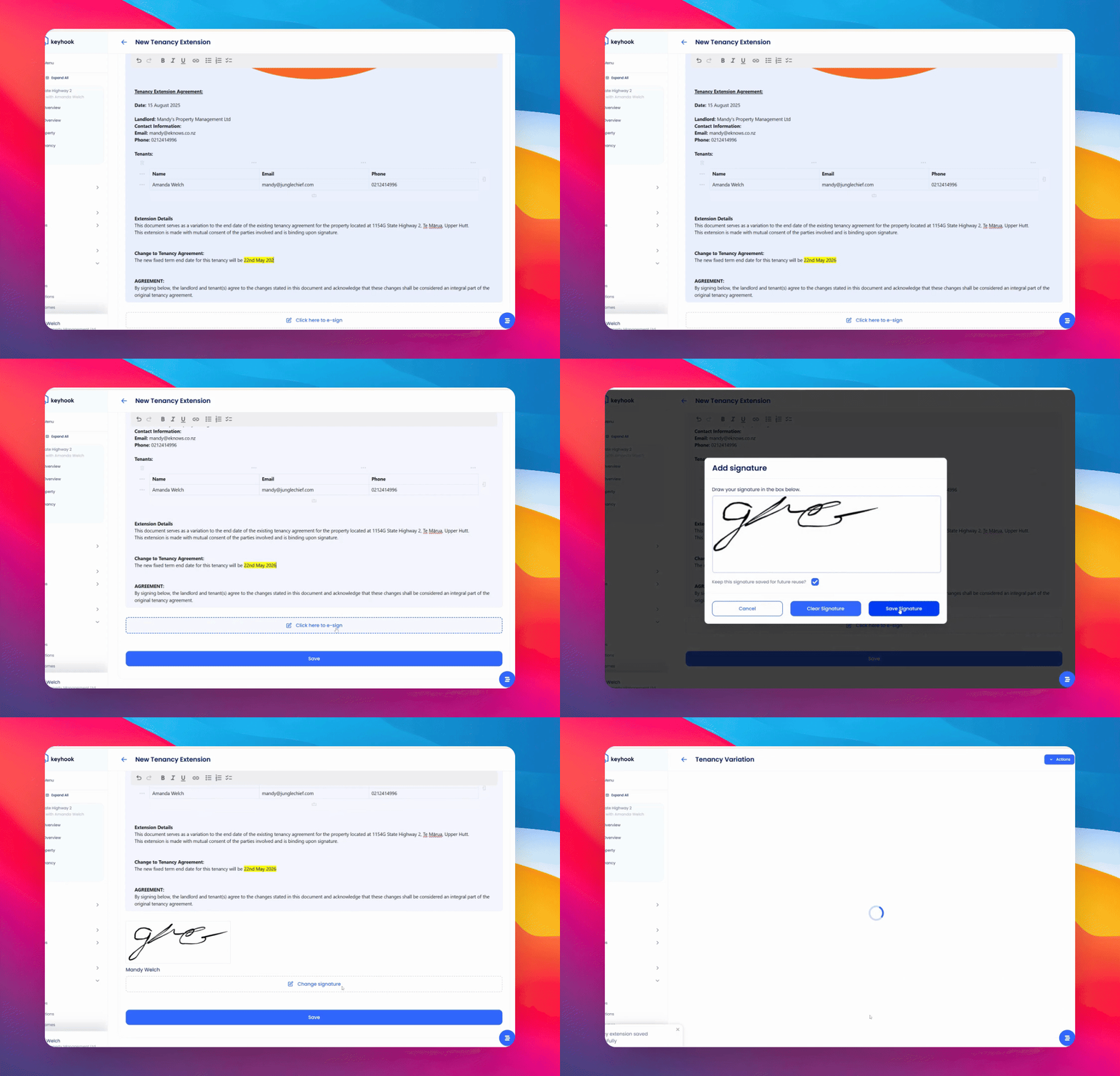
Step 5: Await Tenant's Response
Once the tenant has read and signed the agreement, you will receive a notification confirming the completion of the process.
If you need more help or have any questions, just reach out to us at support@keyhook.com — we're always here to help!