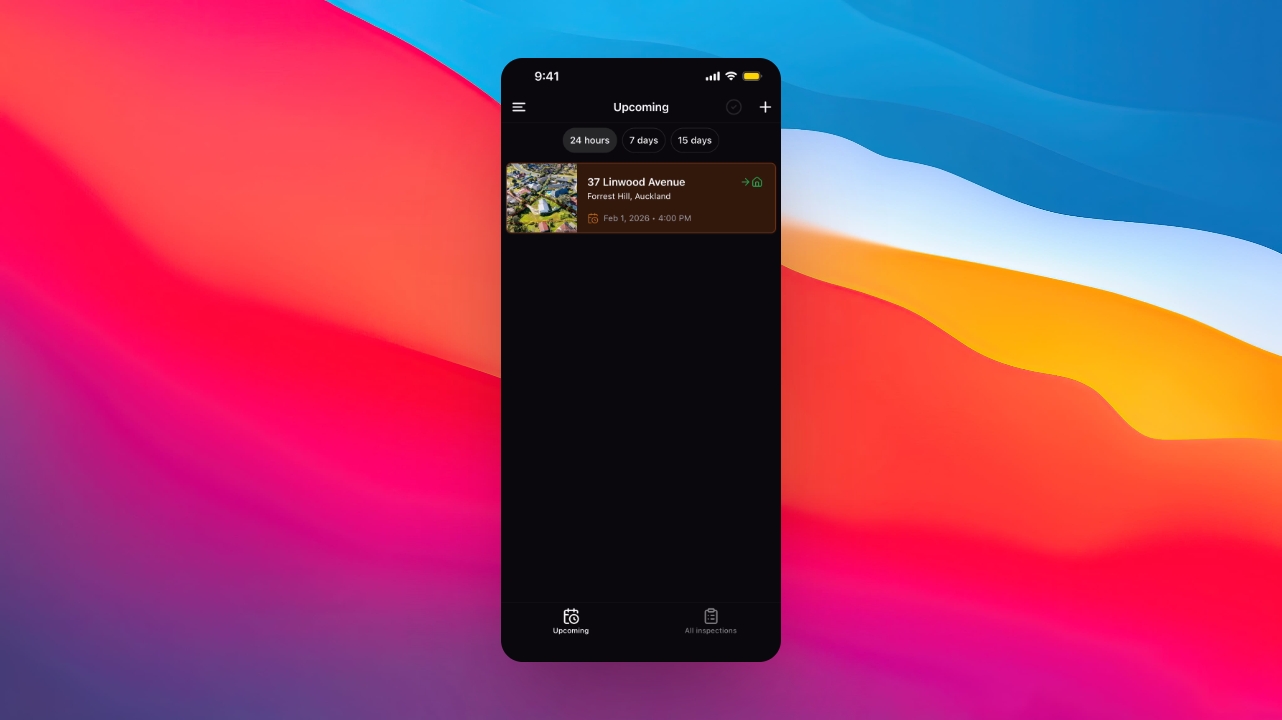
Let's do it together!
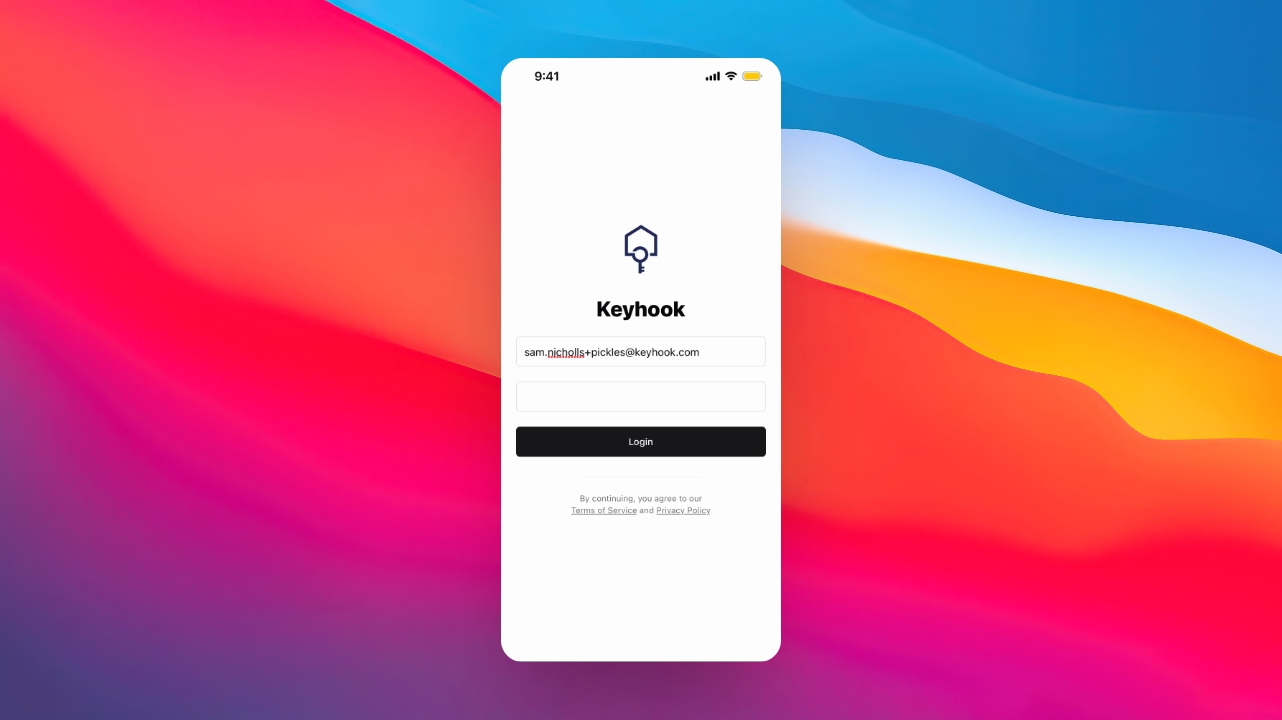
Step 1: Log In
Enter your login credentials and click Login to access the app.
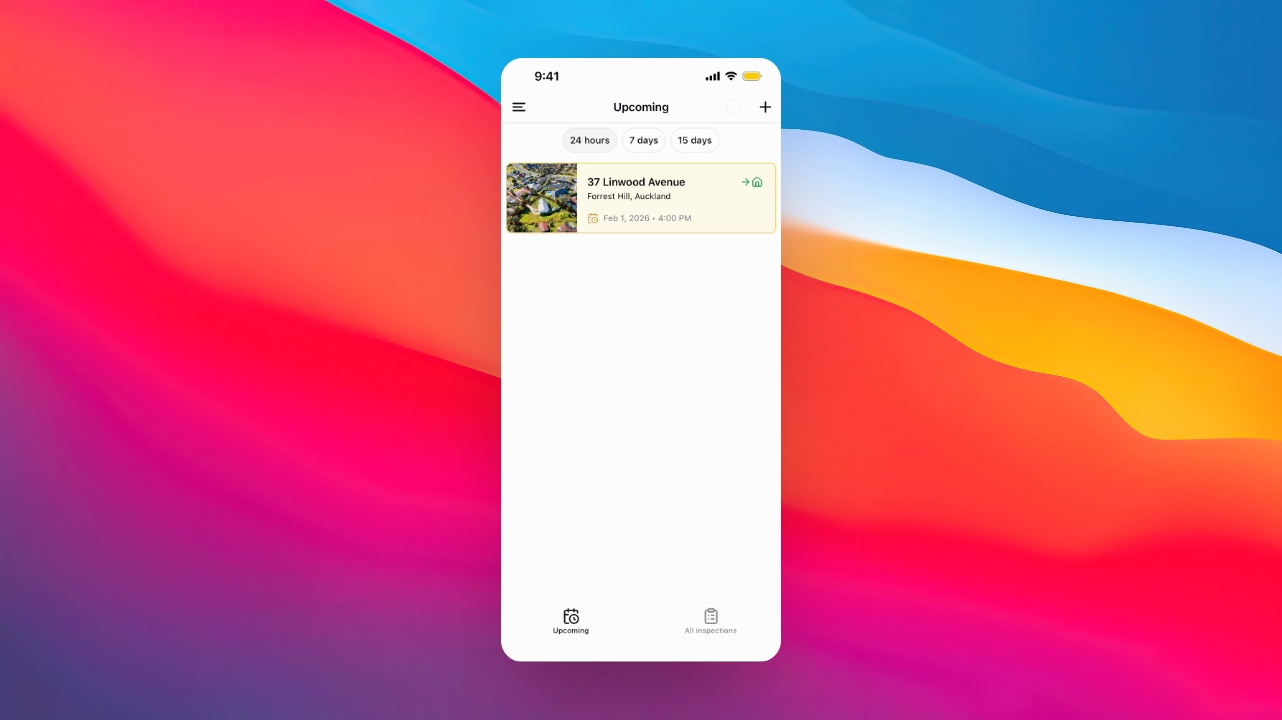
Step 2: Access Settings
Click the menu icon at the top left corner to open the app menu.
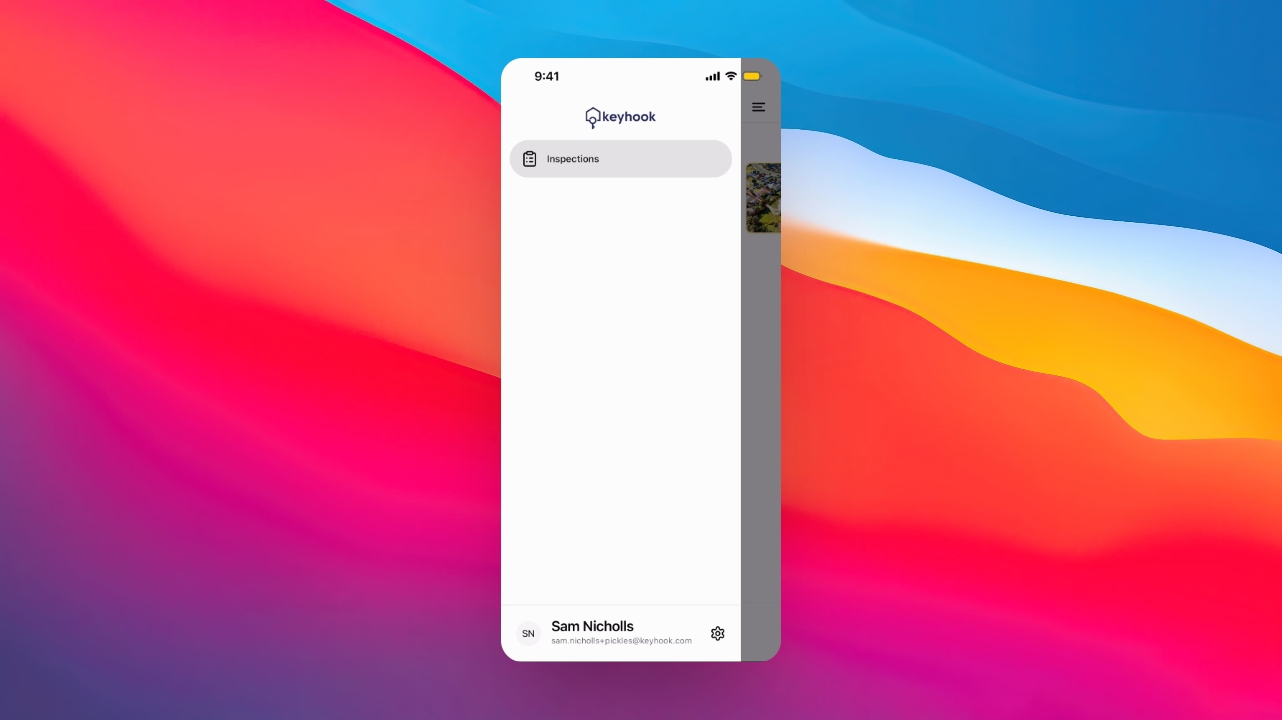
Step 3: Open Profile Settings
Scroll down and select Profile Settings from the menu.
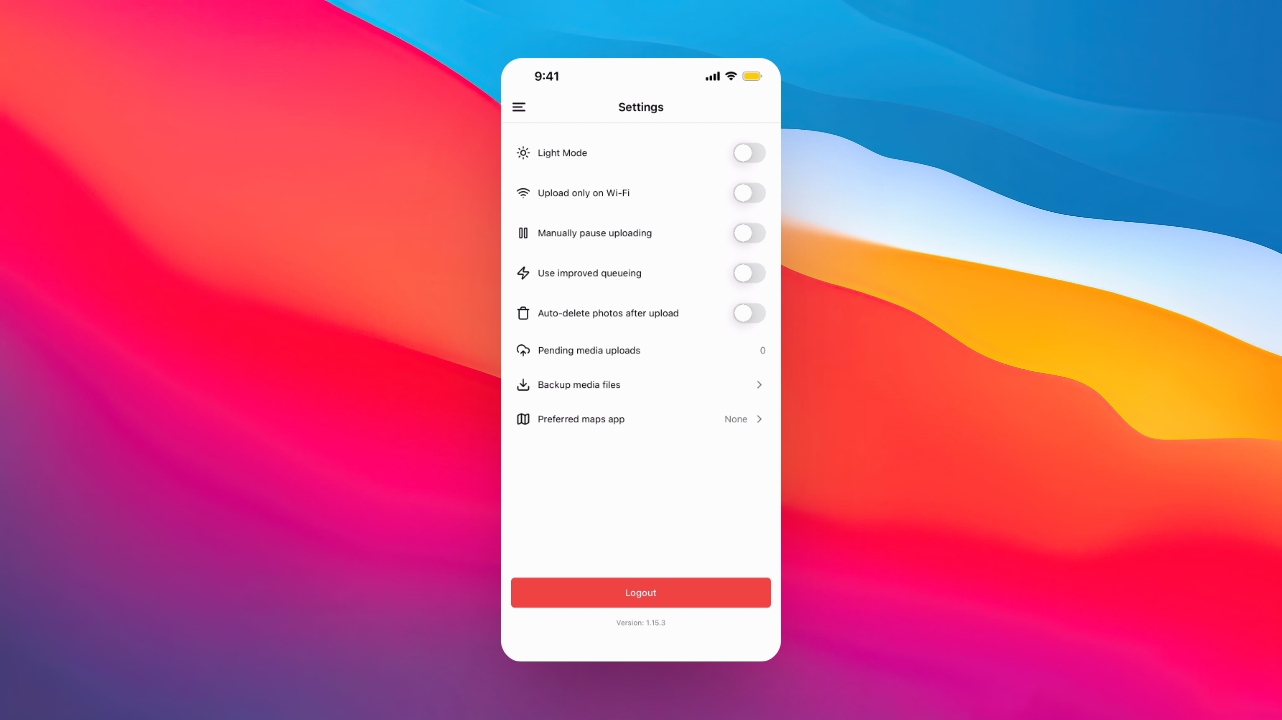
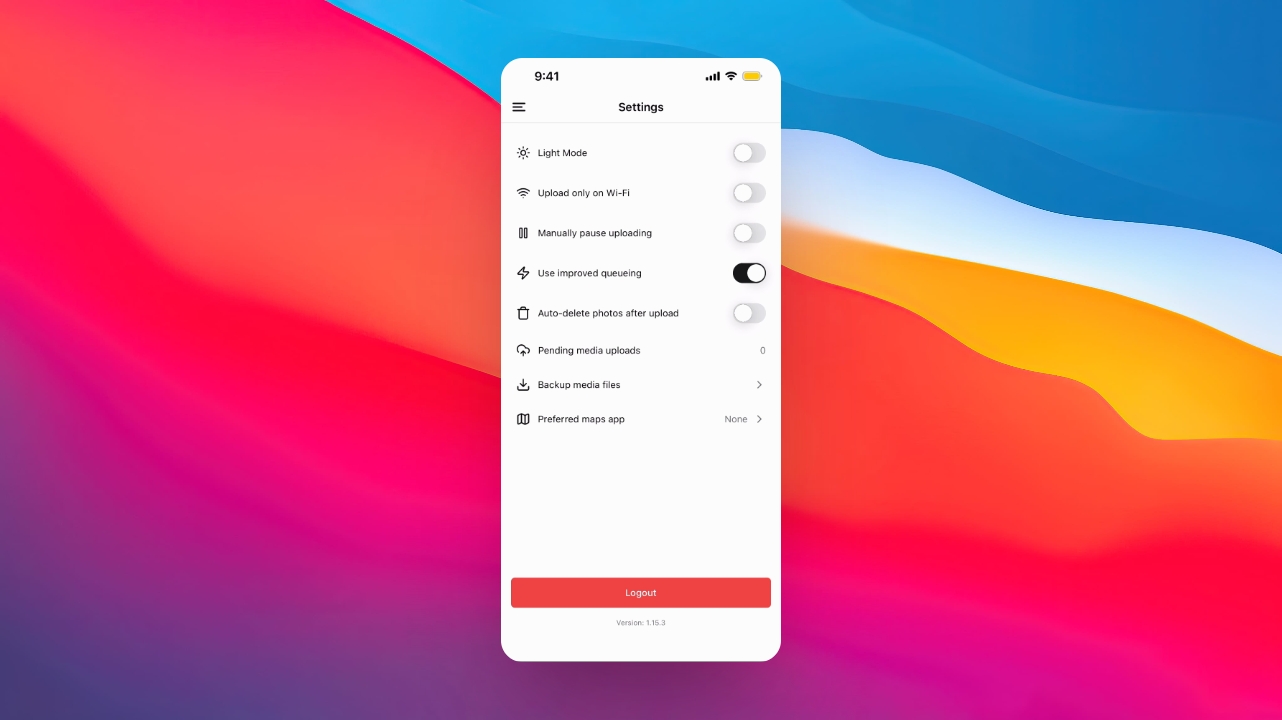
Step 4: Enable Queuing
Locate and enable the Use Improved Queuing option to enhance your inspection experience.
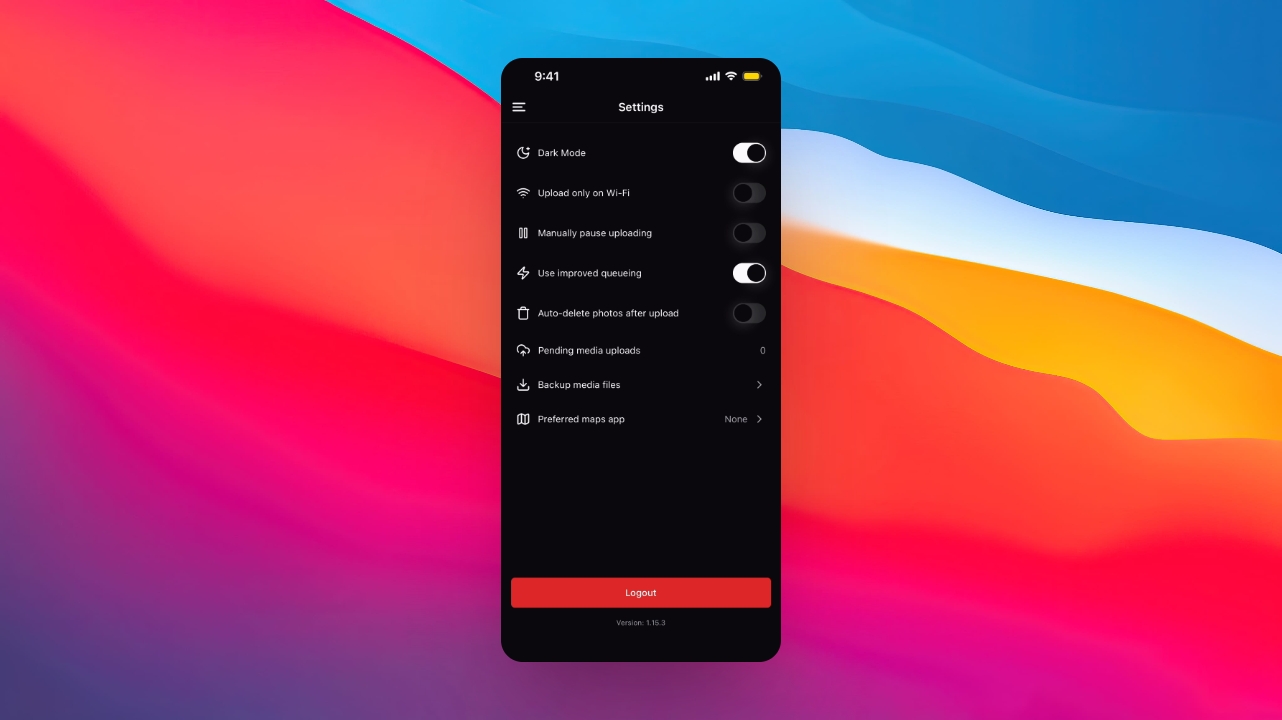
Step 5: Customize App
Adjust your preferences, such as enabling Dark Mode and selecting a map provider.
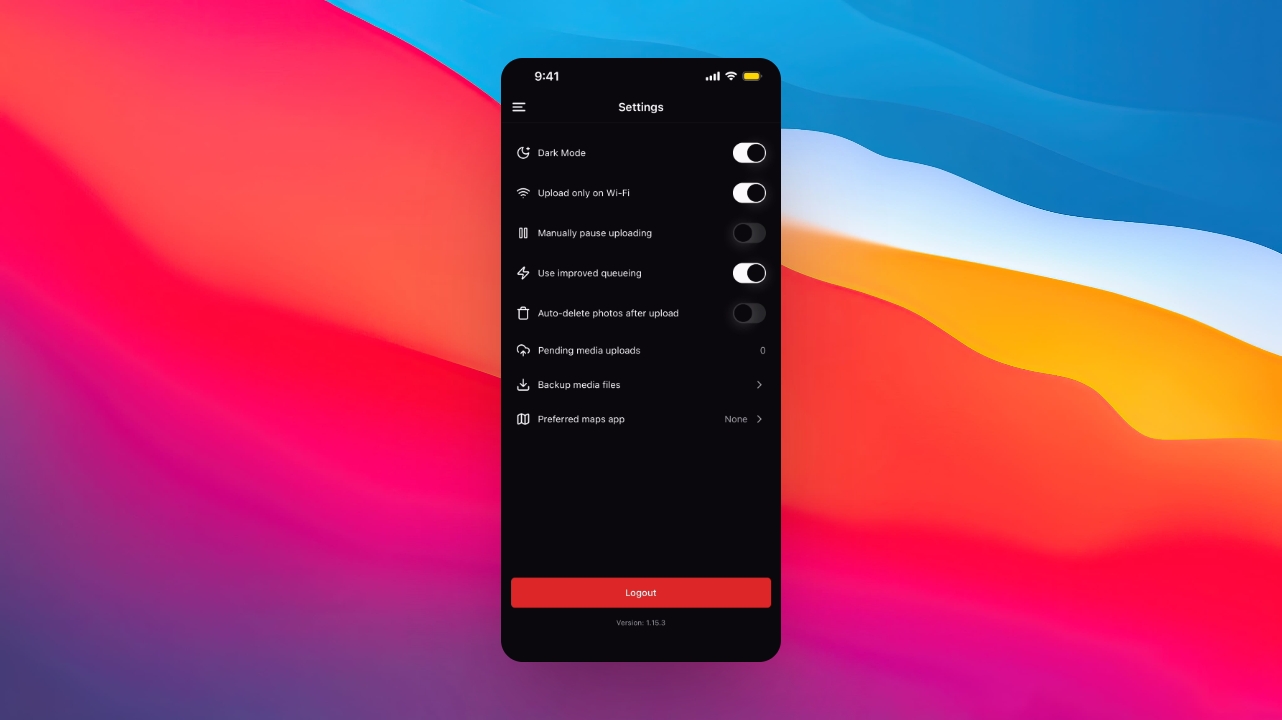
Step 6: Manage Media Uploads
Choose options for uploading media, such as Wi-Fi only or Auto Delete after upload.
Step 7: Return to Home Screen
Click the menu icon again and select Inspections to return to the home screen.
Step 8: Ready for Use
Your Keyhook Inspection app is now set up and ready for regular use.