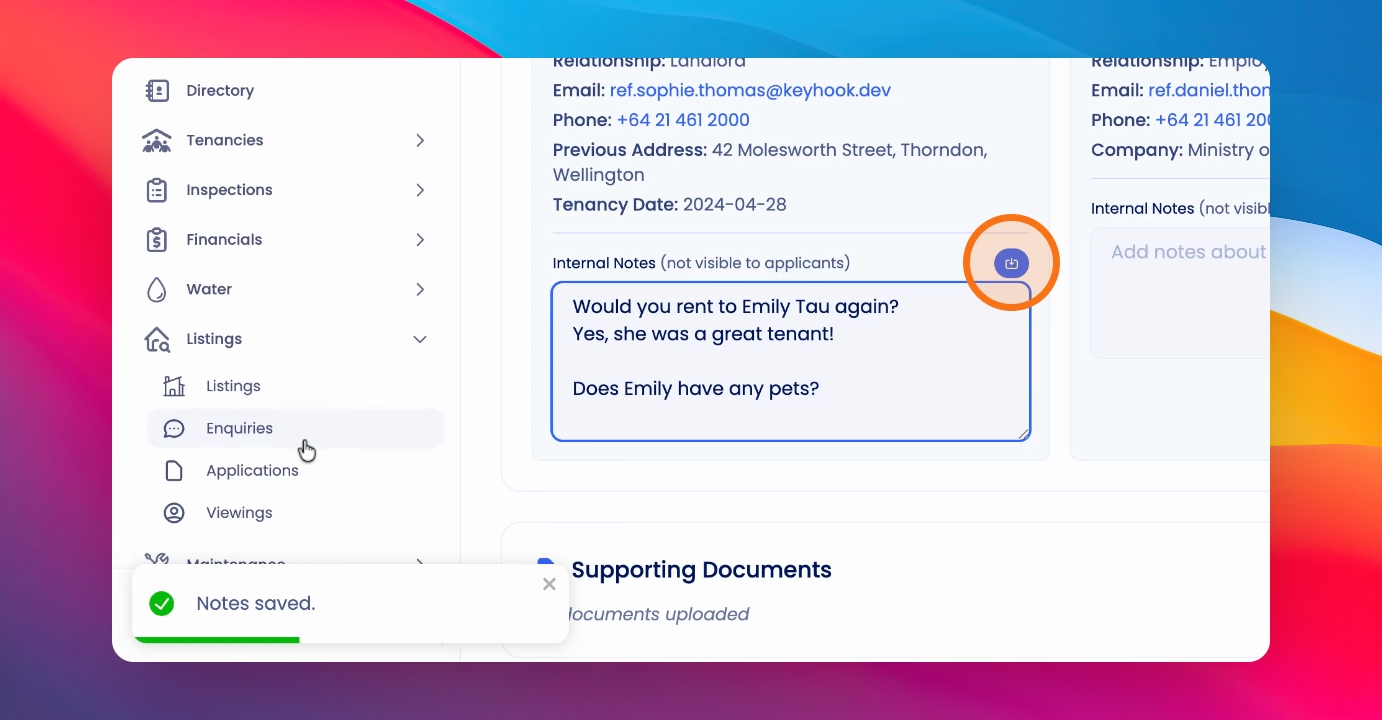
You can customise the questions sent out for email reference checks or those you'd like to appear in your application process. Let's look at the steps:
Step 1: Open Reference Templates
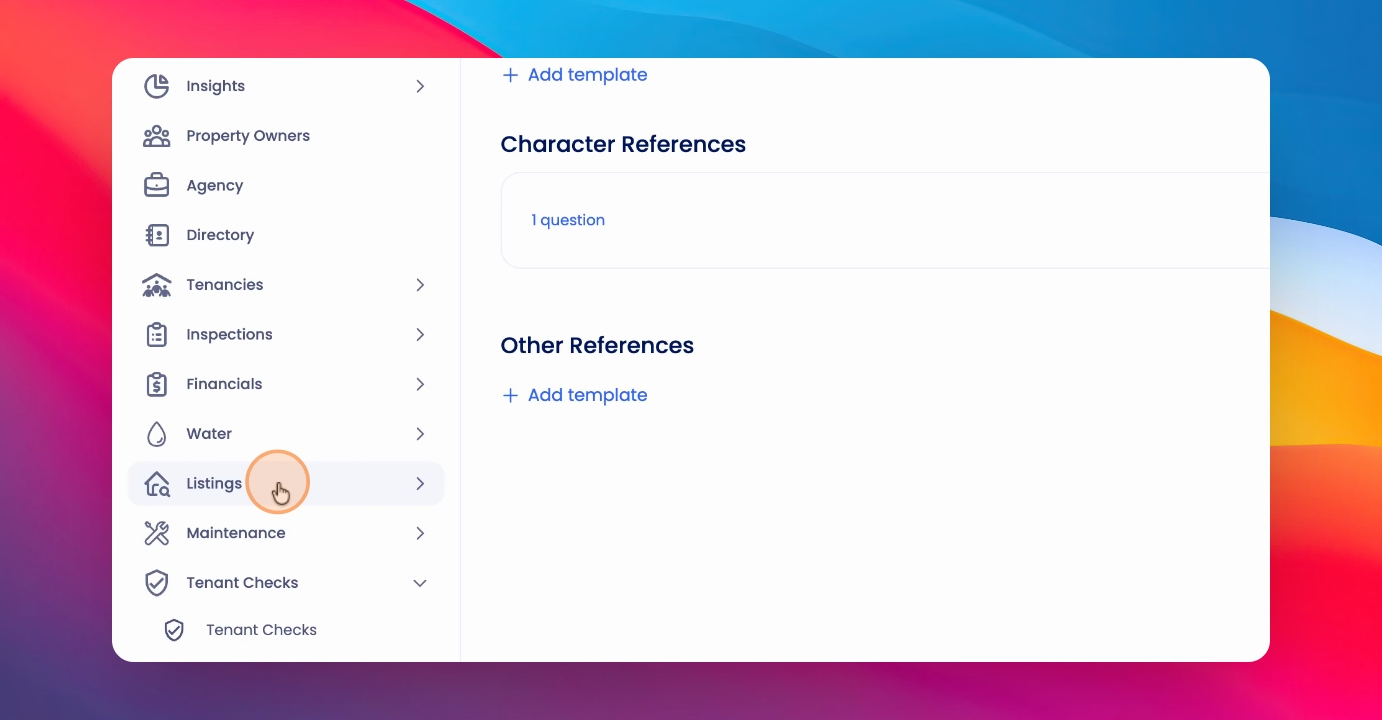
In the Notes section of an application, click on Agency and then select Reference Templates.
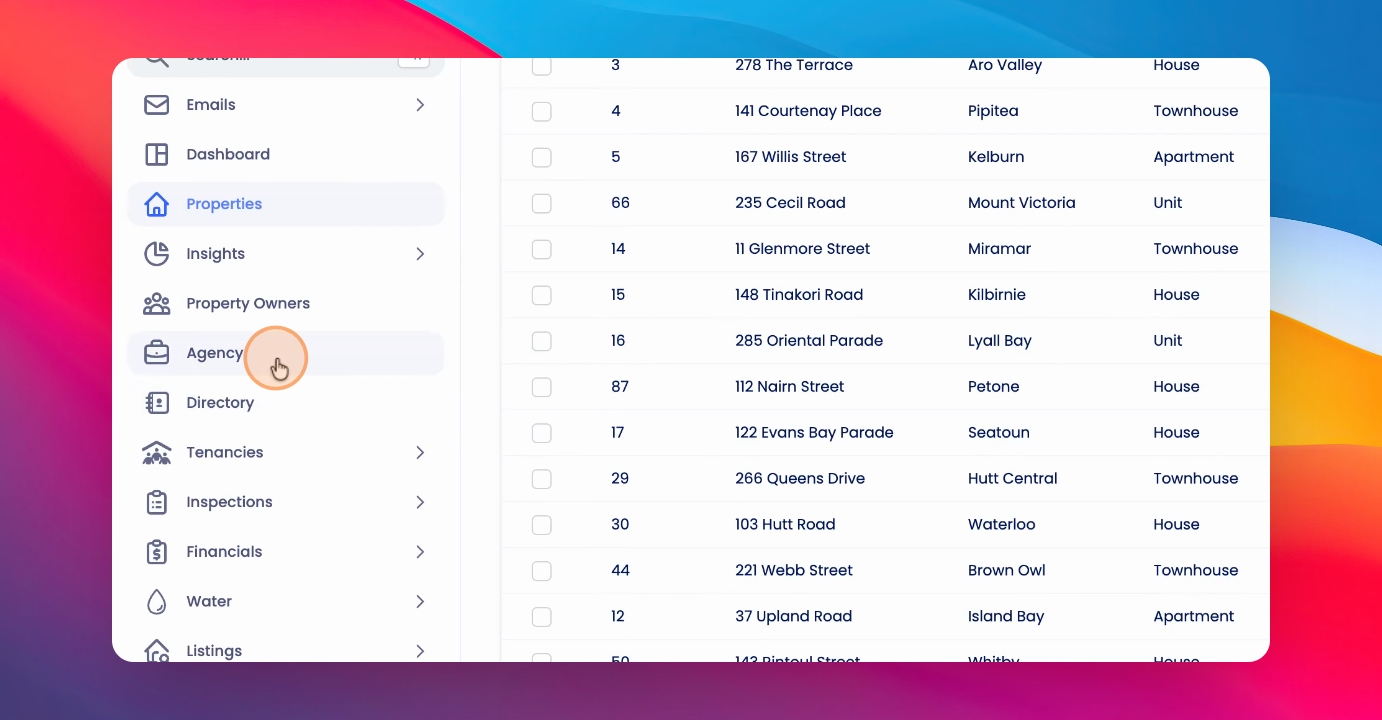
Step 2: Review Reference Templates
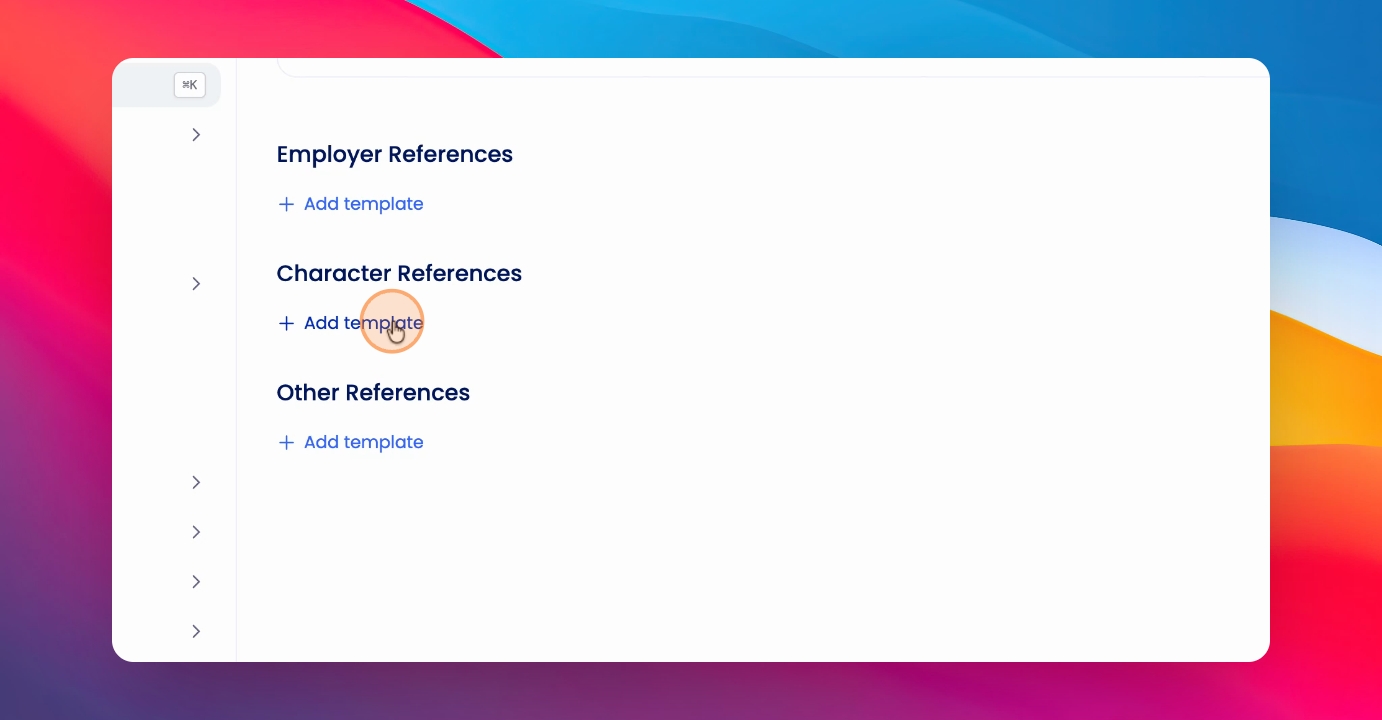
View the reference question templates, which are organised by reference type.
Step 3: Edit Existing Questions
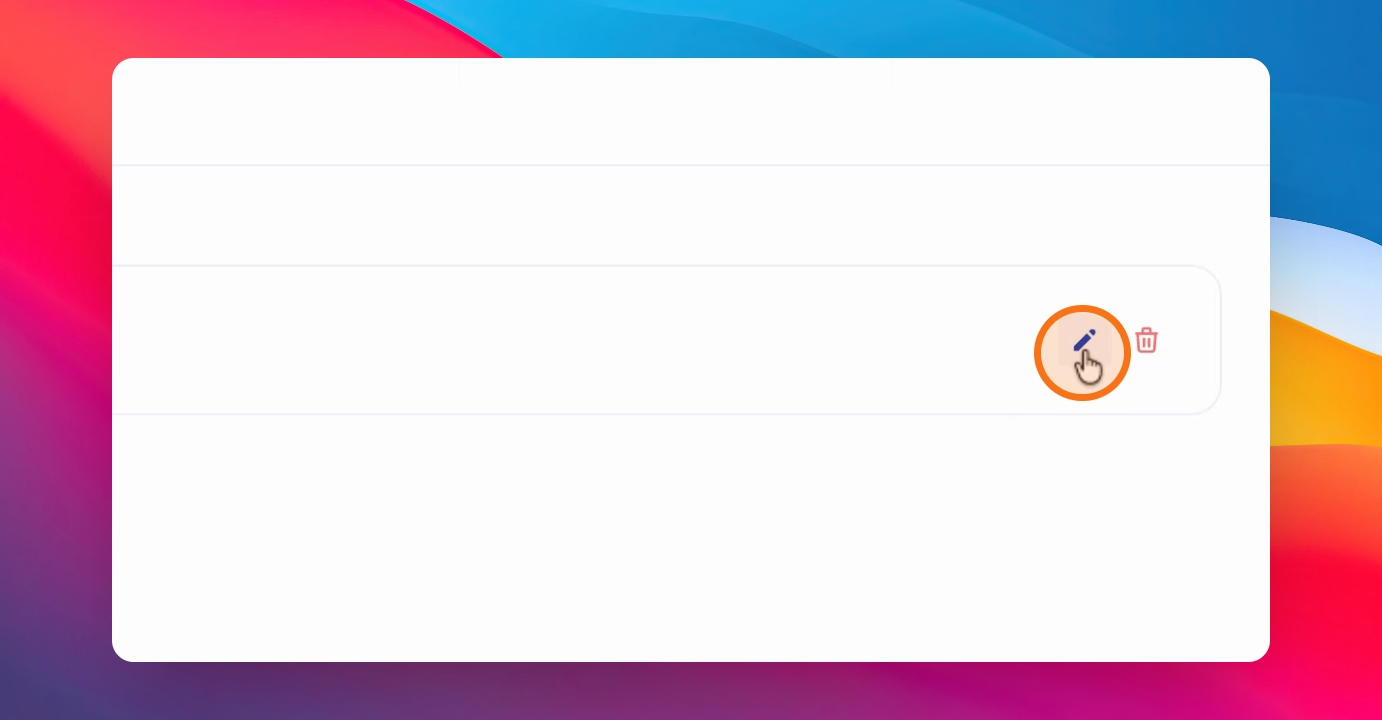
To review or update your current questions, click on the Edit icon. You can then edit or update any of the reference template questions.
Step 4: Add New Question Templates
To add new questions, click on Add Template.
Step 5: Write and Save Questions
Use the merge fields provided to customise your questions. Write your questions, then click Create when you're ready.
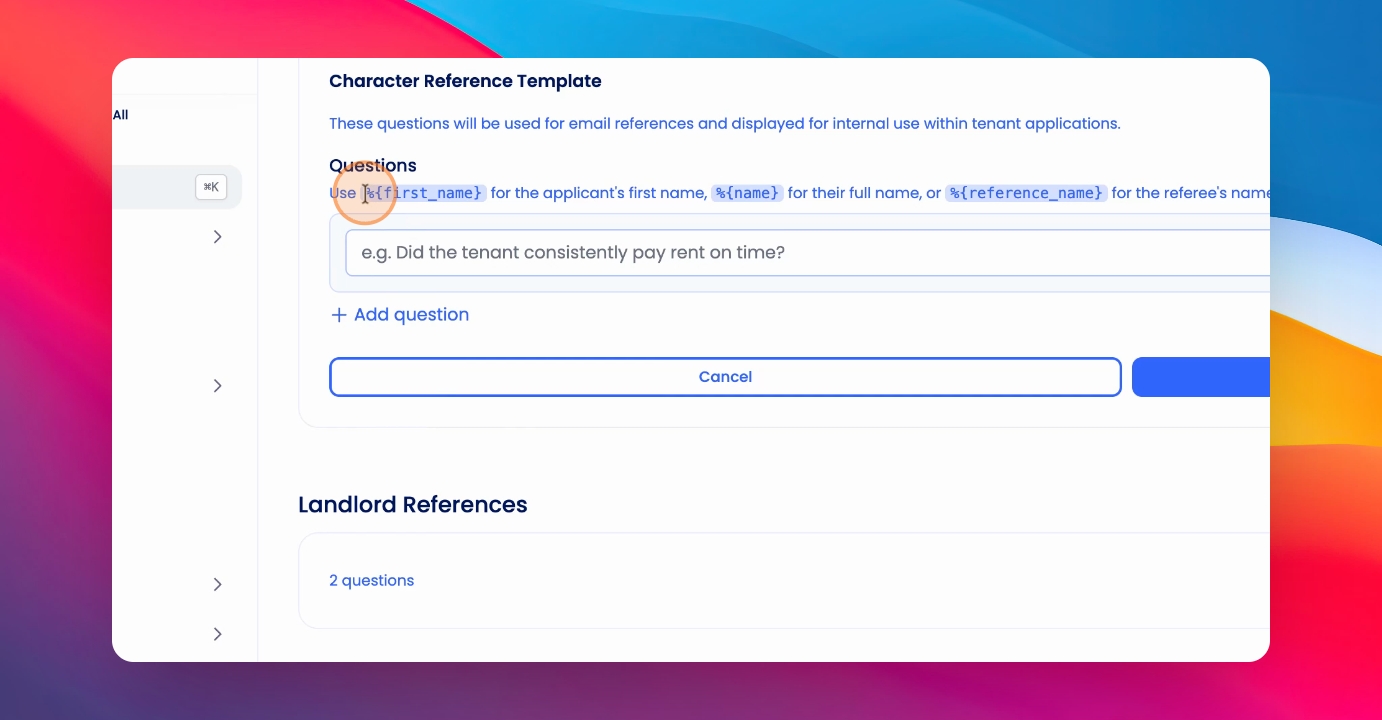
When you perform tenant checks and send out email references, any templates you've created in this section will be used as the email reference questions. If no templates are created, the system will use the Keyhook default questions as you review applications.
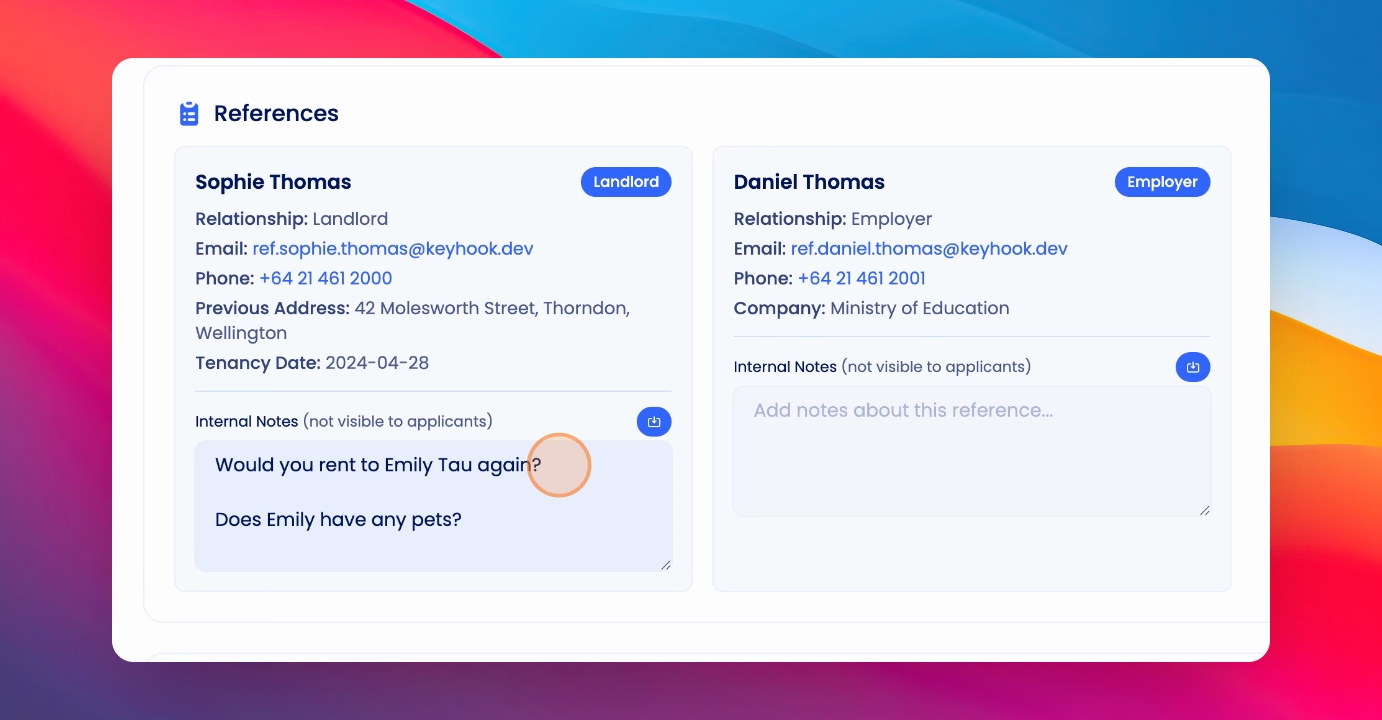
The reference questions will appear in the Notes box below each reference for your use during the process.
Step 6: Record Reference Answers
As you perform the reference check, click into the Notes field and enter your answer there.
Step 7: Save Your Notes
To save your notes, click the Save button or simply leave the page.