

Let's do it together!
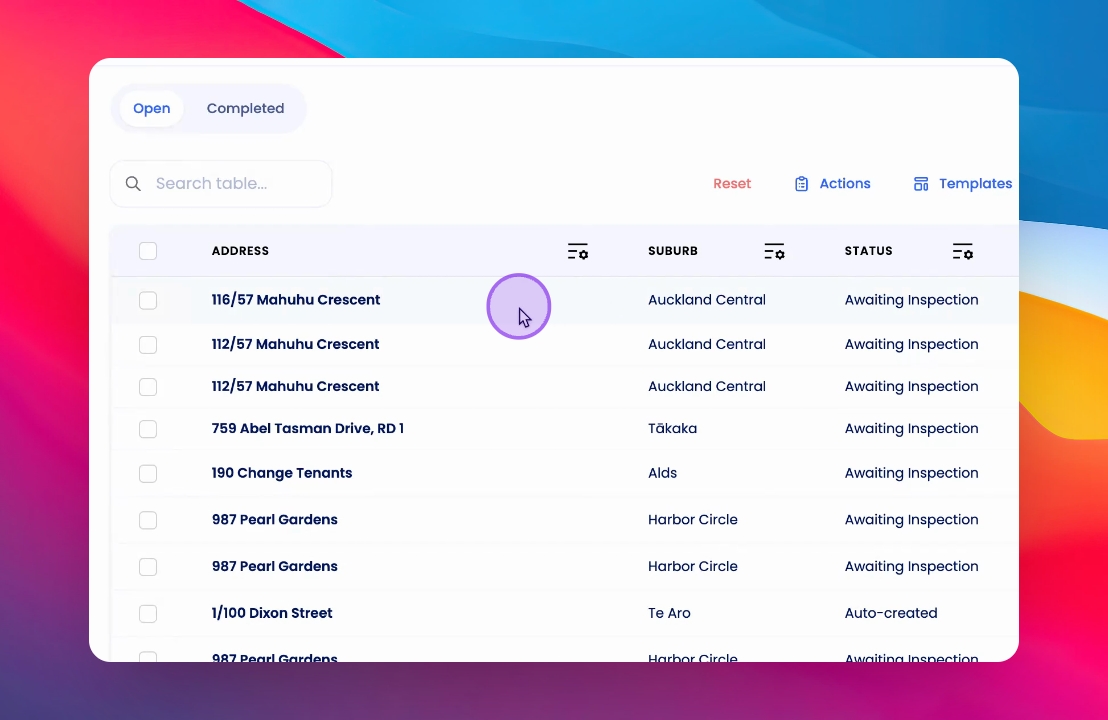
Step 1: Navigate to Inspection
Navigate to the specific inspection you want to send the time for.
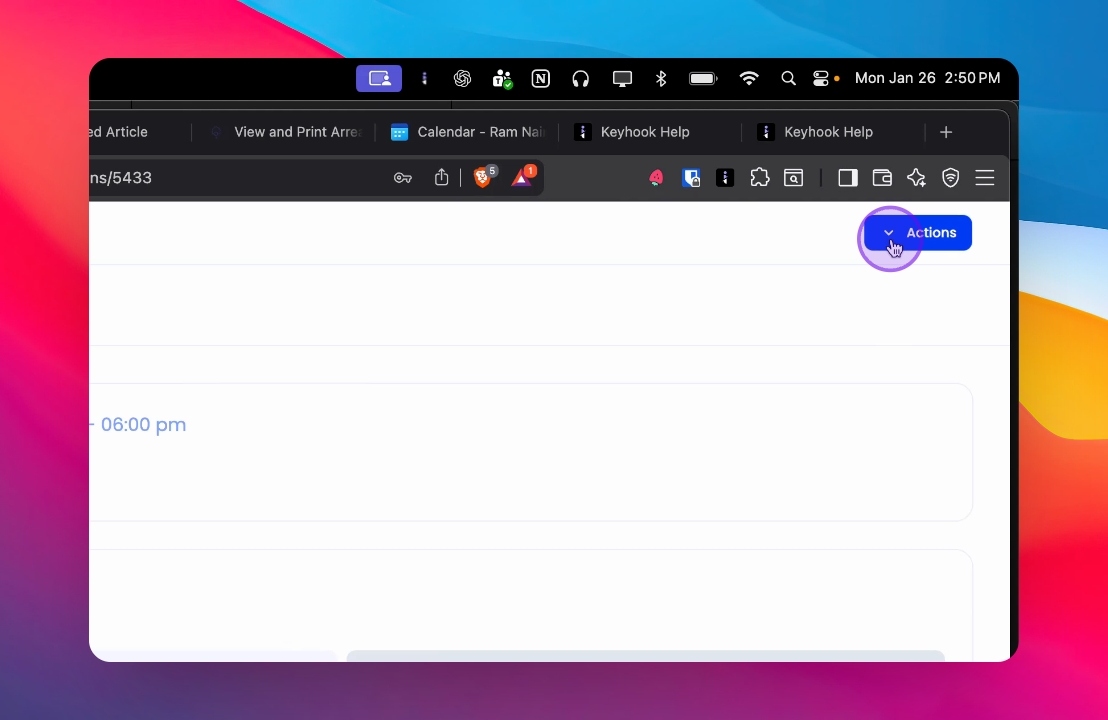
Step 2: Open Actions
Click on the Actions button located in the top right corner.
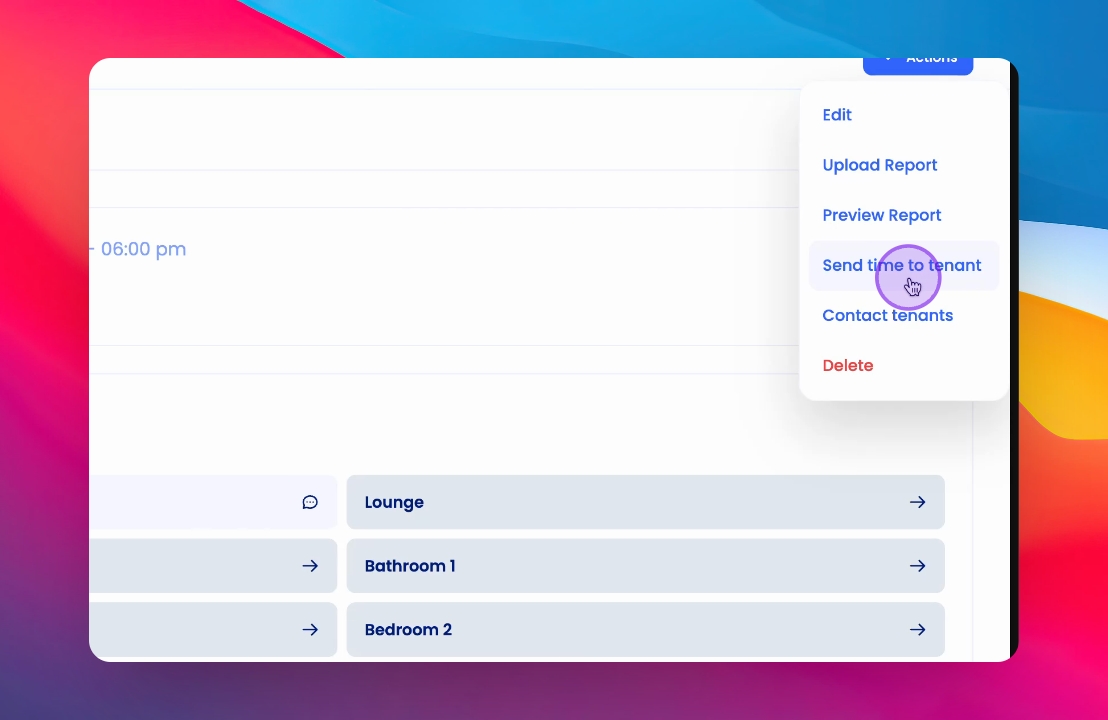
Step 3: Send Time
Select Send Time to Tenants from the dropdown menu.
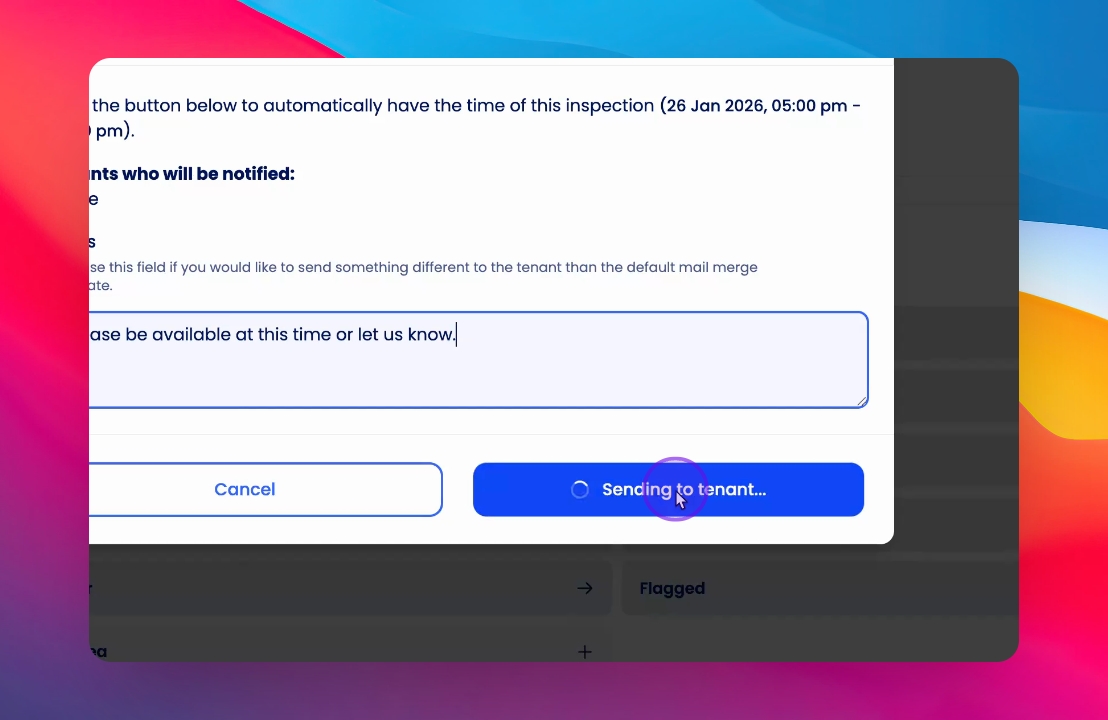
Step 4: Add Notes
Add any additional notes if needed before proceeding.
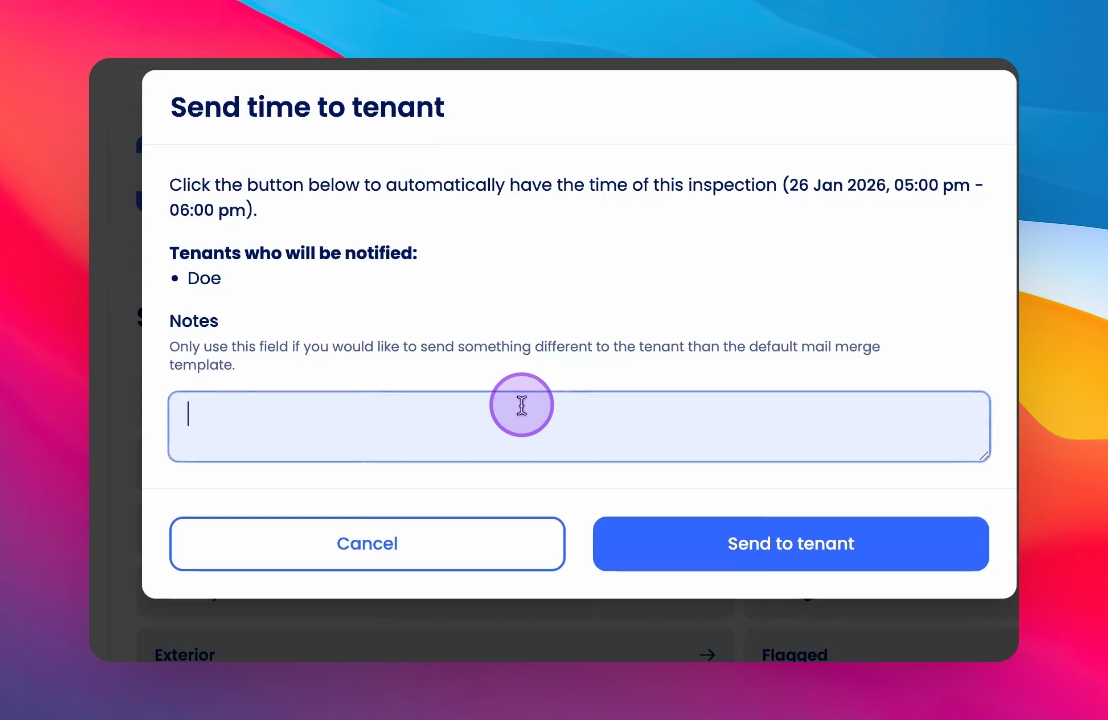
Step 5: Confirm Send
Click Send to Tenants to finalize the process.
Sending Inspection Time Using Keyhook App
On the inspection home screen, tap the three dots in the top right corner.
From the menu options, tap “Send time to tenants.”
Review the Summary and Tap Send to notify the tenants of the inspection time.
If you need more help or have any questions, just reach out to us at support@keyhook.com — we're always here to help!