

An owner statement (the "Account Summary" Keyhook emails to owners at each payout) summarises, for a period, the rent that came in, everything that was deducted, and the net amount paid out to the owner. It's built from the property's ledger, so reading a statement comes down to following how money moved through the property: money in, deductions, then the net paid to the owner.
Two ways to view a statement
Owner statements can be viewed in two ways:
Owner (portfolio) statement — covers all of an owner's properties in one document. This is the version owners receive when you send statements in bulk, so it's what they'll be looking at.
Individual property statement — shows a single property on its own. Owners don't usually receive this, but you can open it when an owner is questioning a particular property.
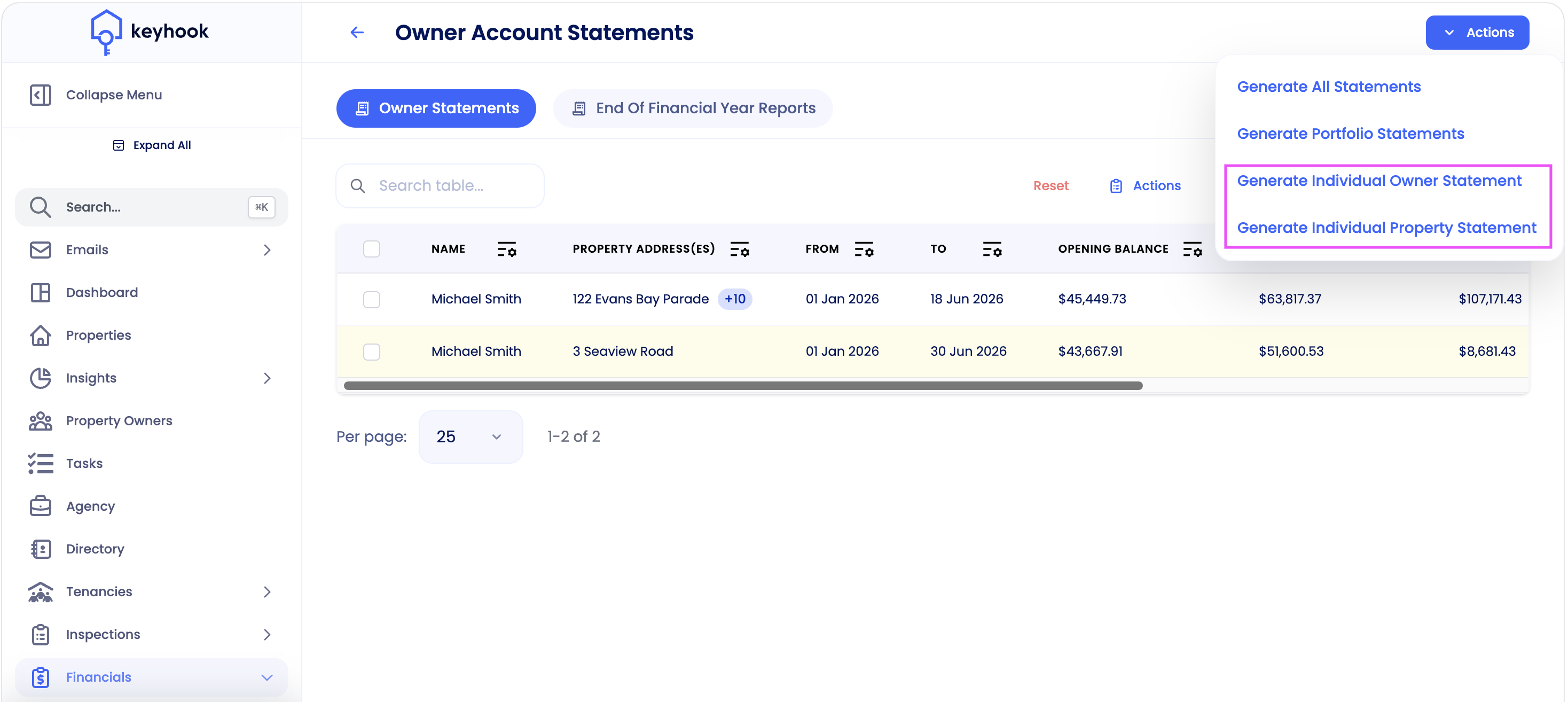
Both are available from Financials → Owner Reports: click Actions, then choose Generate Portfolio Statements for the all-properties view, or Generate Individual Property Statement for a single property.
The summary bar
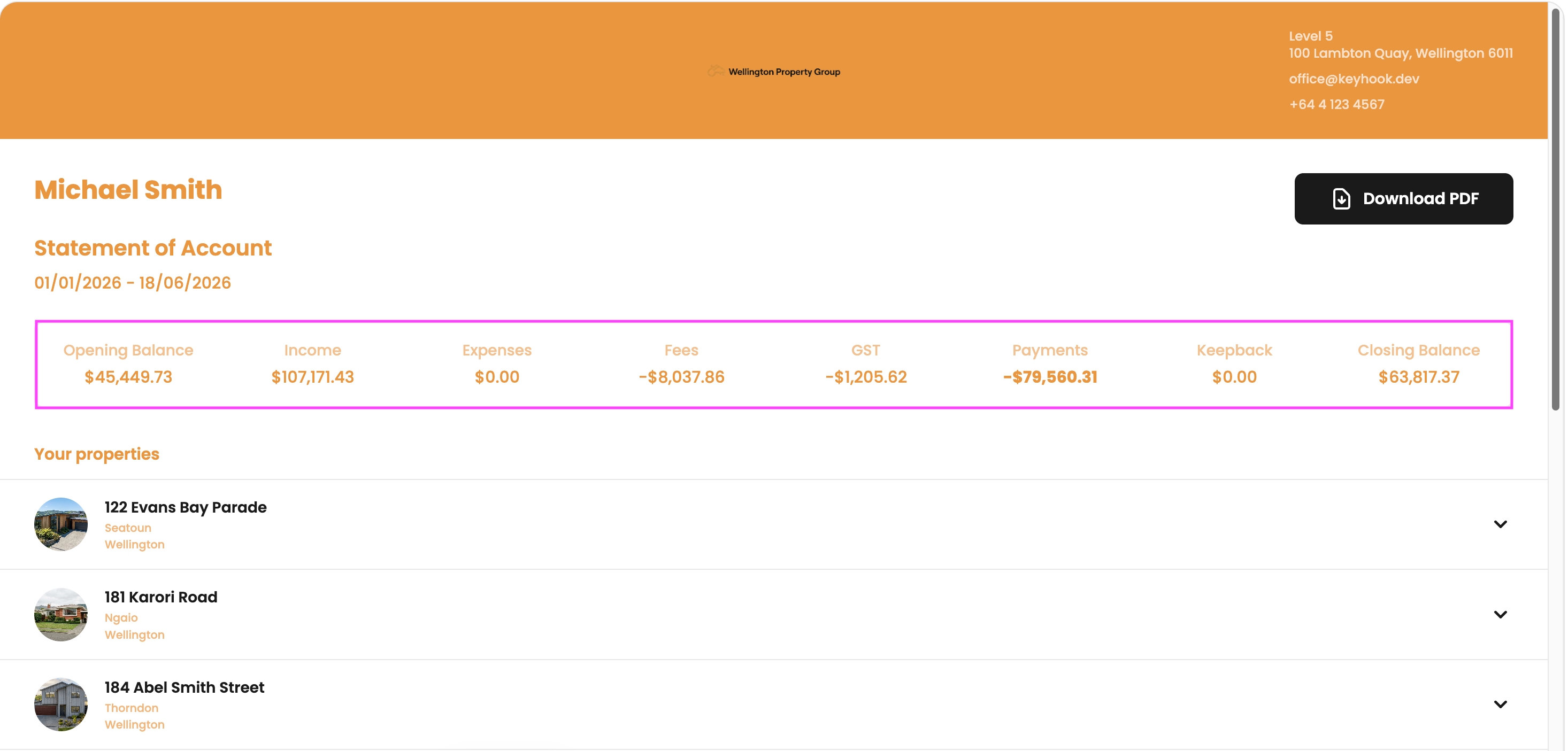
Every statement opens with a summary of the whole period:
Opening Balance — funds carried in from the previous period.
Income — rent received during the period.
Expenses — supplier bills paid out of the property.
Fees — your management commission.
GST — GST charged on those fees.
Payments — the total paid out to the owner.
Keepback — any funds intentionally held back this period.
Closing Balance — what remains at the end of the period.
Reading a property's breakdown
Expand any property (click the arrow on its row) to see how its figures are made up:
Tenancy Details — the tenancy ID, tenant(s), and start and end dates.
Rental Income — one row per rent period showing the rent (Amount), your Fees, GST, and the net Total, with a subtotal at the bottom. This is where the management fee and GST come out of the rent.
Additional Income — credits or journals into the property appear here as extra income (for example, a letting-fee refund journaled back to the owner).
Expenses — supplier bills and agency fee charges paid from the property, such as maintenance, water, or rates.
Payments — the actual payouts to the owner, with date, bank account, and reference.
Previewing and sending
Before sending, select one or more statements and choose Actions → Preview to review them in a pop-up (use the Previous and Next arrows to cycle through). You can Download PDF from any statement, or print them in bulk. If an owner uses an accountant, add a financial email address to the owner so a copy goes there too.
Why a statement might look different than expected
Pending vs allocated — a supplier bill only deducts once the property has enough funds. Until then it shows against the property but hasn't hit the payout. Keyhook moves bills from pending to allocated automatically once funds clear.
Fees lock once processed — Keyhook doesn't retroactively recalculate management fees; corrections are made with a journal rather than by recalculating.
Journals show as income — any journal into a property appears as additional income, which is how refunds and corrections reach the owner.
Migrated properties — the rent ledger starts from the "Rent Paid Through" date plus one day, so rent paid out in a previous system before migration won't appear here.
Update (28 May 2026): Previously, if you processed an older supplier invoice through Bill Pay (for example, one a supplier sent late) and didn't change its date, the invoice kept its original date and was recorded against the previous month — so it wouldn't appear on the current owner statement and could leave the next statement with a negative opening balance.
Keyhook now snaps these invoices into the current month automatically (showing the original invoice date during processing), so they land in the current period and appear on the current statement.