Here's how to do tenant refunds on Keyhook. Let's look at the steps:
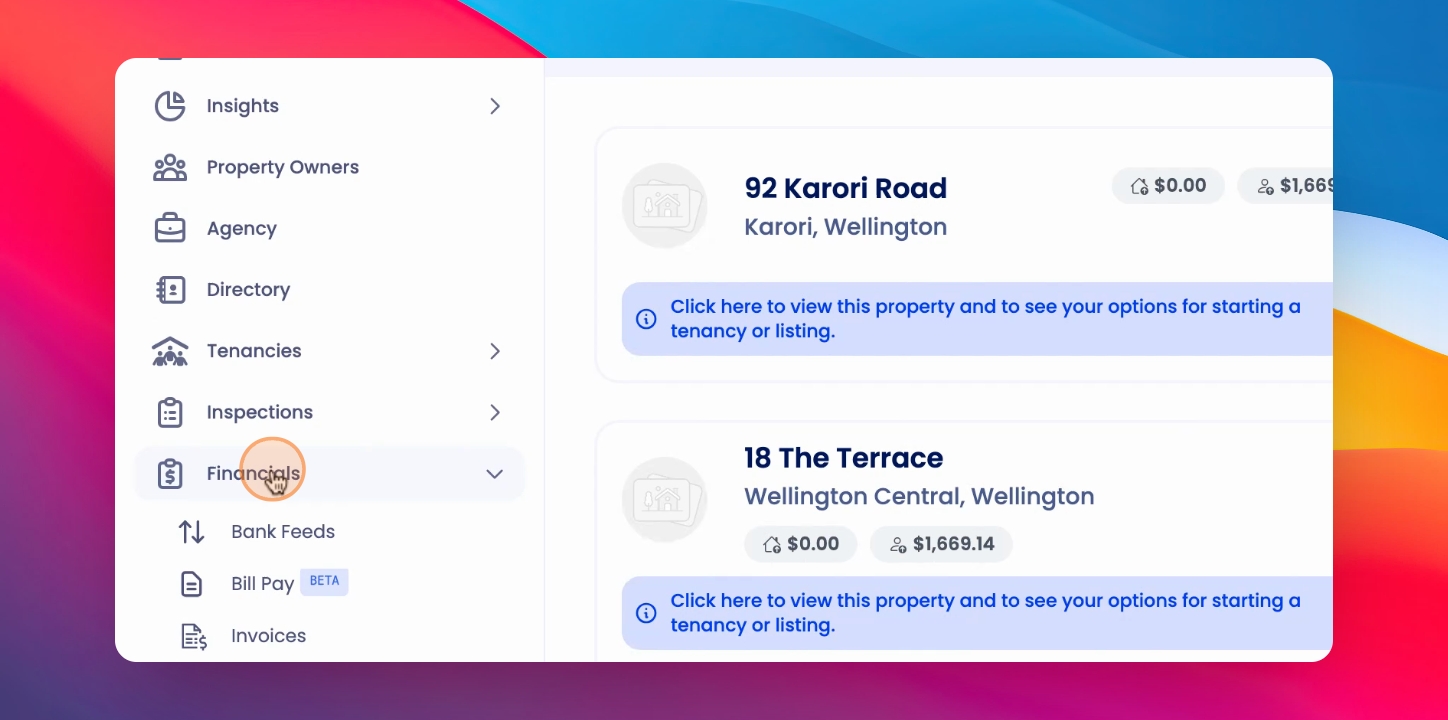
Step 1: Go to Financials
First you want to go to Financials.
Step 2: Click Tenant Refunds
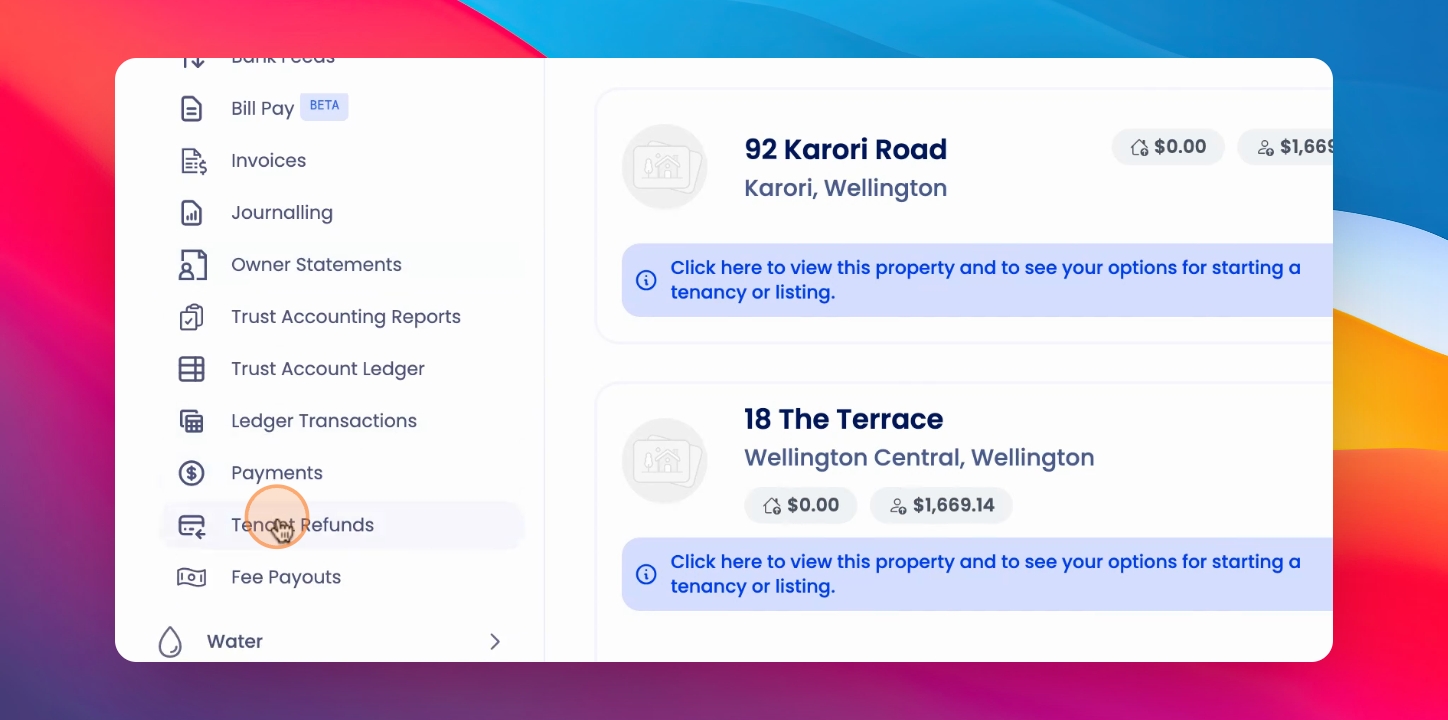
Then click on Tenant Refunds.
Step 3: View Refunds List
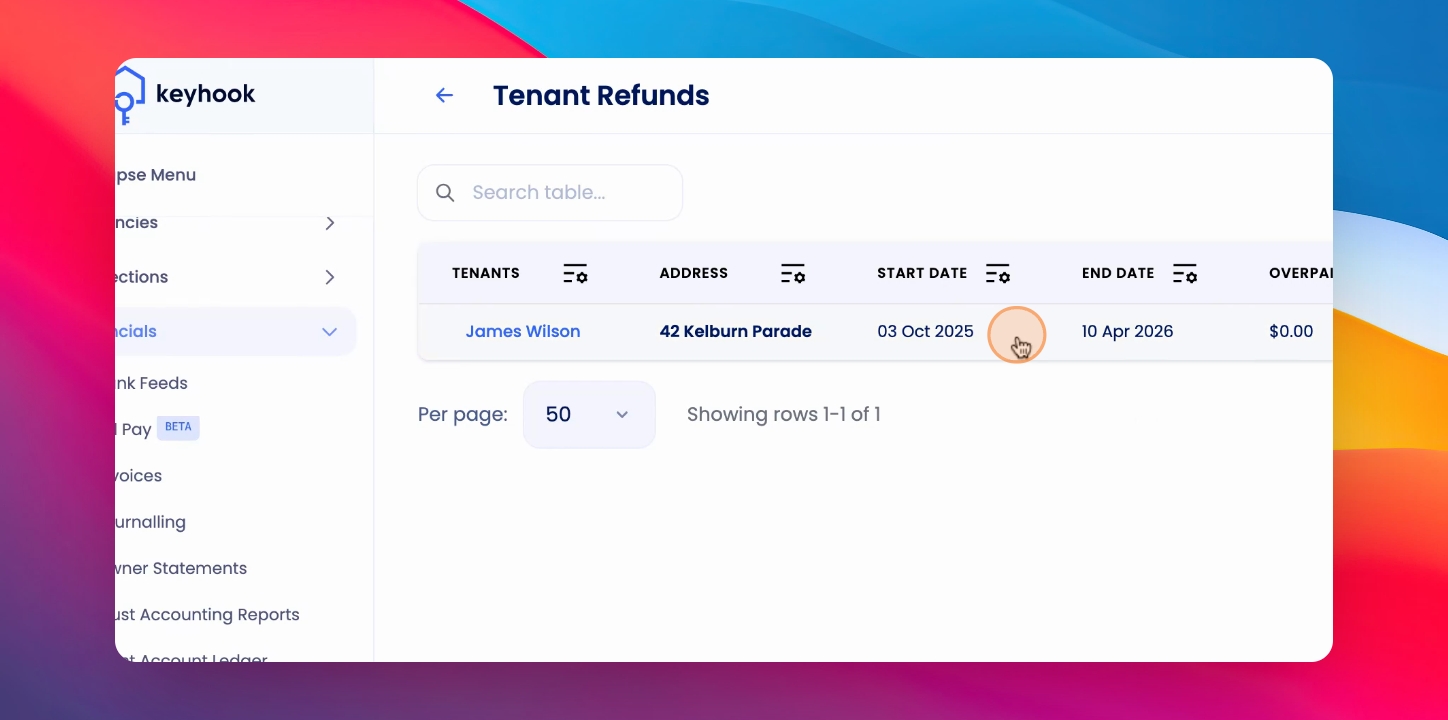
Here you'll see a list of tenant refunds.
Step 4: Configure Columns
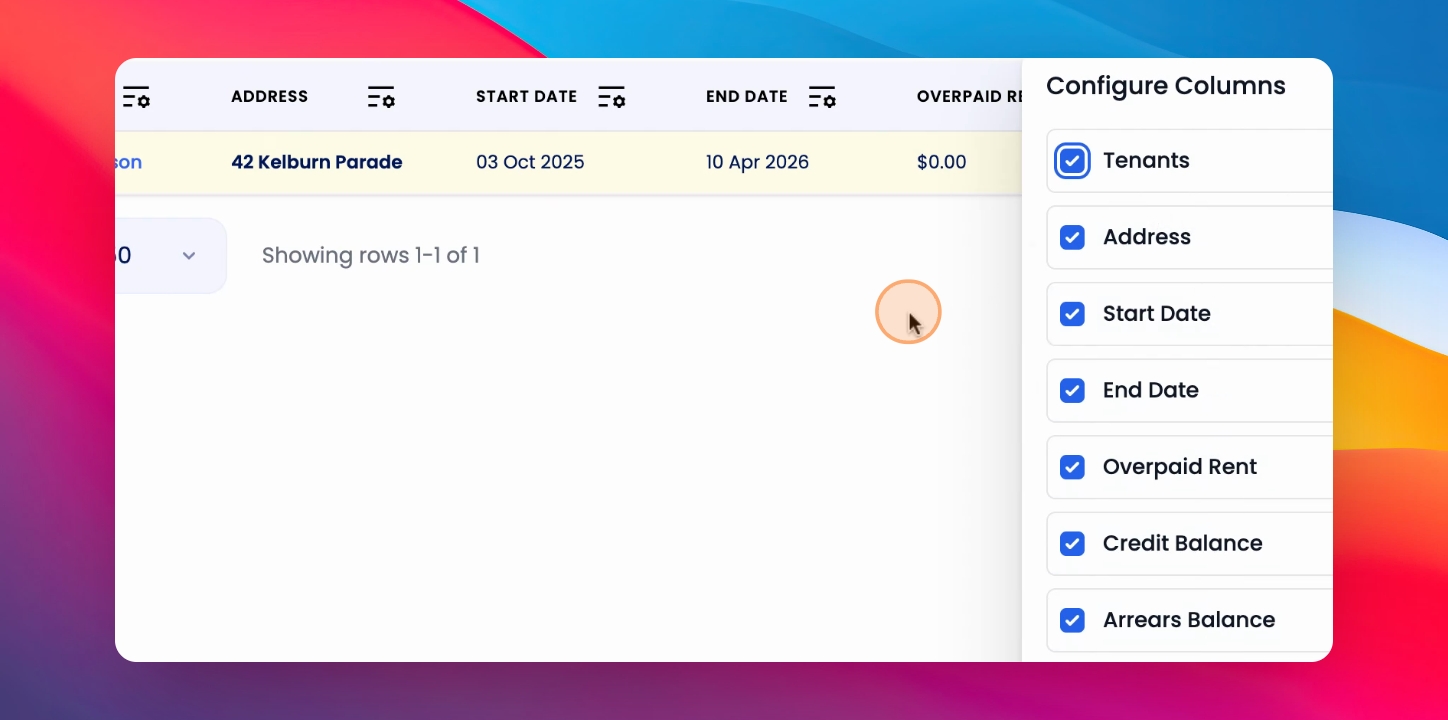
If you click on the Columns button, you can choose and configure what you can do in this table.
Step 5: Click into the Refund
Now let's click into the Refund.
Step 6: Overview of Tenant Info
Here you can get an overview of the general information for the tenant and the amount of credit they hold.
Step 7: Choose Tenant
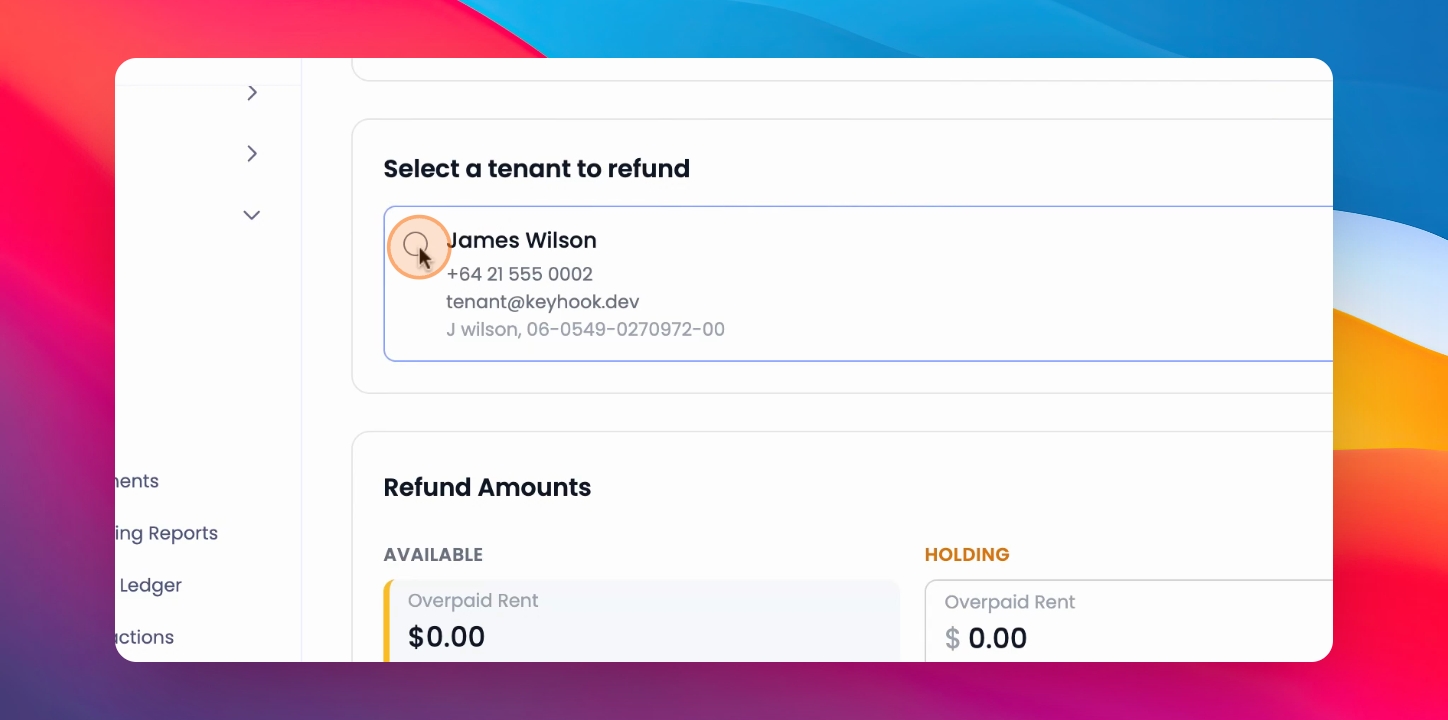
To action a refund, choose the tenant you would like to refund.
Step 8: Review Refund Table
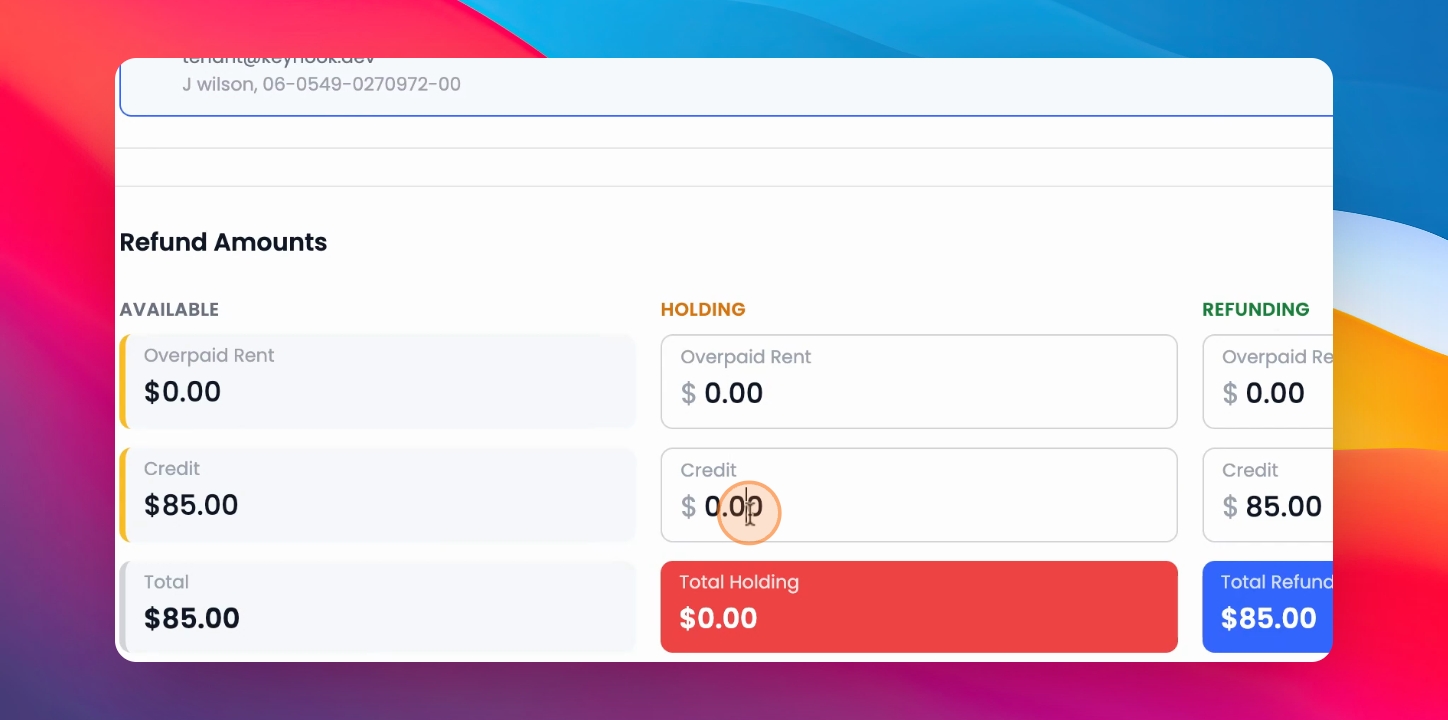
Then on the refund table you can see whether there is overpaid rent or tenant credit, how much you would like to hold, and how much you would like to refund.
Hold Total Amount
If you would like to hold the total amount of overpaid rent, you can do so by journaling.
Step 9: Enter Hold Amount
You can simply enter the amount you would like to hold and this will automatically update the credit to be refunded.
Step 10: Review Credit and Refund
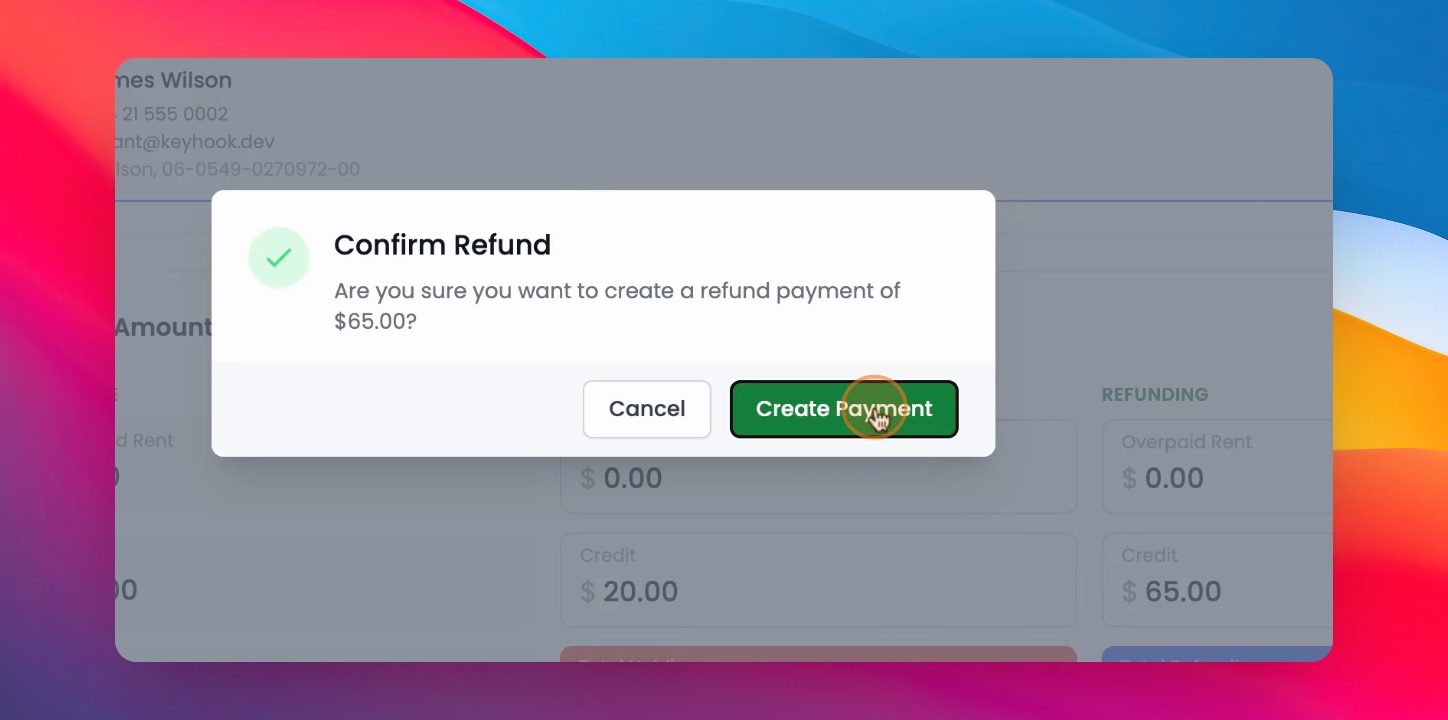
Now we can see we are holding $20 and we are refunding James $65.
Step 11: Create Payment
Once you're ready, click Create Payment Now and Confirm.
Check Payment Screen
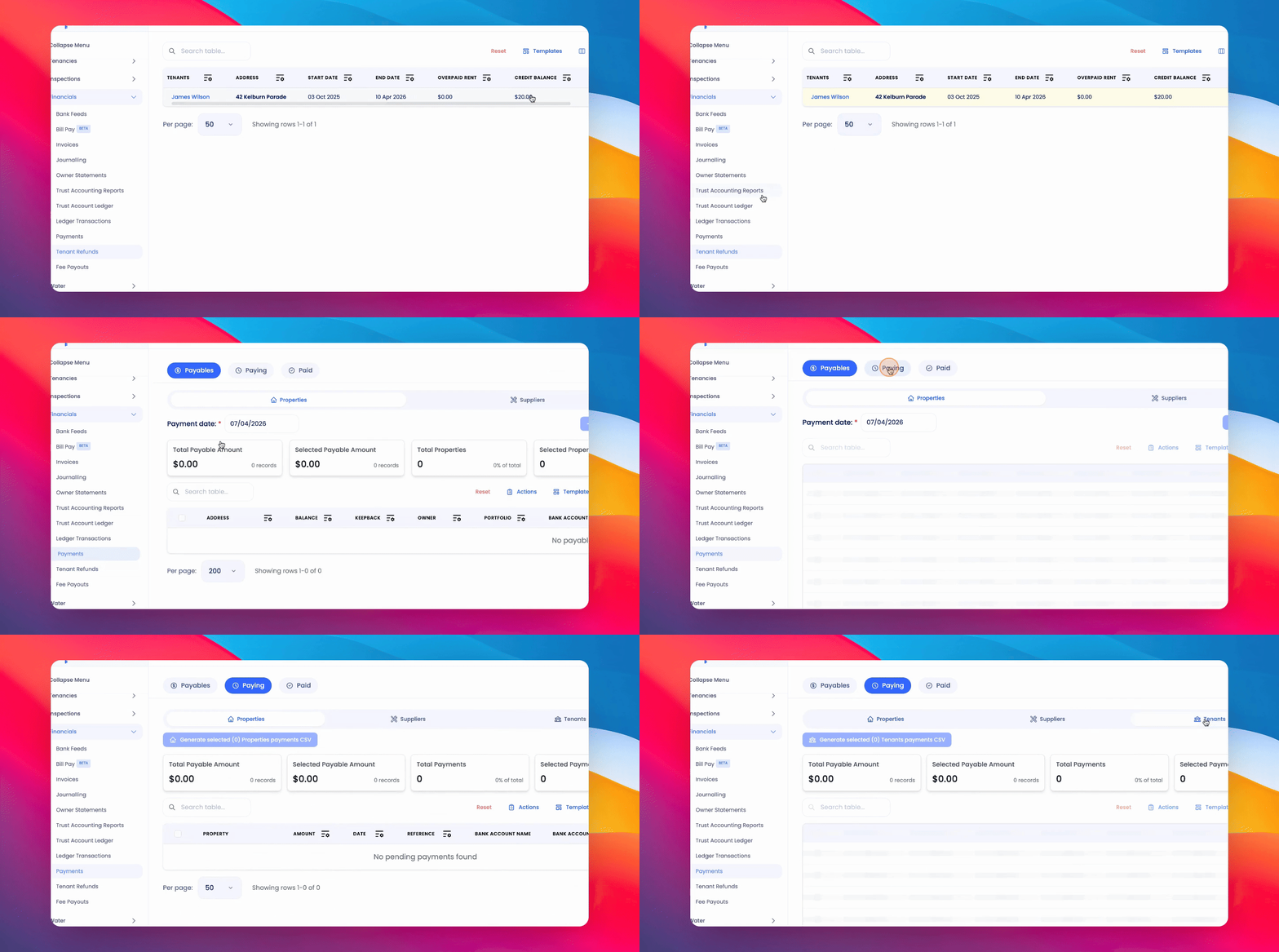
Now we can see the credit balance has been updated to $20 and if you go to your payment screen, click Paying and click on the Tenants tab, we can see that our payment to James is ready to go.
Step 13: Generate CSV
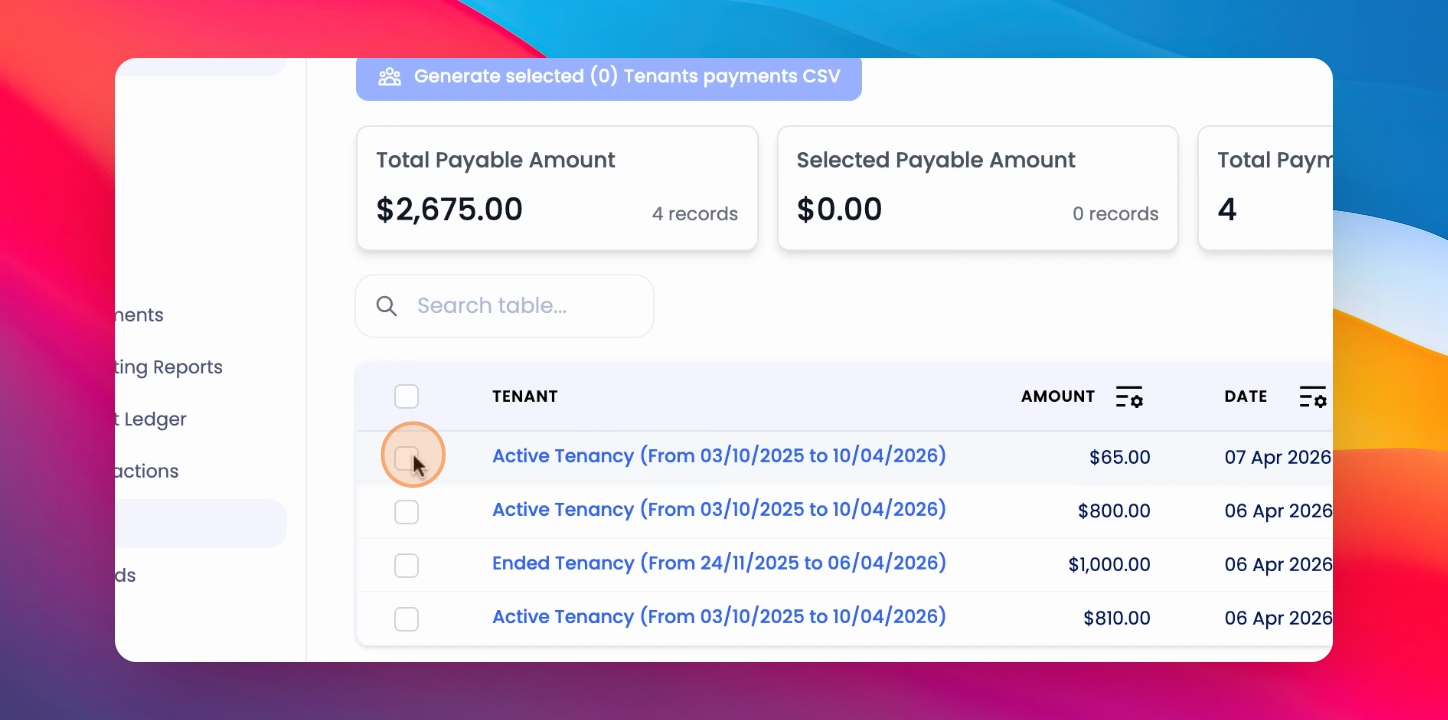
All you have to do is tick the payment and generate the CSV file.