

TL;DR
Allocated status confirms there is enough funds to proceed with the payments
The Invoices with allocated status will presented here for review and payouts
Click and select the ones which are ready to be paid out
This will move the invoices into payments page
Generate and download the CSV to process the payment from the bank
Let's do it together!
Step 1: Check Suppliers
Go to Financial → Invoices → Suppliers to view your suppliers.
Step 2: Review Allocation
Review the allocation status of your suppliers. Allocated means payments can be made, while Pending indicates insufficient funds.
Step 3: Navigate to Payments
When ready to pay, go to Financials → Payments and select Suppliers.
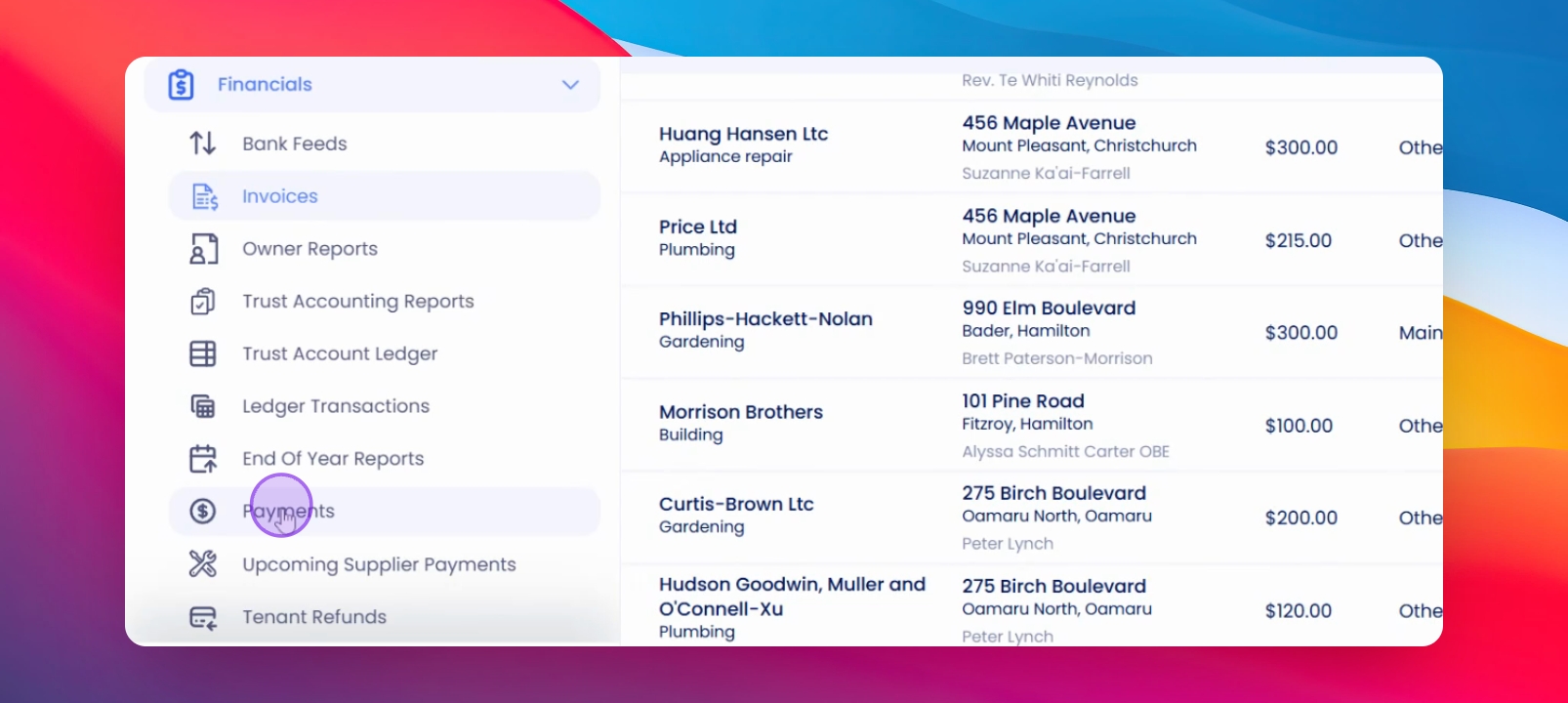
Step 4: Select Suppliers
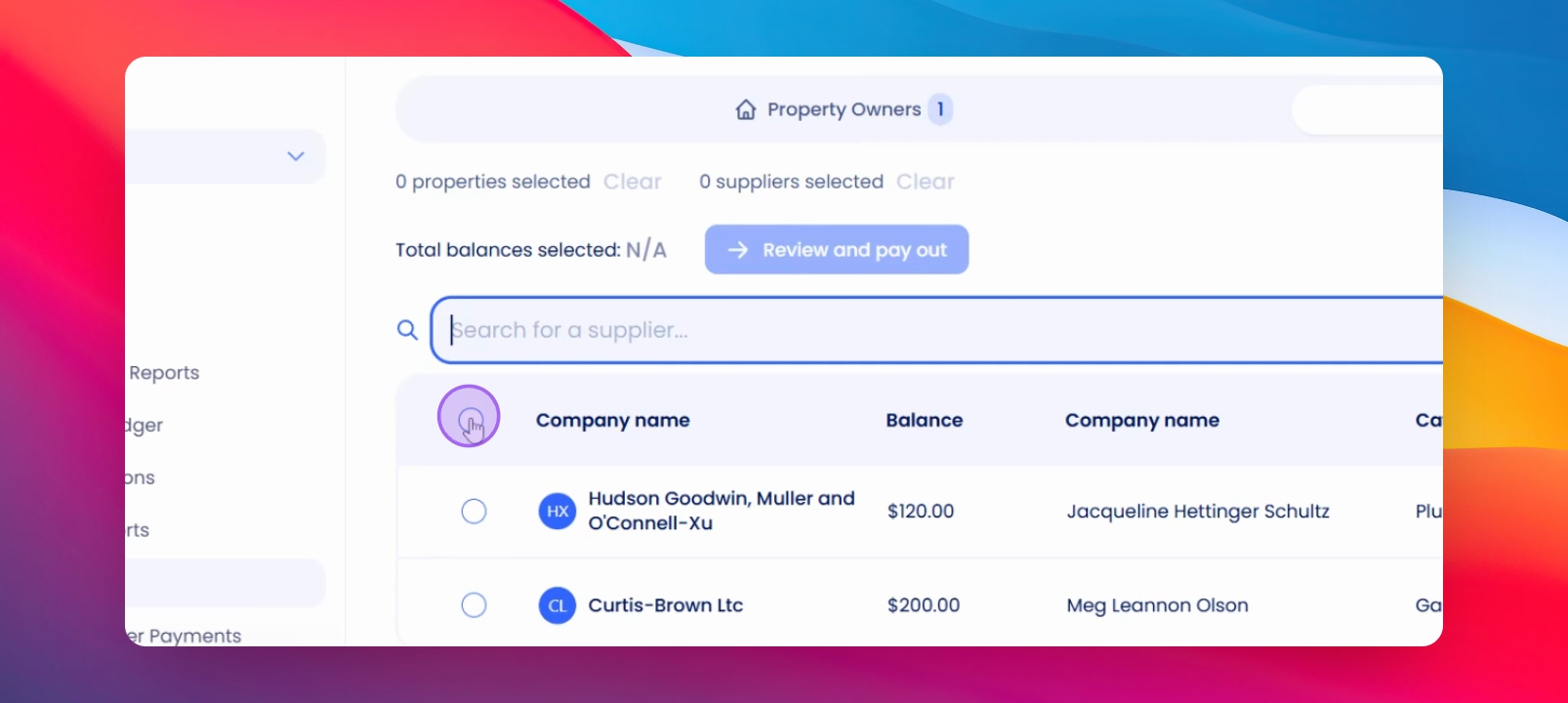
Select the suppliers you wish to pay. Ensure payment details are added for processing.
Step 5: Review and Payout
Click on the selected suppliers, then review the total amount and click Review and Payout.
Step 6: Confirm Payout
On the confirmation screen, click Close to finalize the payout process.
Step 7: View Payments
Return to the Suppliers section to see the recently paid suppliers.
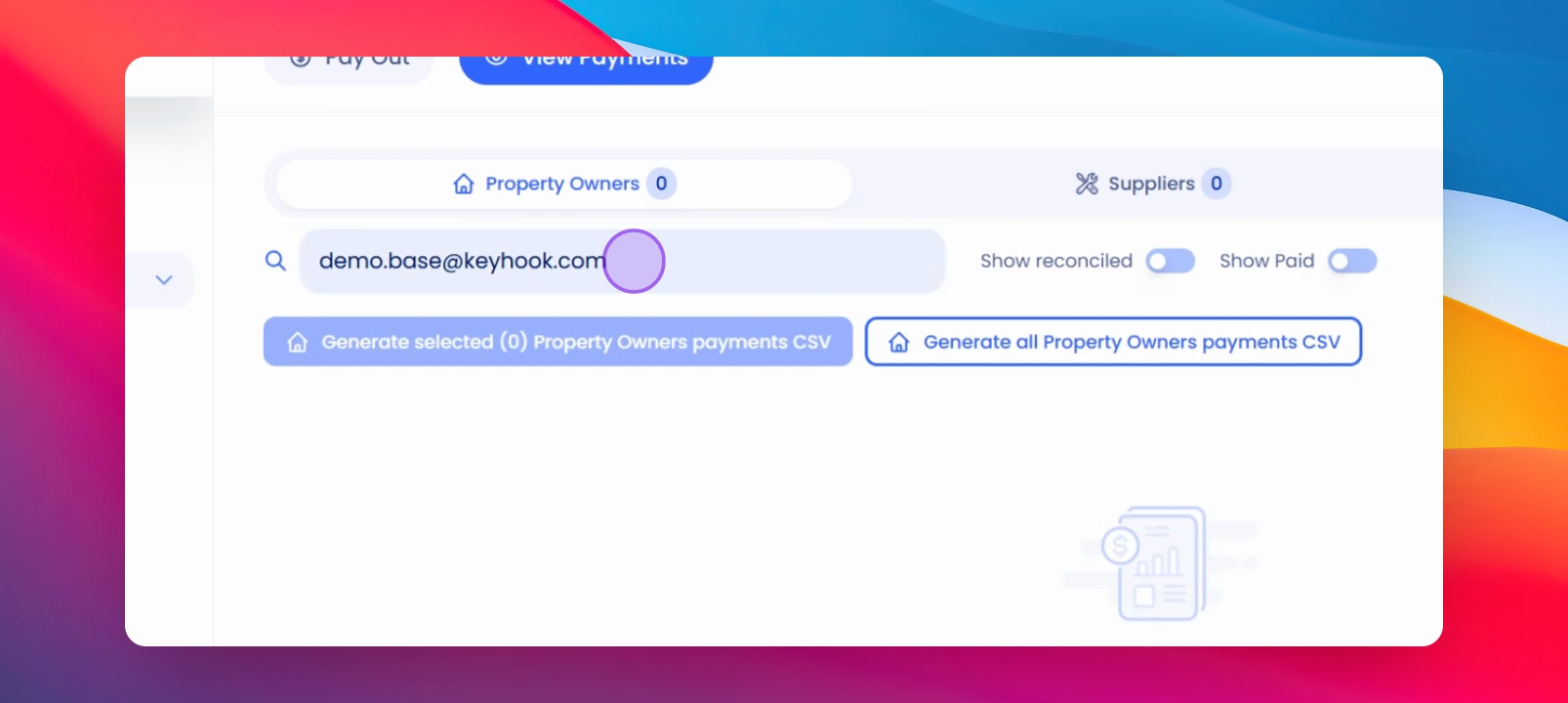
Step 8: Generate CSV
Select suppliers to generate a CSV file. Click the appropriate option based on your selection.
Step 9: Download CSV
The CSV file will be created and automatically downloaded.
If you need more help or have any questions, just reach out to us at support@keyhook.com — we're always here to help!