TL;DR
1
Open Applications
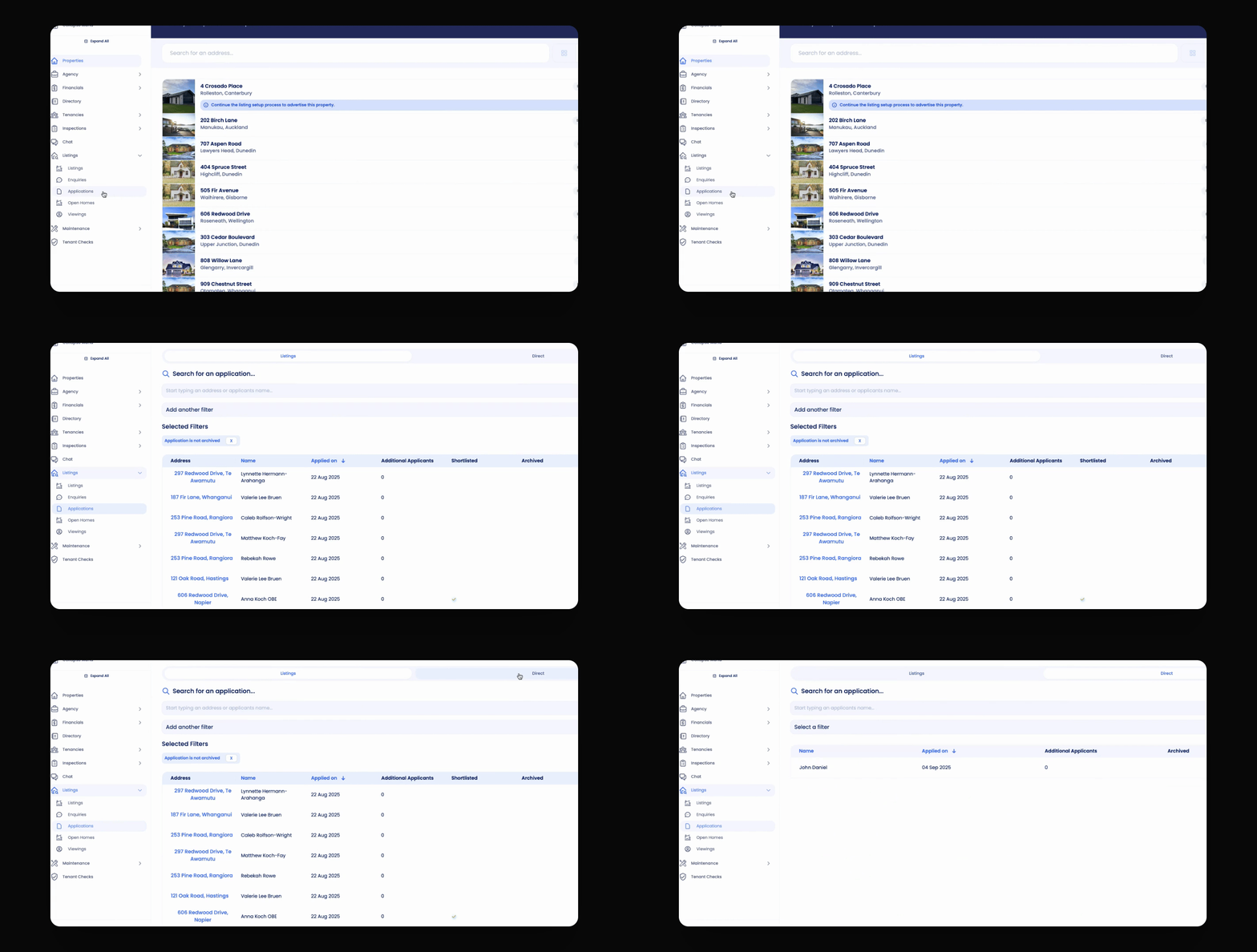
Click Applications under Listings, then select the Direct tab to view direct applications.
2
Search Applications
Use search or filter options to find specific applications.
3
View Application
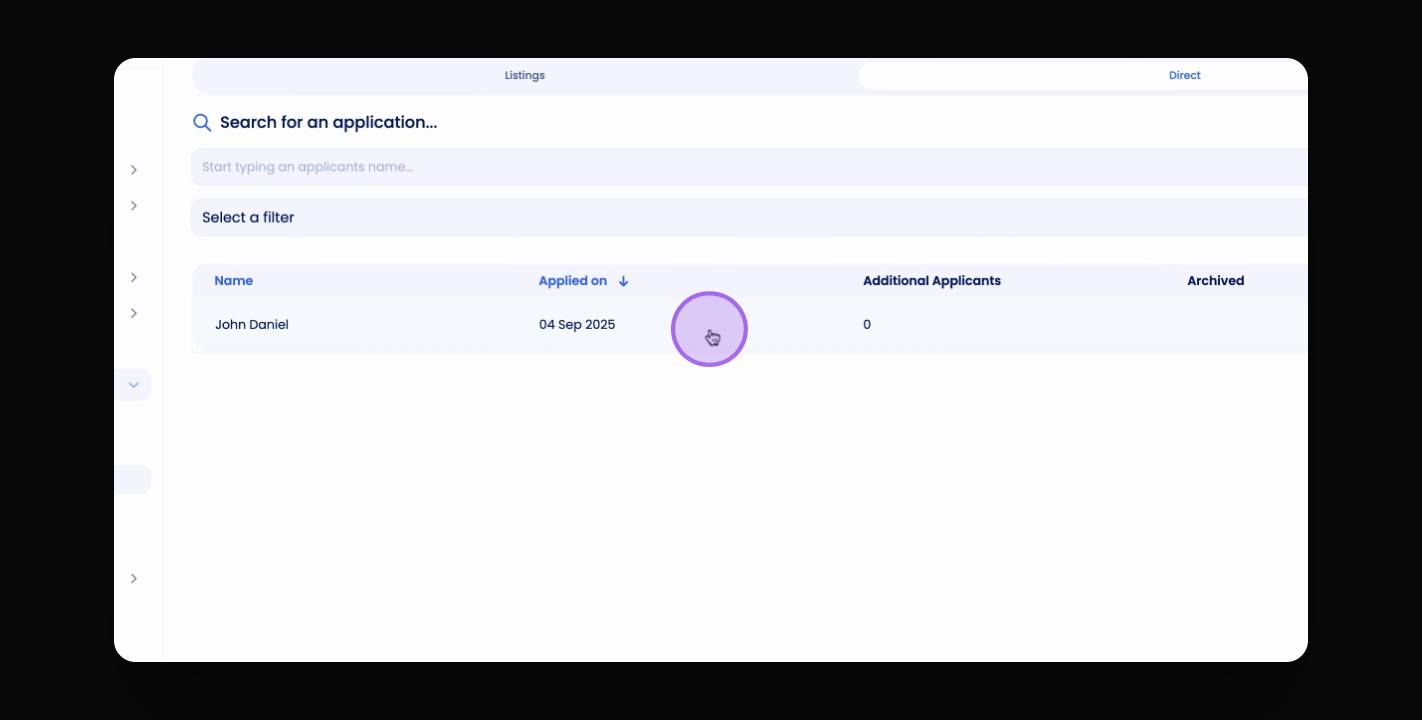
Click the application row to view its details.
4
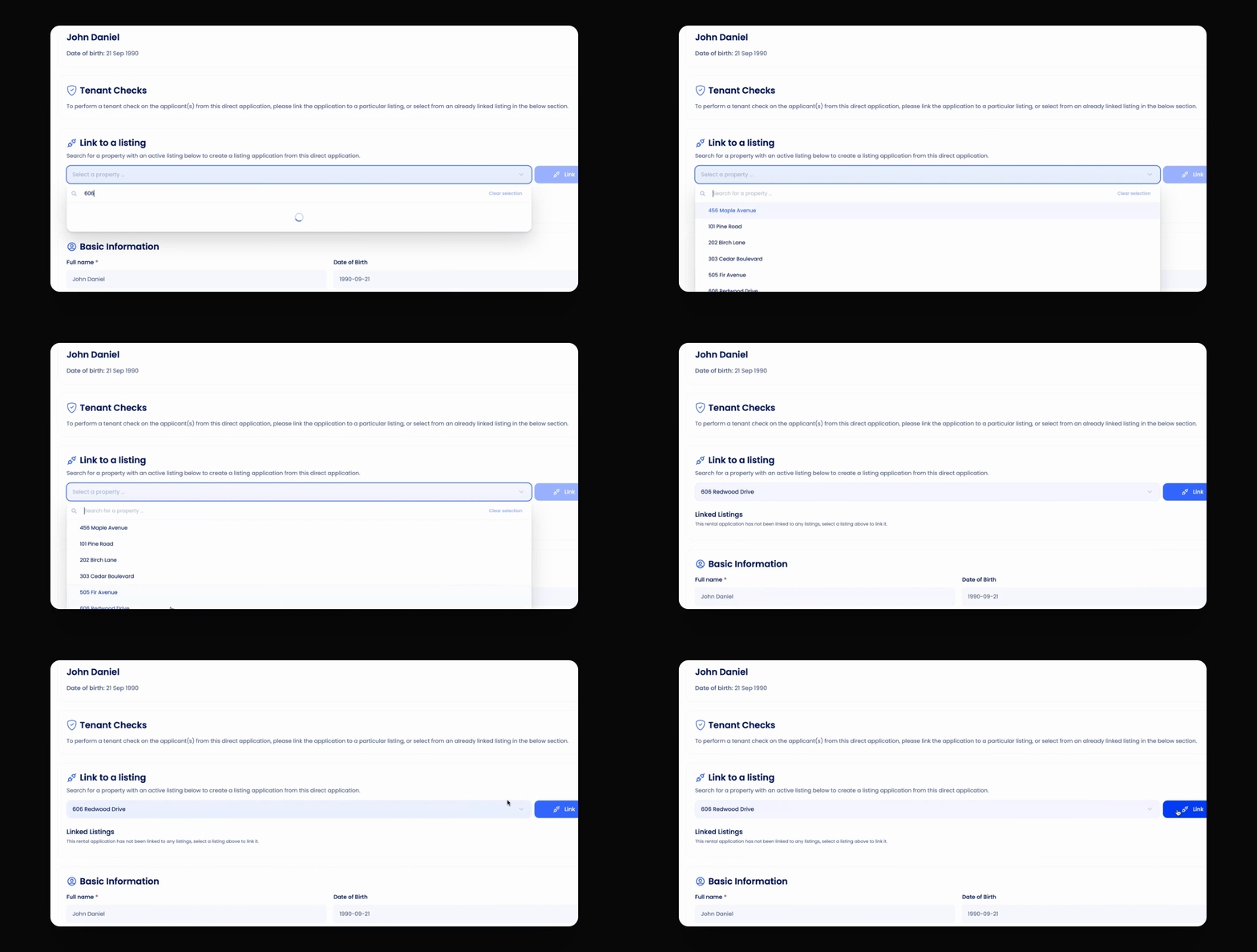
Link to Property
Select a property and click Link to associate the application.
Let's Do It Together!
Step 1: Access Applications
Click on Applications in the navigation bar under Listings.
Then click on Direct to see the direct applications you have received.
You will now see the list of direct applications available for management.
Step 2: Search or Filter Applications
You can search or filter through these applications to find specific ones.
Step 3: View Application Details
Click on the row of the application you want to view to open it.
Step 4: Link Application to Property
Click the Select a property drop down menu to link this application to a specific listing.
Search for the property you'd like to link this application to.
Select the property and click the Link button.
The application is now successfully linked to the selected listing.