TL;DR
1
Select the property
Navigate to the property and ensure the correct tenancy is selected.
2
Click Actions and Give Notice
Select Actions, then right-click Give Notice.
3
Set Notice Details
Choose Notice type and set the end date.
4
Edit and Sign Notice
Modify the notice and sign it.
5
Save or Send Notice
Decide to save or send the notice.
6
Process Bond Refund
Go to End of Tenancy section and prepare bond refund.
Let's Do It Together!
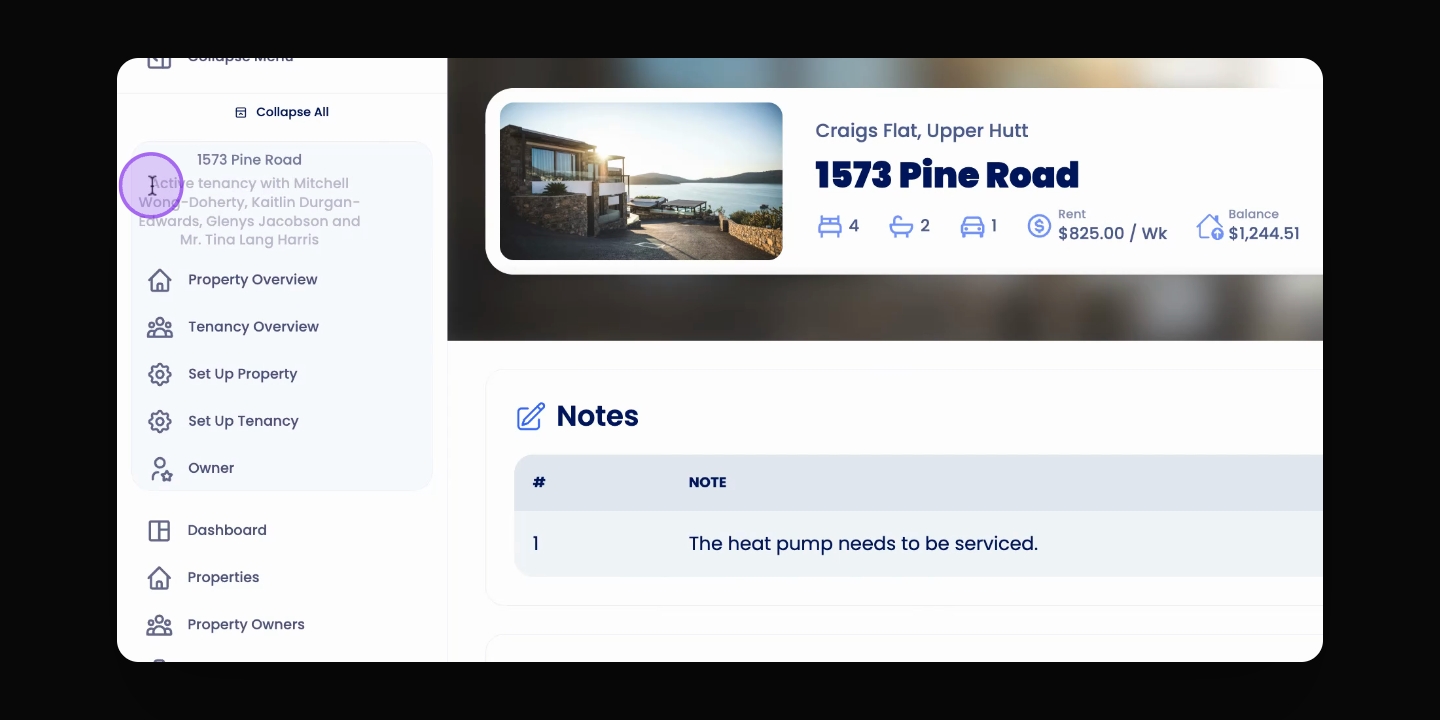
Step 1: Select the Property
Go to the Property and ensure the relevant tenancy is selected in the Navigation bar.
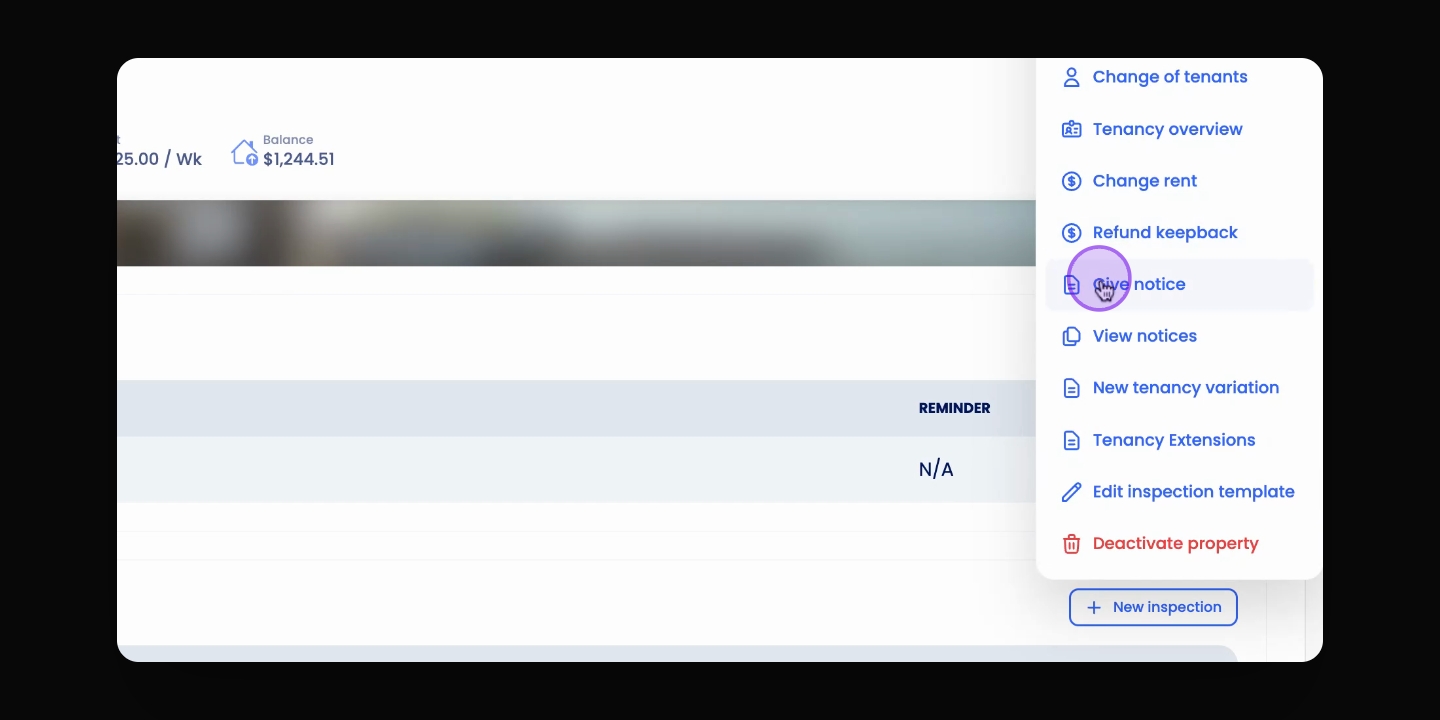
Step 2: Start Ending the Tenancy
Click the Actions button at the top and click Give Notice.
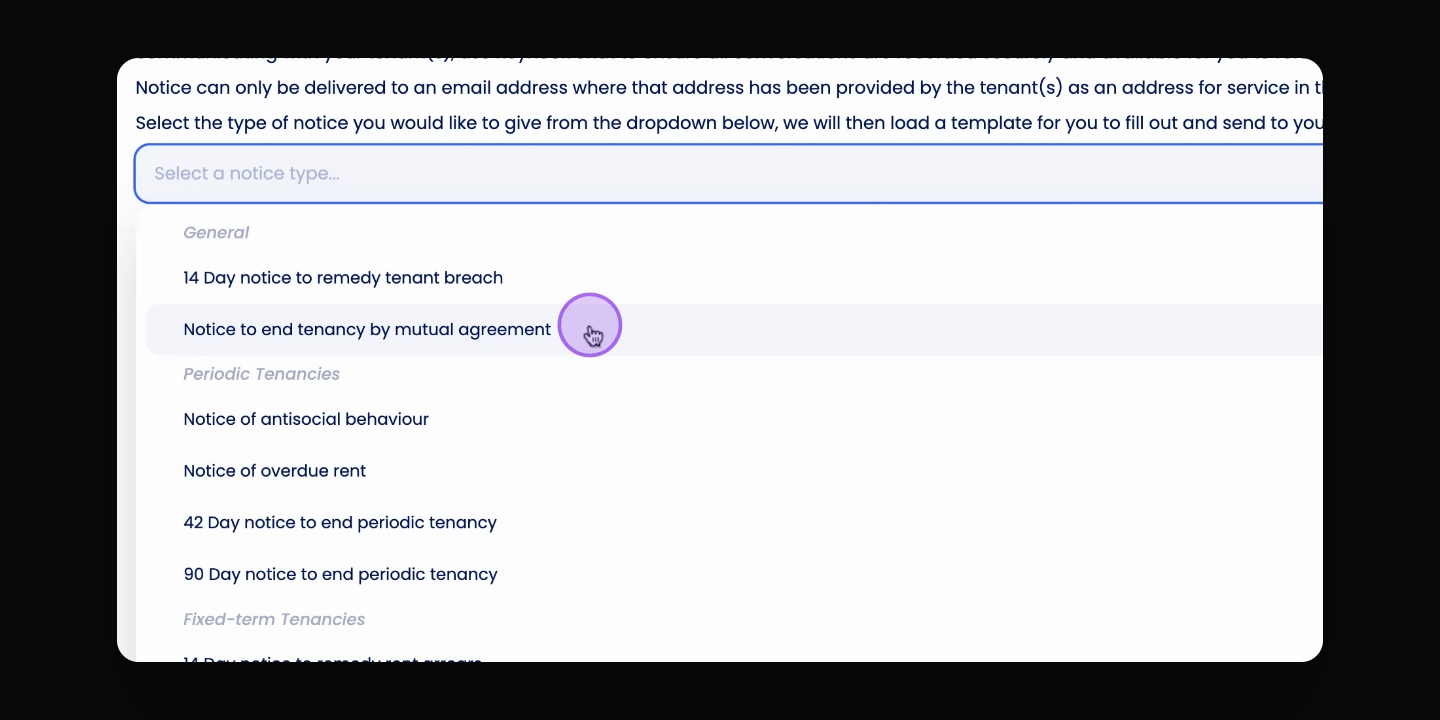
Step 3: Fill Out Notice Details
Select Notice to end by mutual agreement from the dropdown and choose the end date of the tenancy.
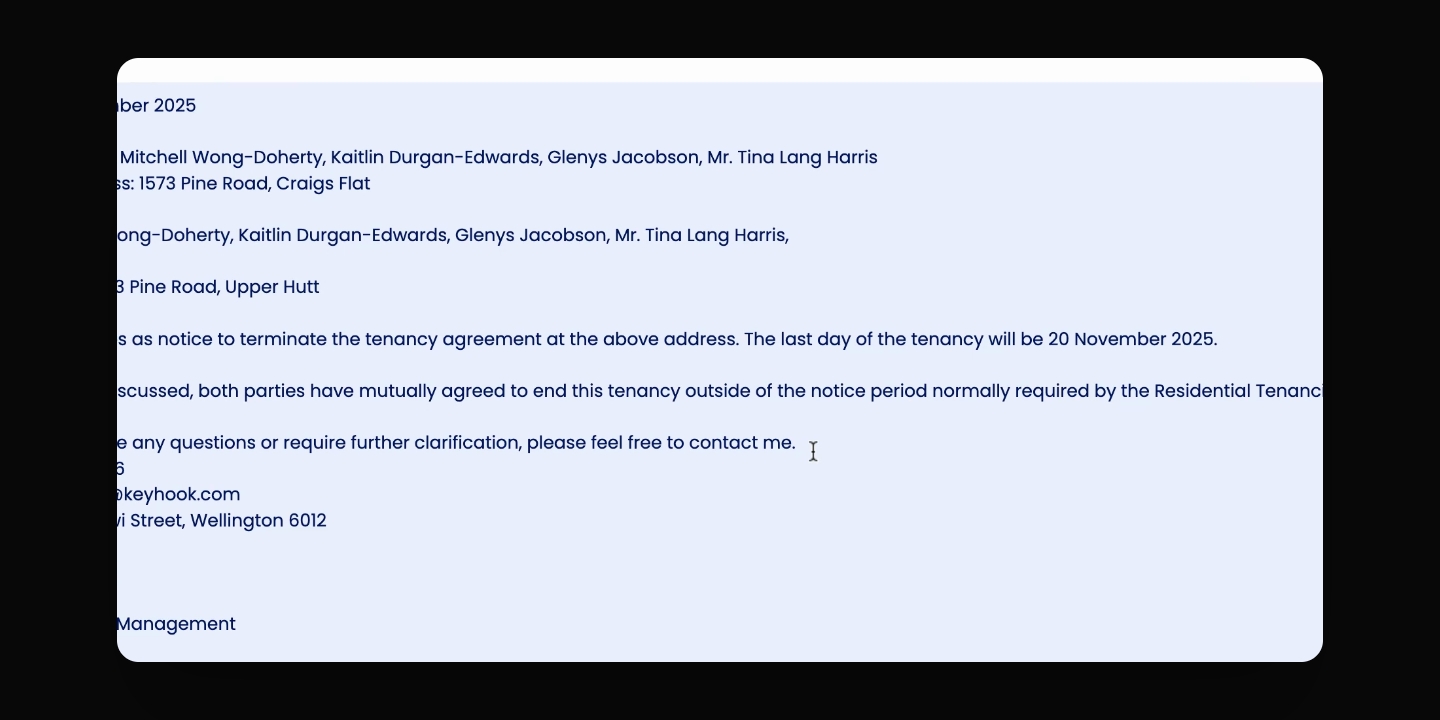
Step 4: Edit and Sign the Notice
Edit the notice template as needed, then click and sign the notice.
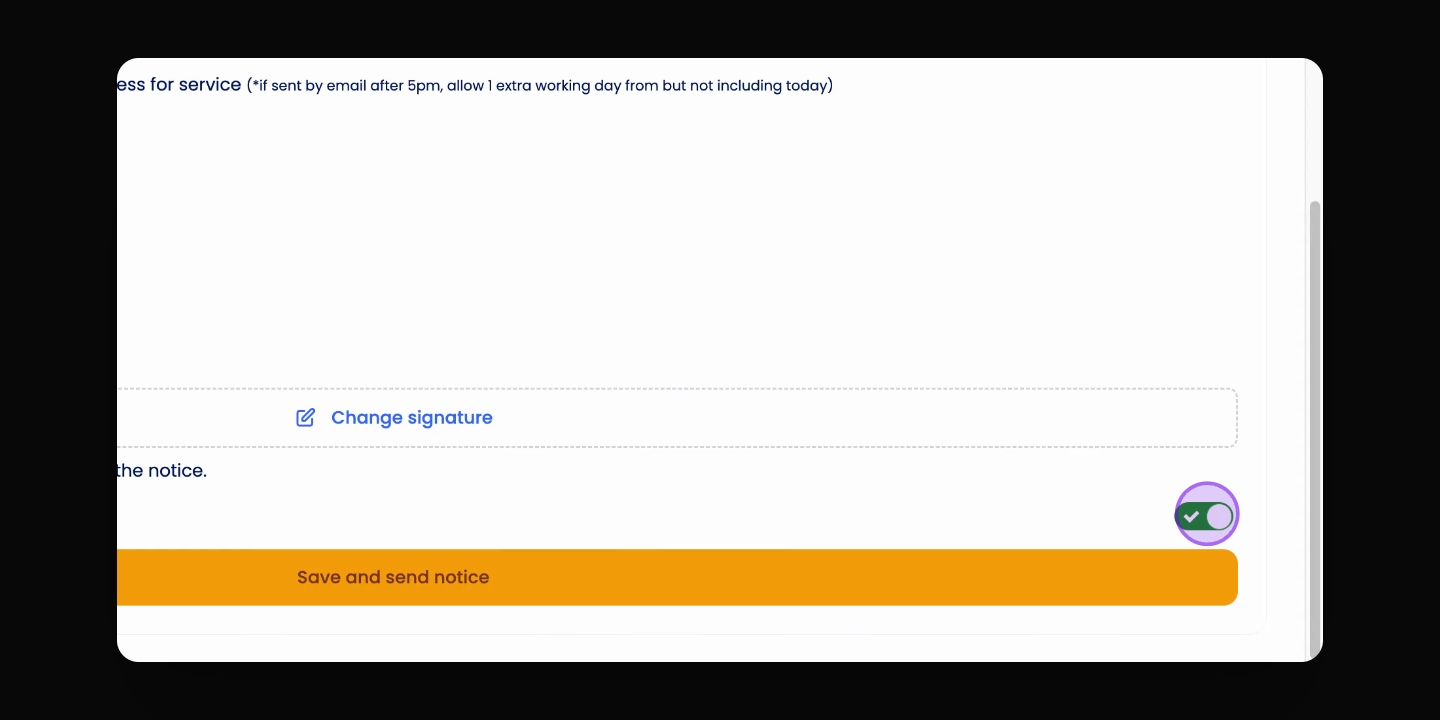
Step 5: Send or Save the Notice
Click Save and Send Notice to send it to the tenant, or toggle off to save without sending.
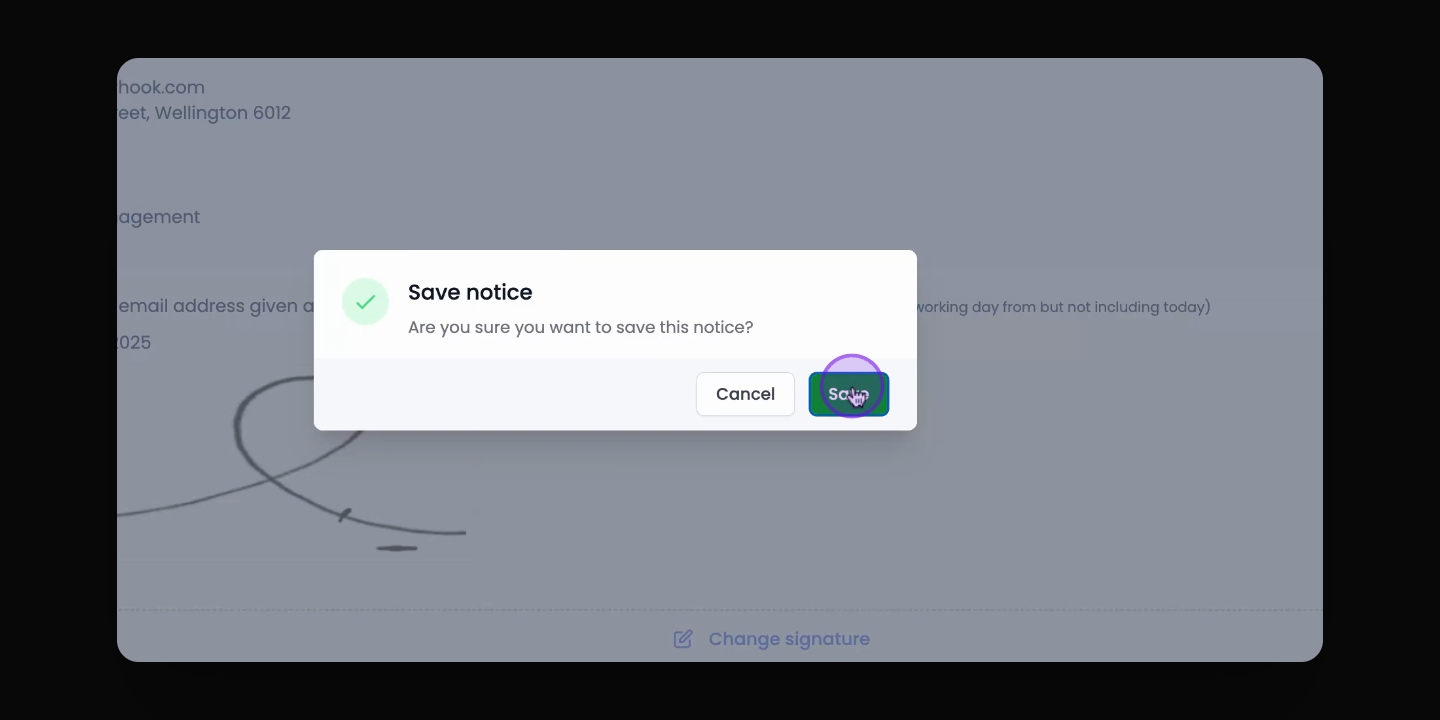
Step 6: Confirm and Complete
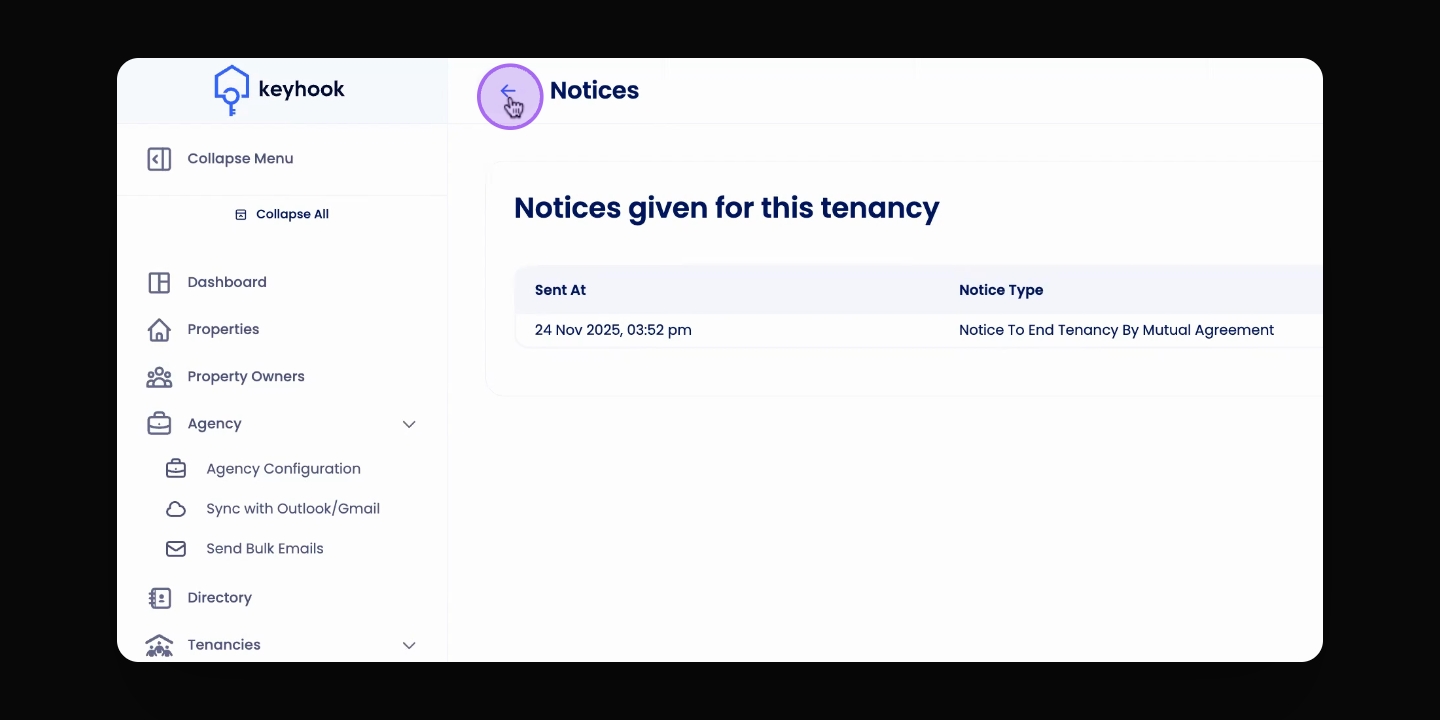
Confirm the action, then check the Notices section for the notice.
Step 7: Prepare Bond Refund
Click the Back button and access the new End of Tenancy section to process the bond refund.