

TL;DR
1
Go to the property
Navigate to the relevant property in the web app.
2
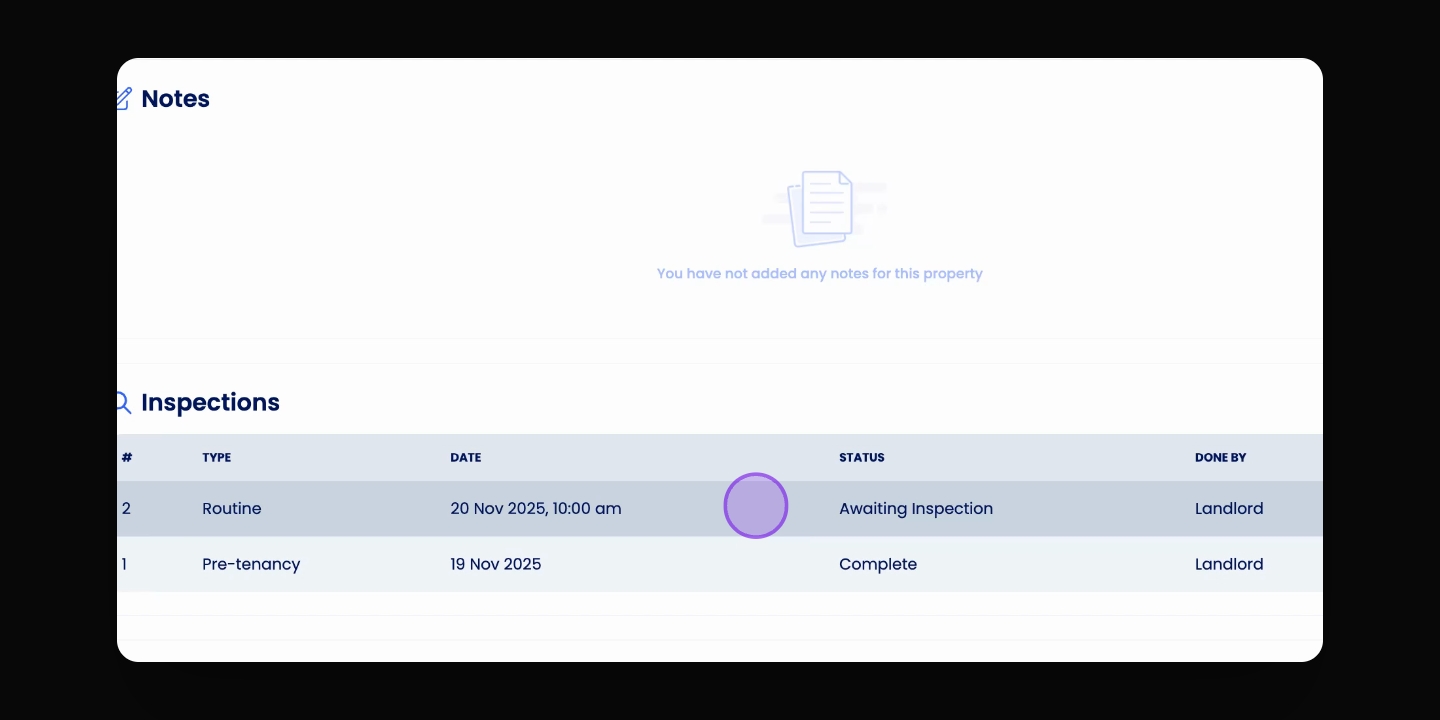
Select inspection
Click on the desired inspection to edit.
3
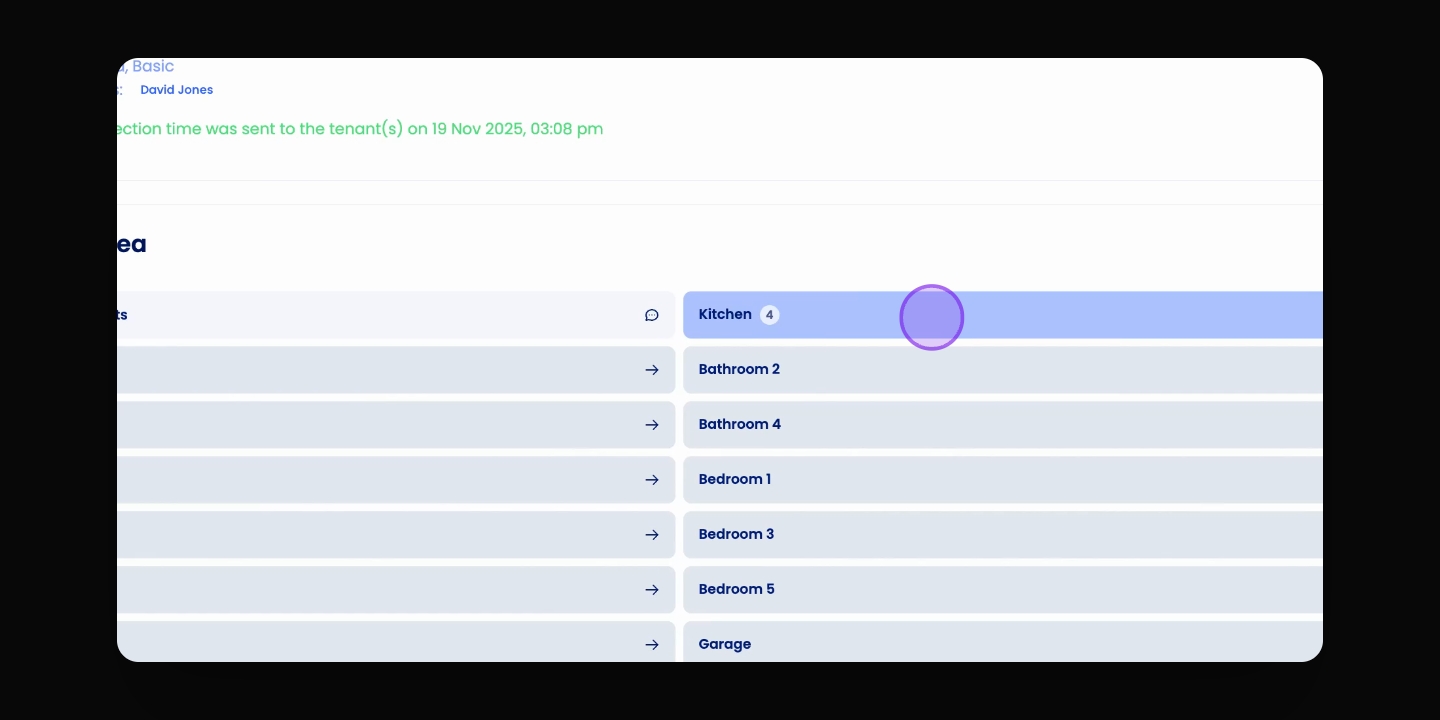
Choose area to edit
Click into the area you want to change.
4
Delete photos
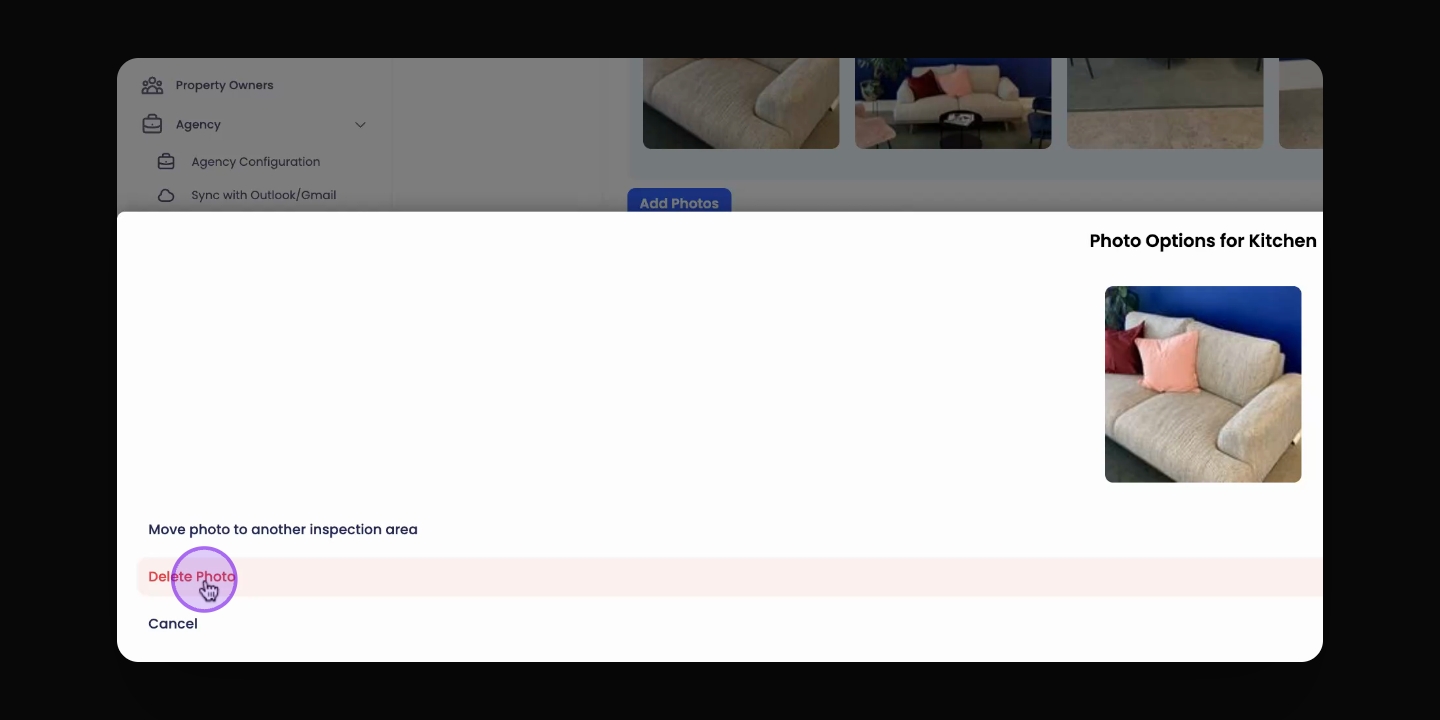
Press and hold photos, then click Delete to remove.
5
Confirm deletion
Confirm the permanent removal of the selected photo.
Let's Do It Together!
Step 1: Access the Property
Go to the relevant property in the web app.
Step 2: Select the Inspection
Click on the inspection you'd like to change or edit.
Step 3: Choose the Edit Area
Click into the area you'd like to change your edit.
Step 4: Delete the Photos
Press and hold the photos you wish to delete until options appear. Then, click Delete.
Confirm that you'd like to permanently remove this photo.
Important Note
This action cannot be undone.