

TL;DR
Let's Do It Together!
Step 1: Tenancy Set up
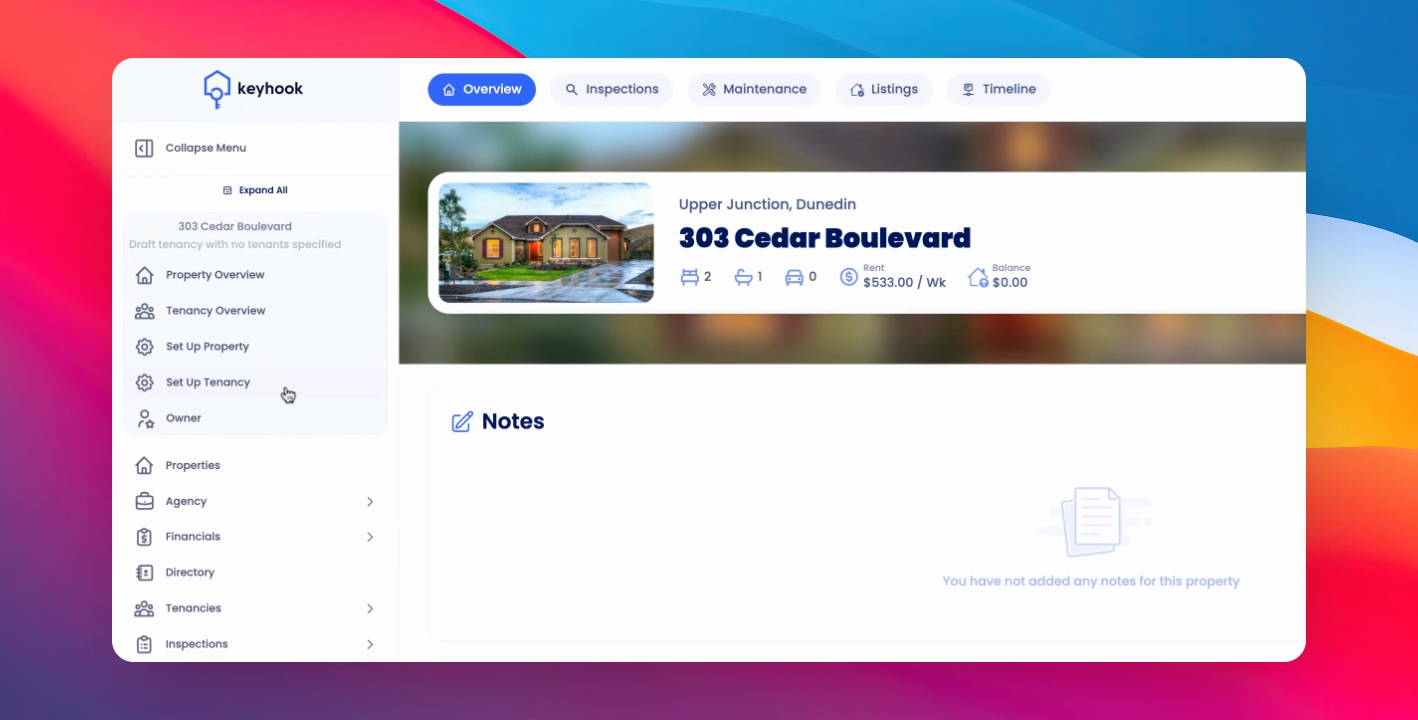
Navigate to any property and click Set Up Tenancy to access the Tenancy Agreement Builder.
Step 2: Tenancy Agreement Builder
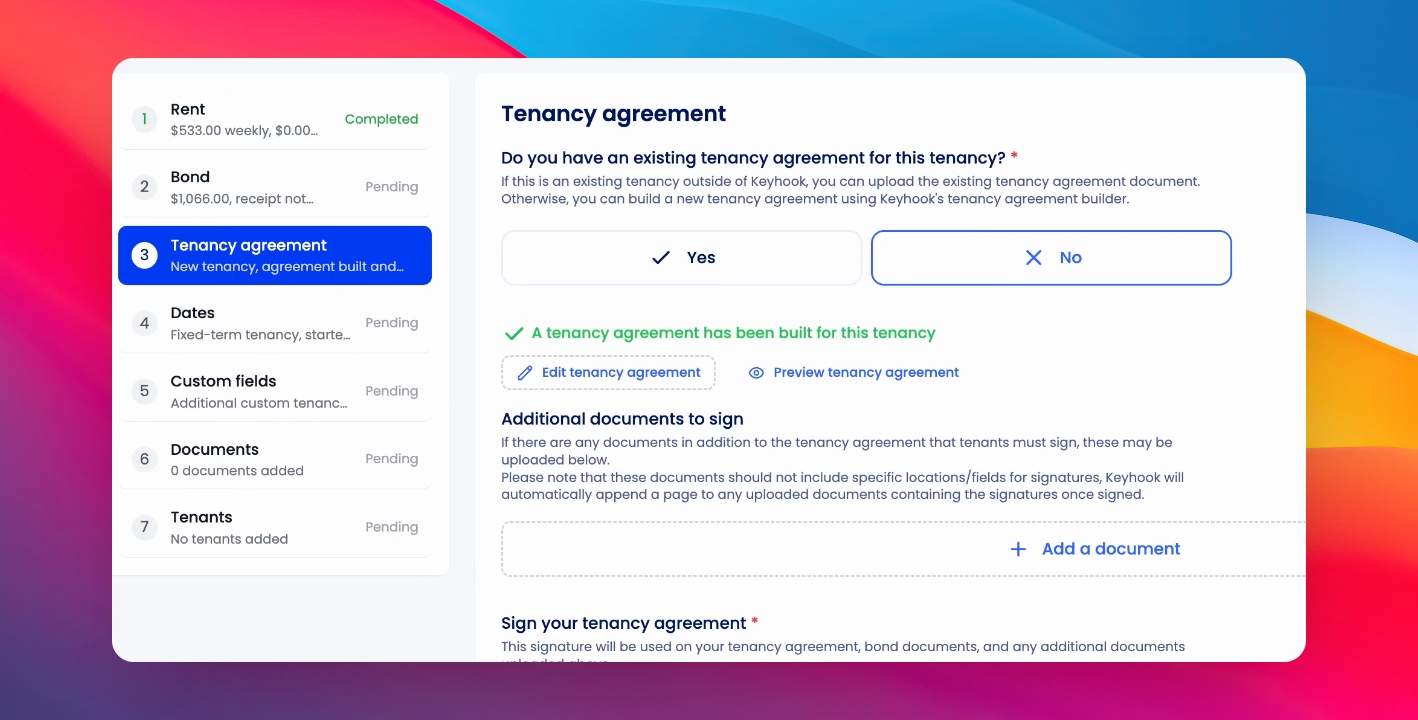
From the tenancy agreement tab, select No, when you do not have an existing tenancy.
This will prompt you to build a tenancy agreement in Keyhook. If you have already started, there will be an option to 'Edit Tenancy Agreement - as shown below.
Step 3: Customise Your Template
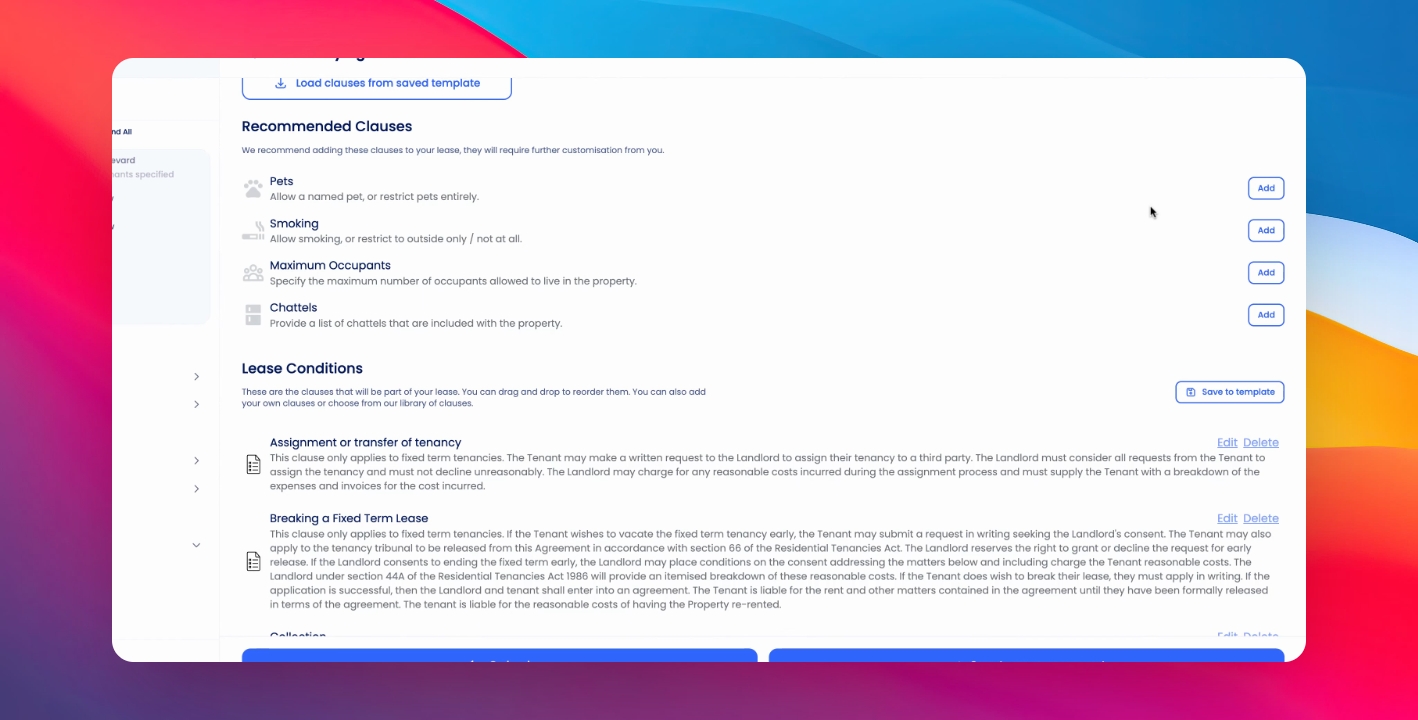
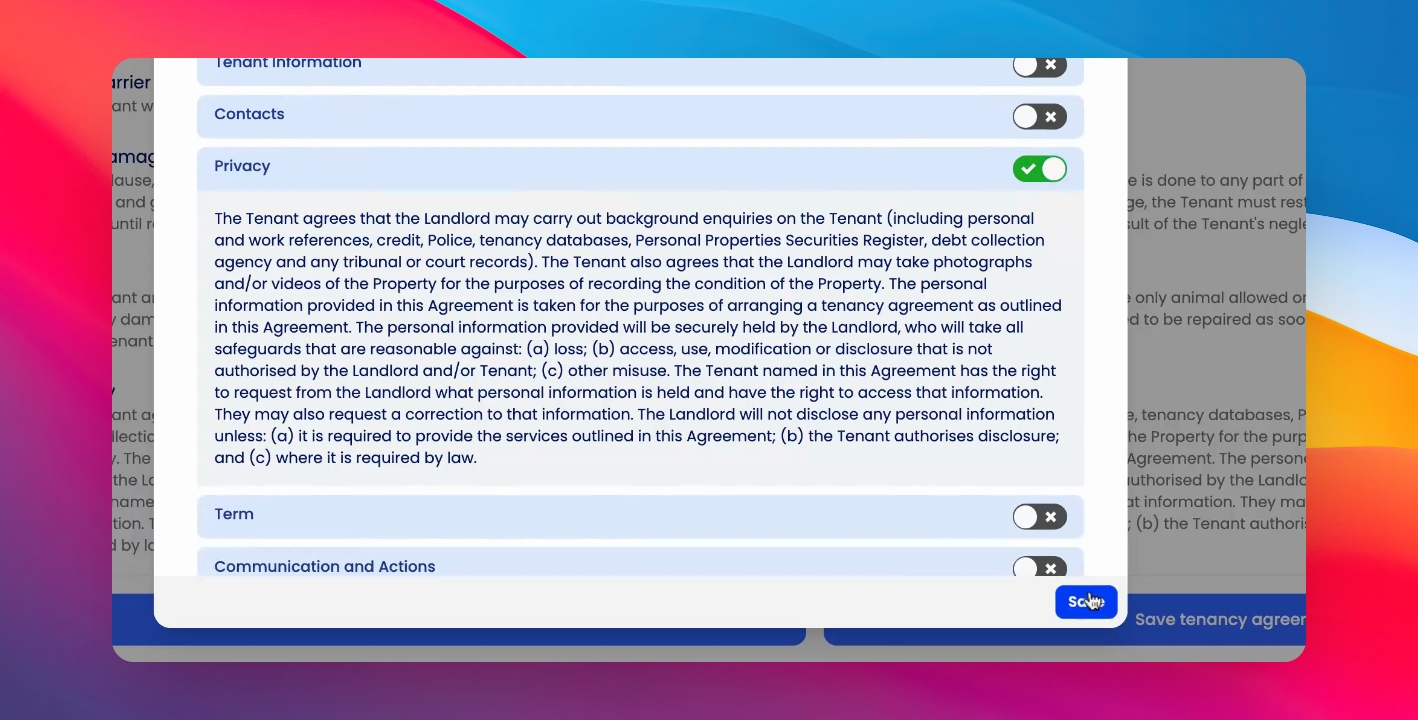
Select the clauses you want to include in your template.
Delete any clauses you don't want.
Edit existing clauses to fit your needs.
Step 4: Add Clauses
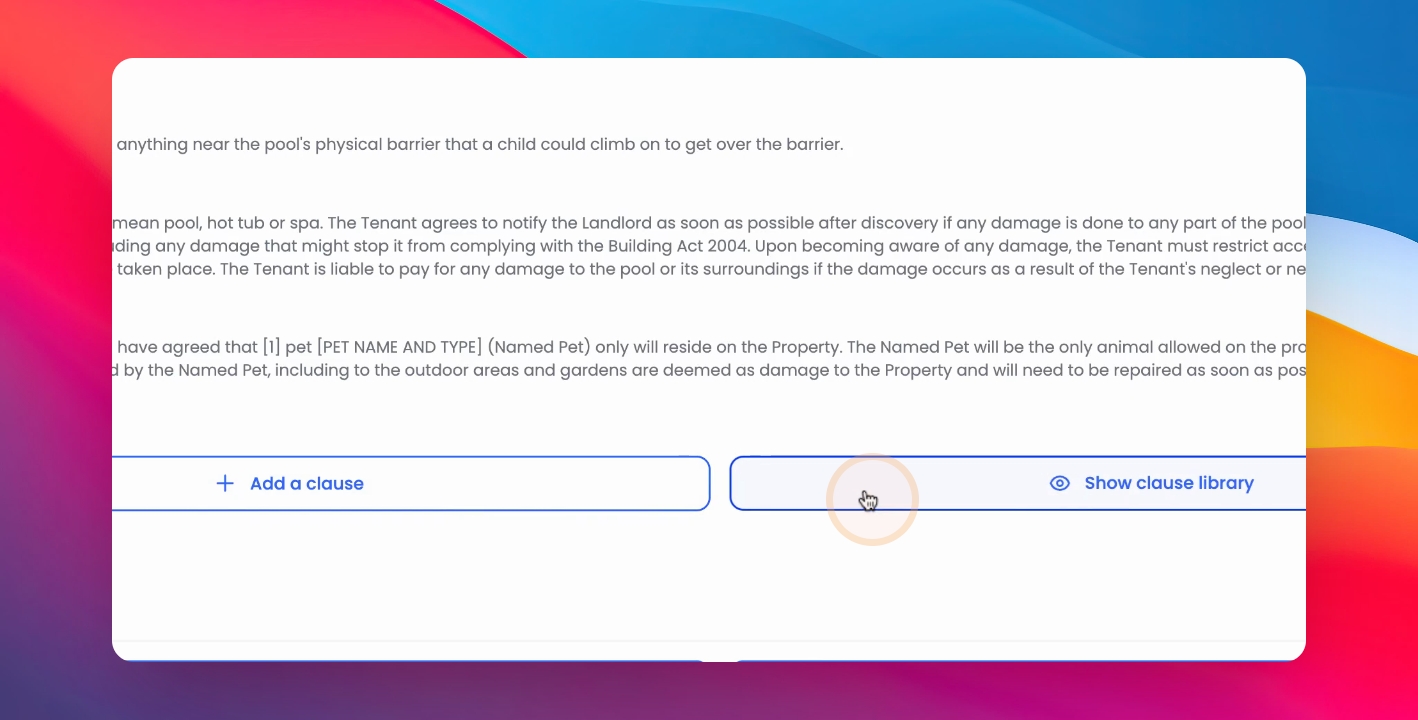
At the bottom of the Tenancy Agreement Builder, you have the option to add new clauses or select from the Clause Library.
Step 5: Save Your Template
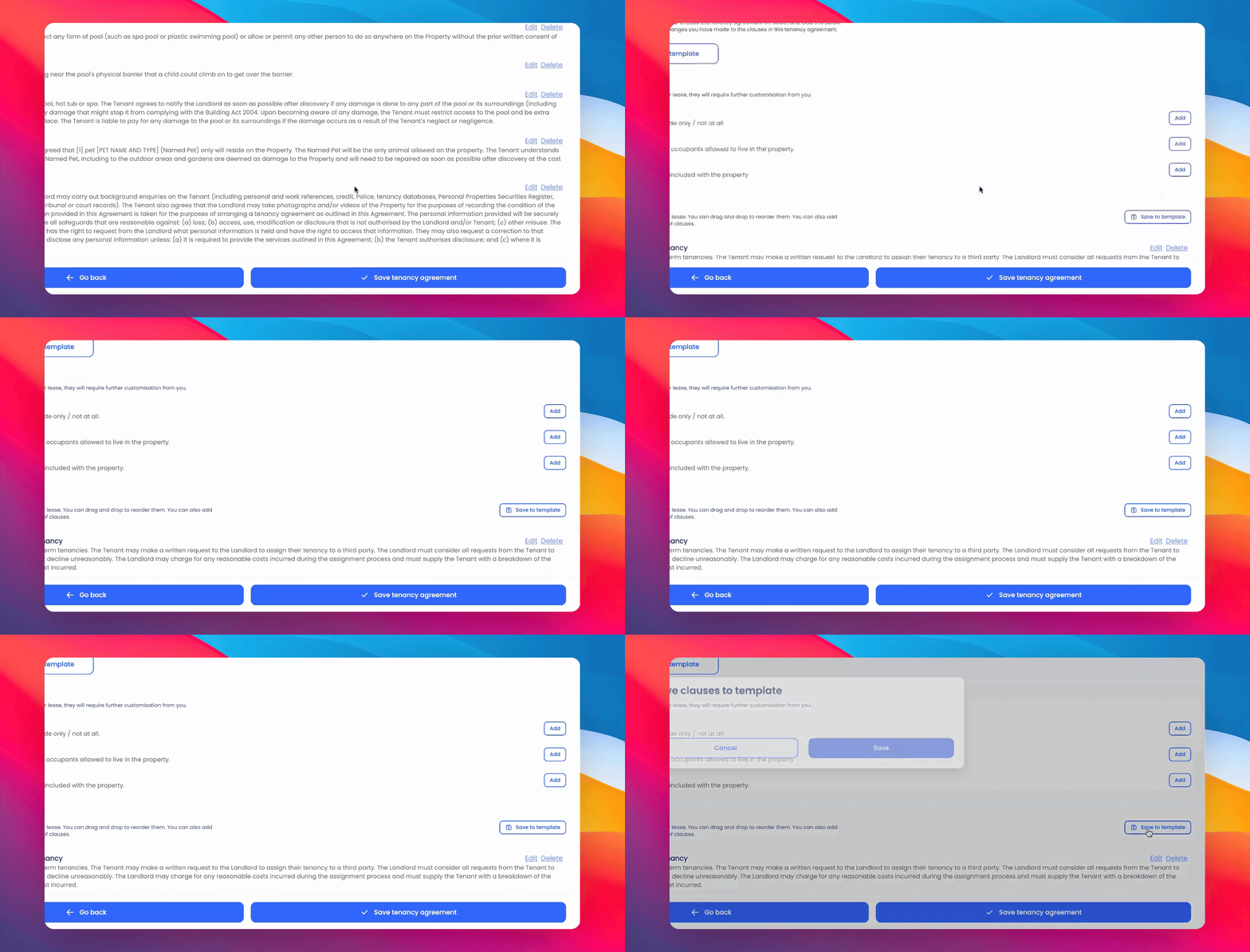
Once satisfied with your template, click Save to Template.
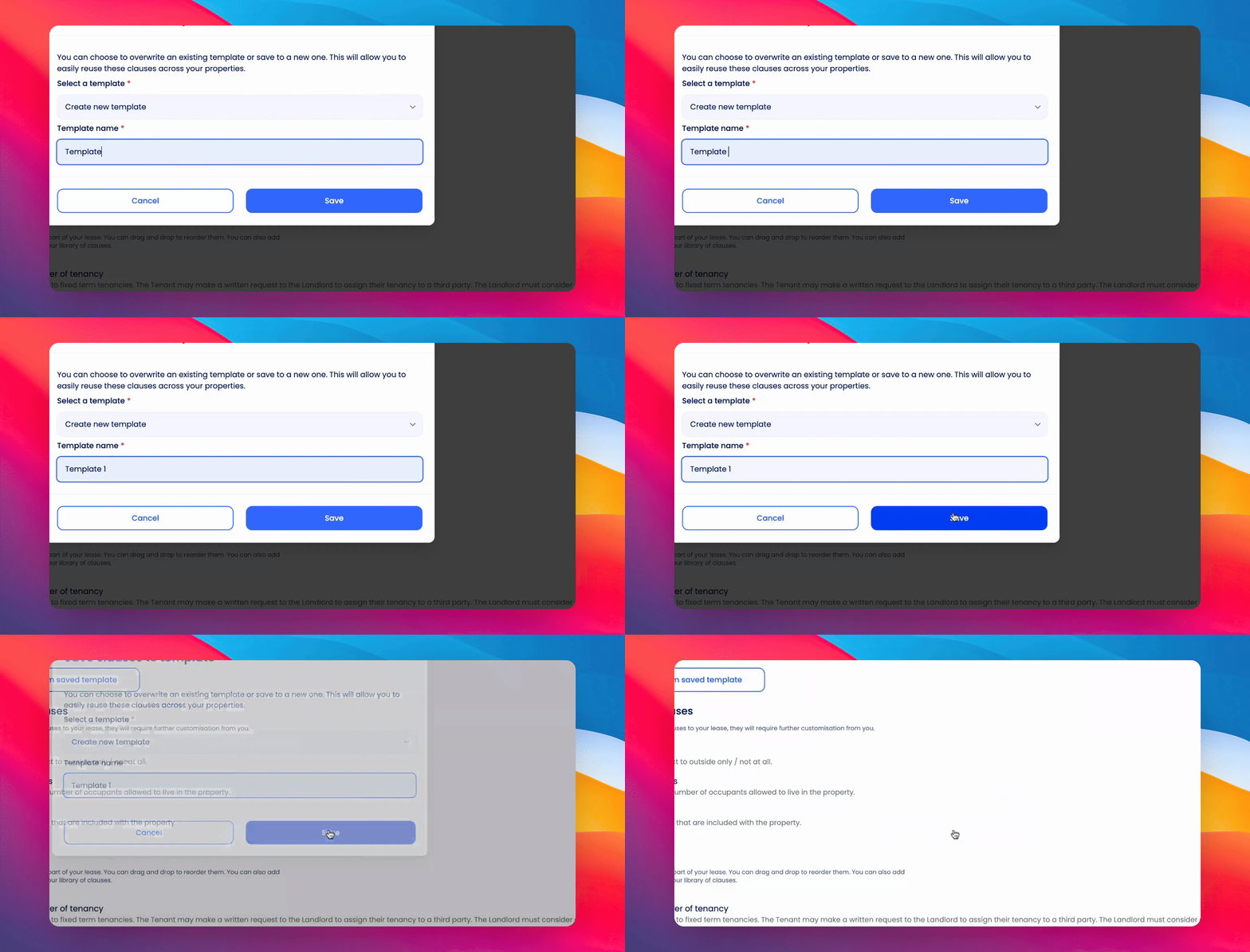
Select the drop-down menu and click Create New Template or overwrite an existing template.
Type in a name for your template and click Save.
If you need more help or have any questions, just reach out to us at support@keyhook.com — we're always here to help!