TL;DR
1
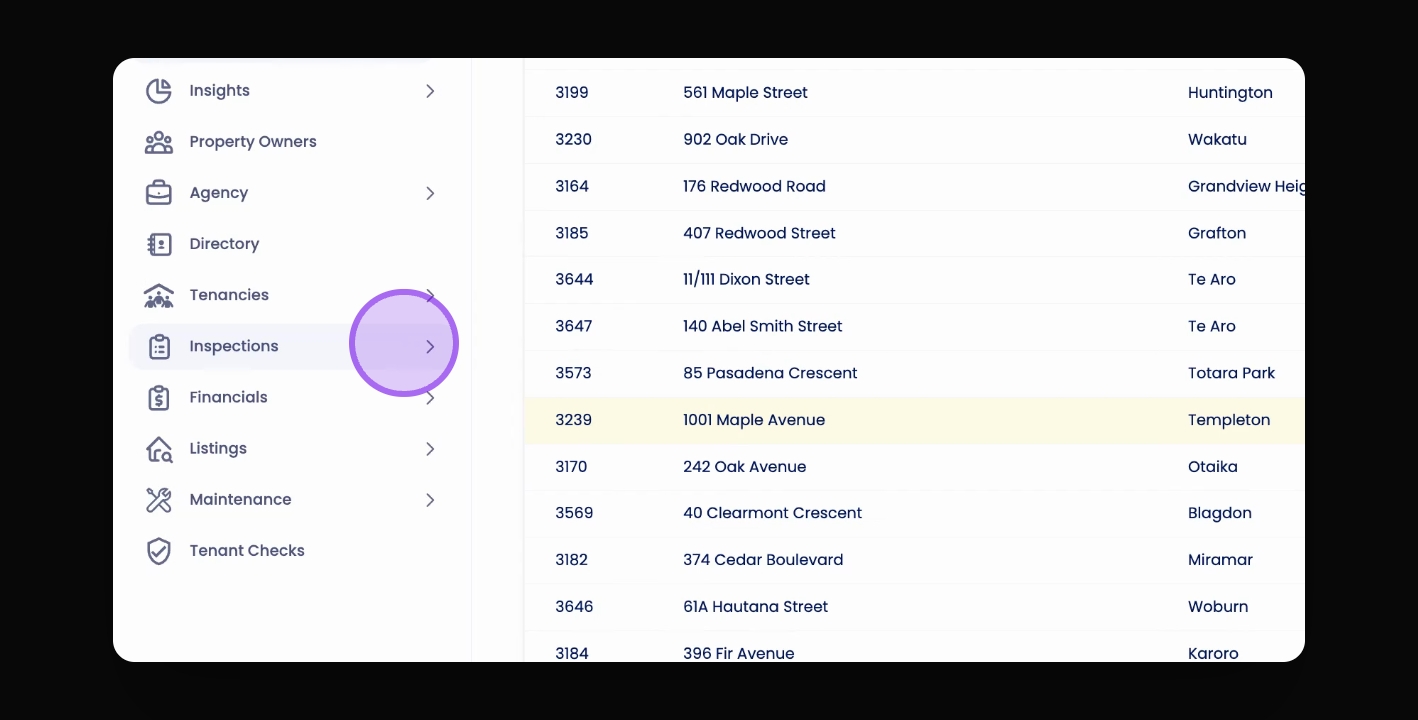
Access Inspections
Click Inspections and then Templates in the navigation bar.
2
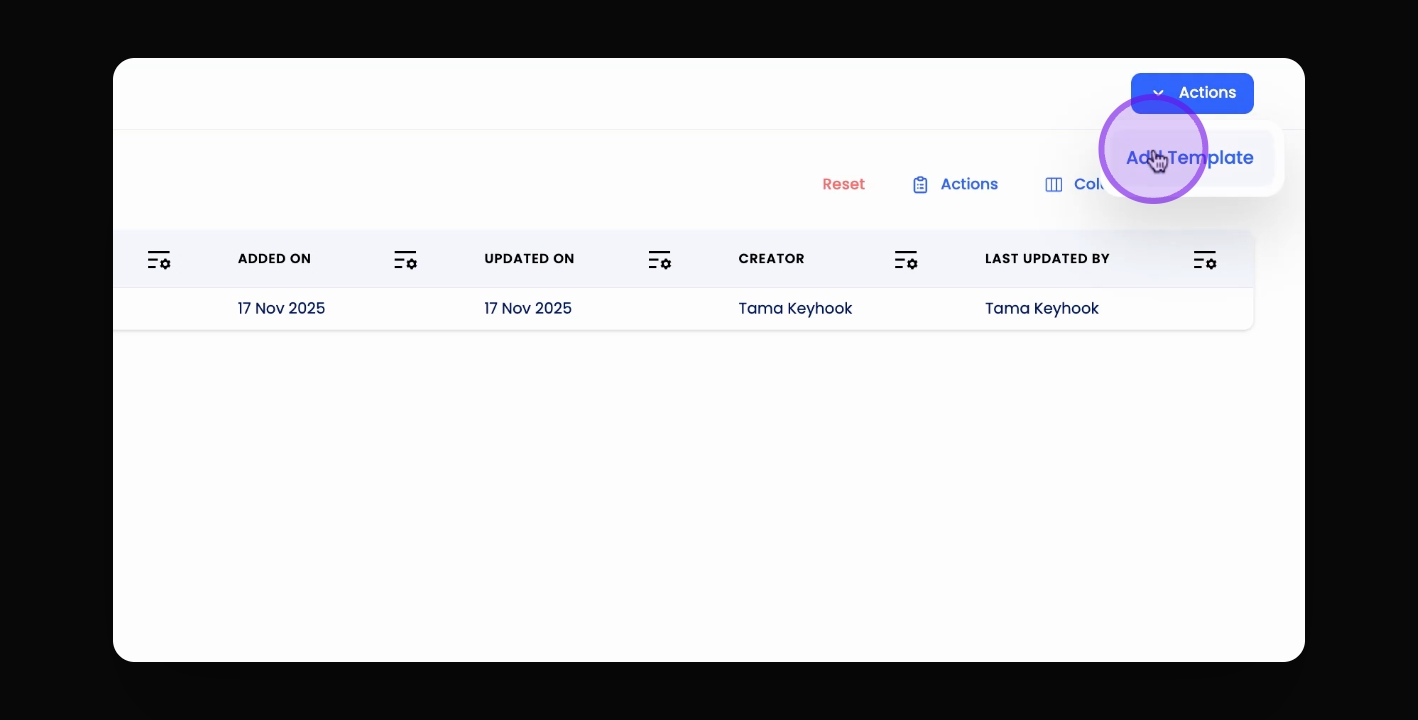
Add Template
Click Actions and select Add Template.
3
Select Template Type
Choose between dynamic and fixed templates.
4
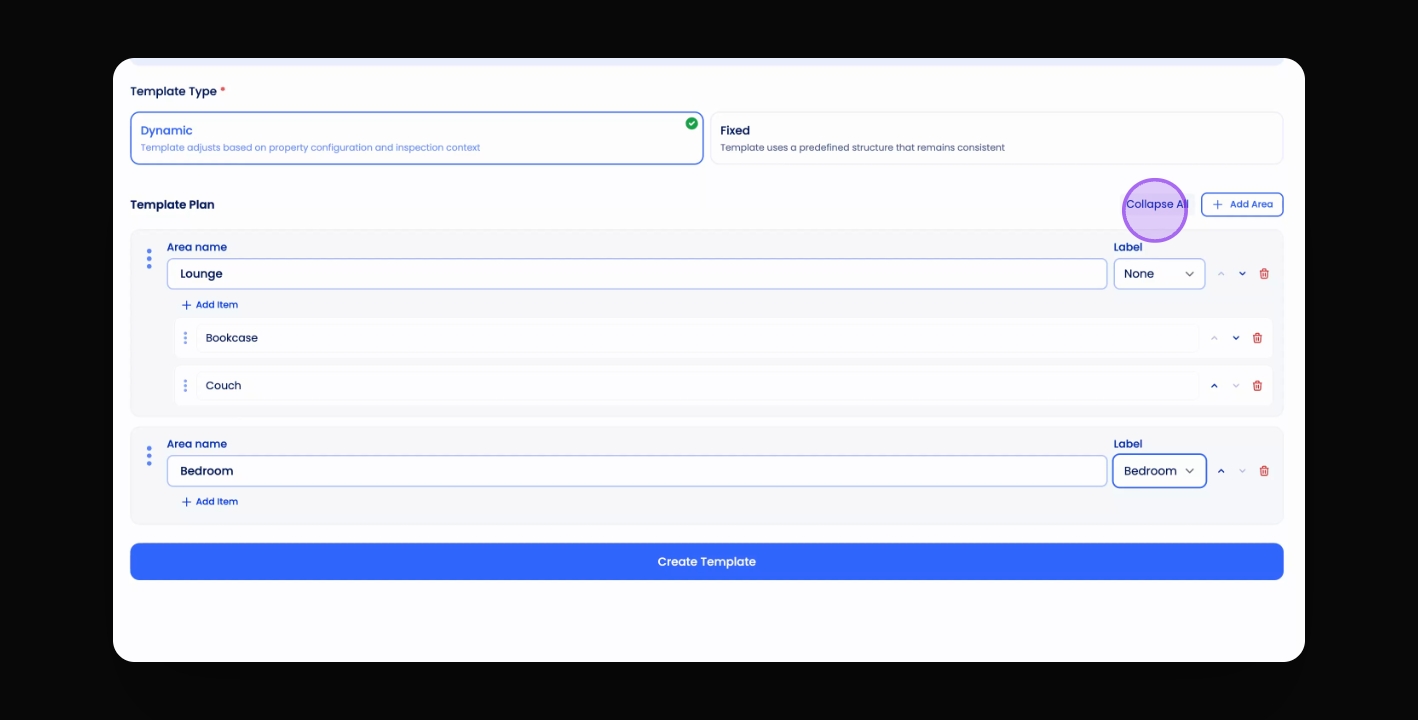
Configure Template
Add areas and items, label appropriately.
5
Create Template
Click Create Template.
Let's Do It Together!
Step 1: Access Inspections
Click on Inspections in the navigation bar.
Then click on Templates.
You will see your existing inspection templates.
Step 2: Add a New Template
Click on the Actions button at the top right corner.
Then click Add Template.
Step 3: Choose Template Type
Choose between a dynamic template or a fixed template.
The dynamic template populates rooms based on property details.
The fixed template is ideal for identical layouts in apartment buildings.
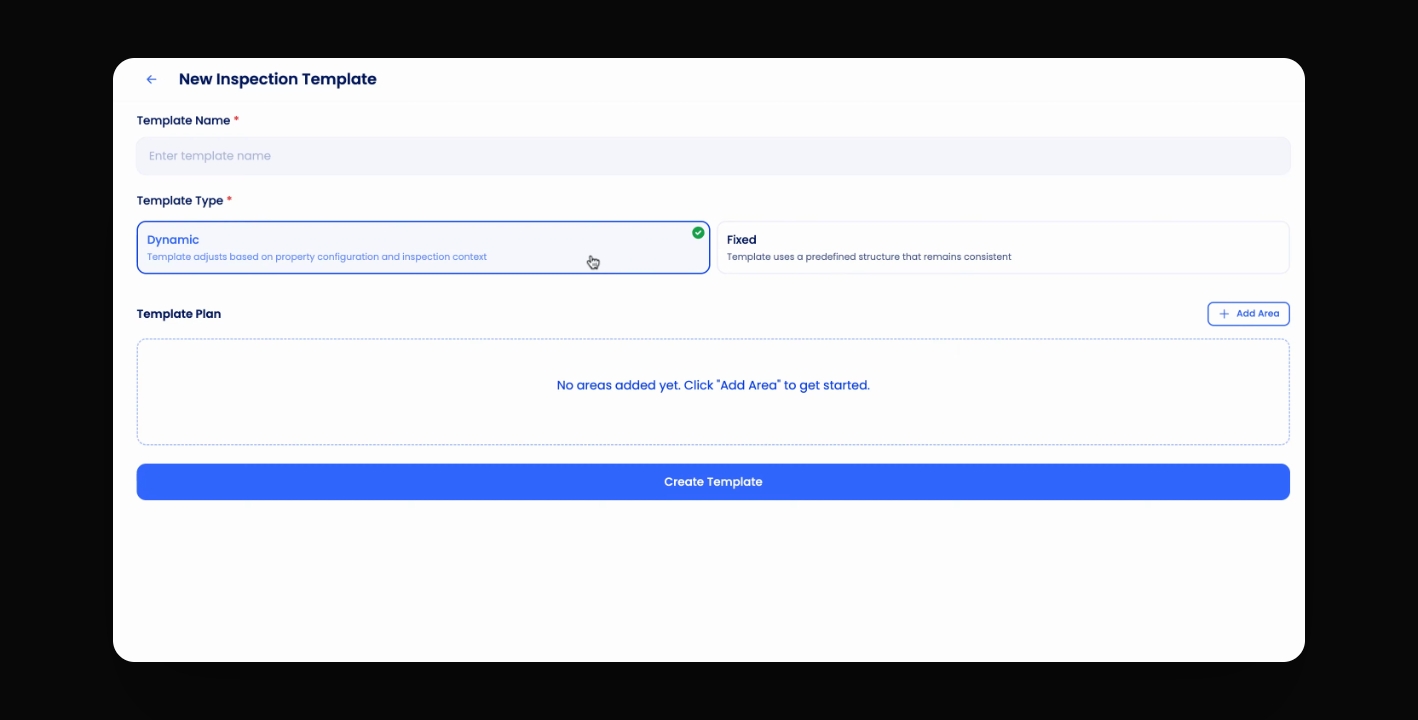
Step 4: Create Dynamic Template
Add a template name.
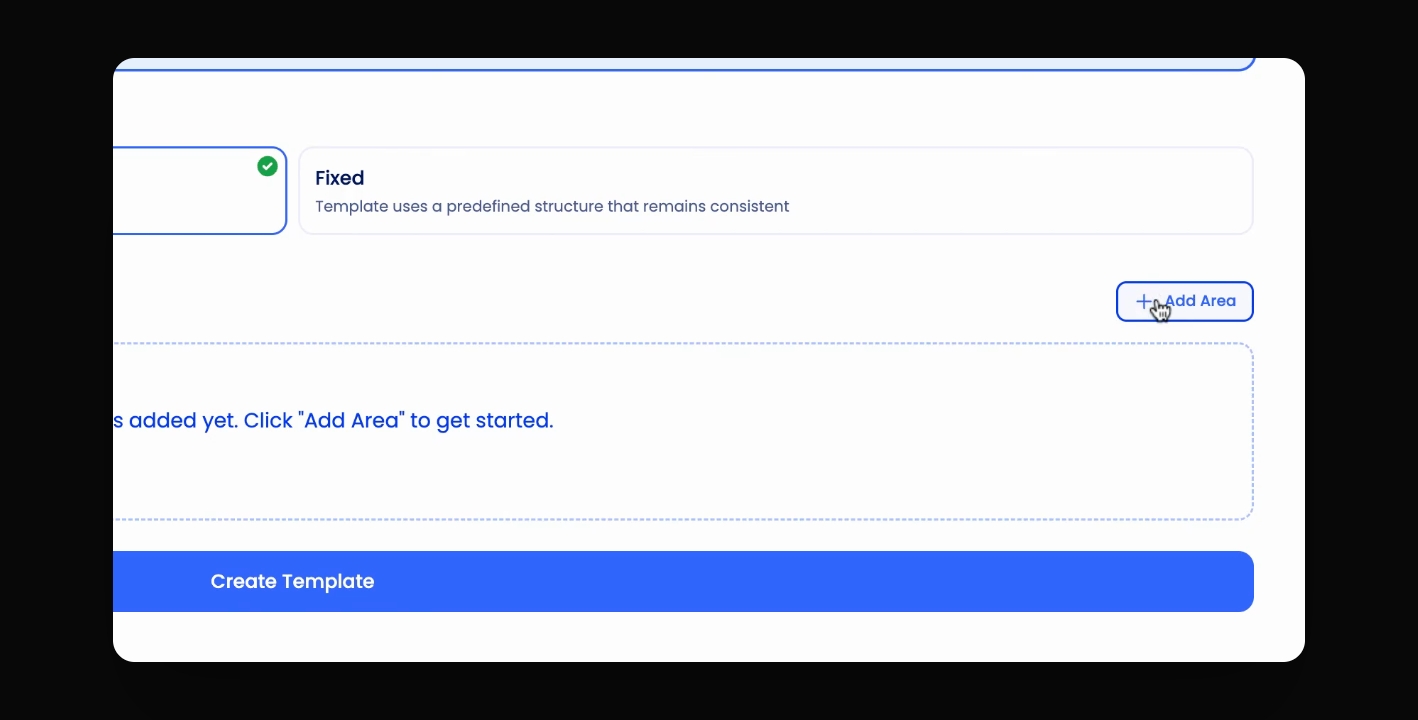
Add an area to the template.
Click Add Item to include items in the area.
Click Add Area to add multiple areas to the template.
Step 5: Label Areas
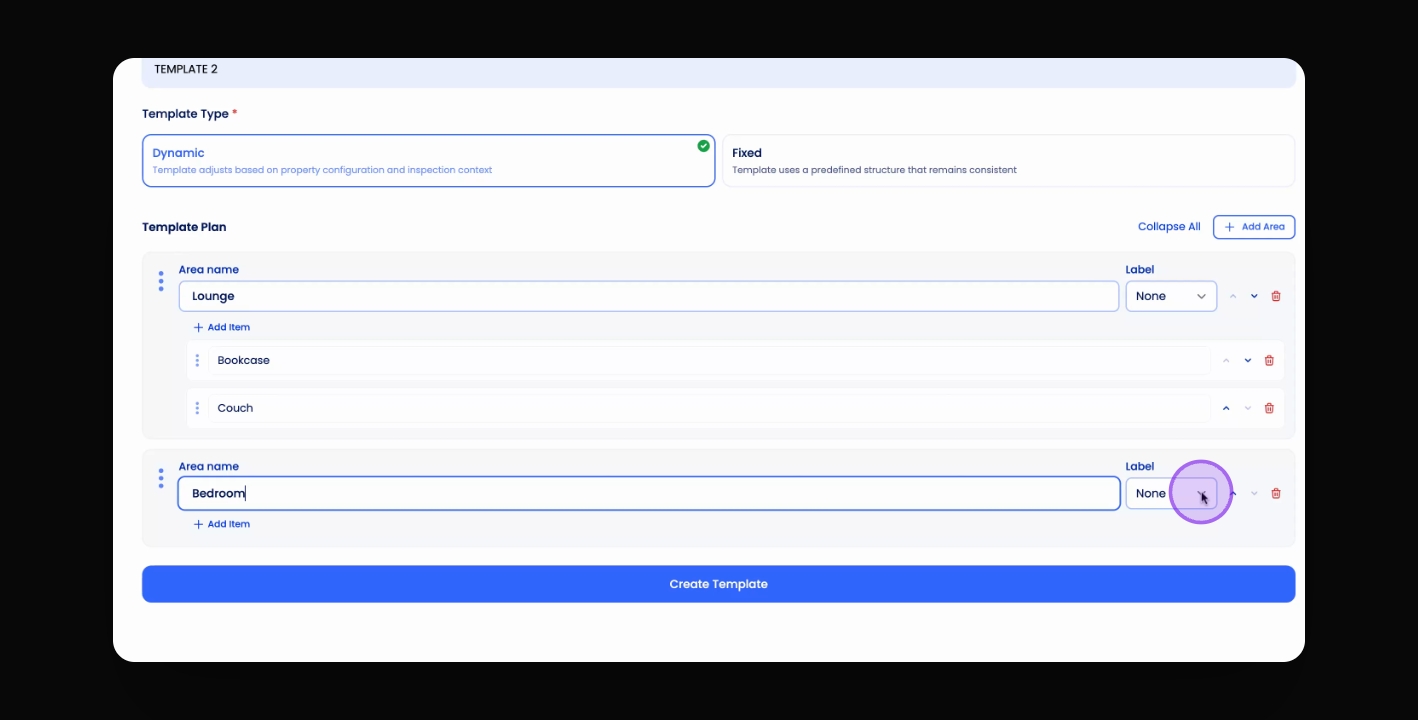
Label areas such as bedrooms or bathrooms appropriately.
This ensures the template populates correctly based on property details.
Step 6: Finalise Template
Collapse areas for easier viewing.
Click Create Template when ready.