

This guide walks you through preparing your data, generating all owner reports for a date range, and adding notes before statements go out.
Before You Start:
Clear any charges sitting in the Approvals tab (Financials → Invoices → Needs Approval), and make sure all supplier invoices are entered. If you're entering invoices on the payment day itself, date them the previous day so they land in the right run.
Quick Steps
Navigate to Financials → Owner Statements.
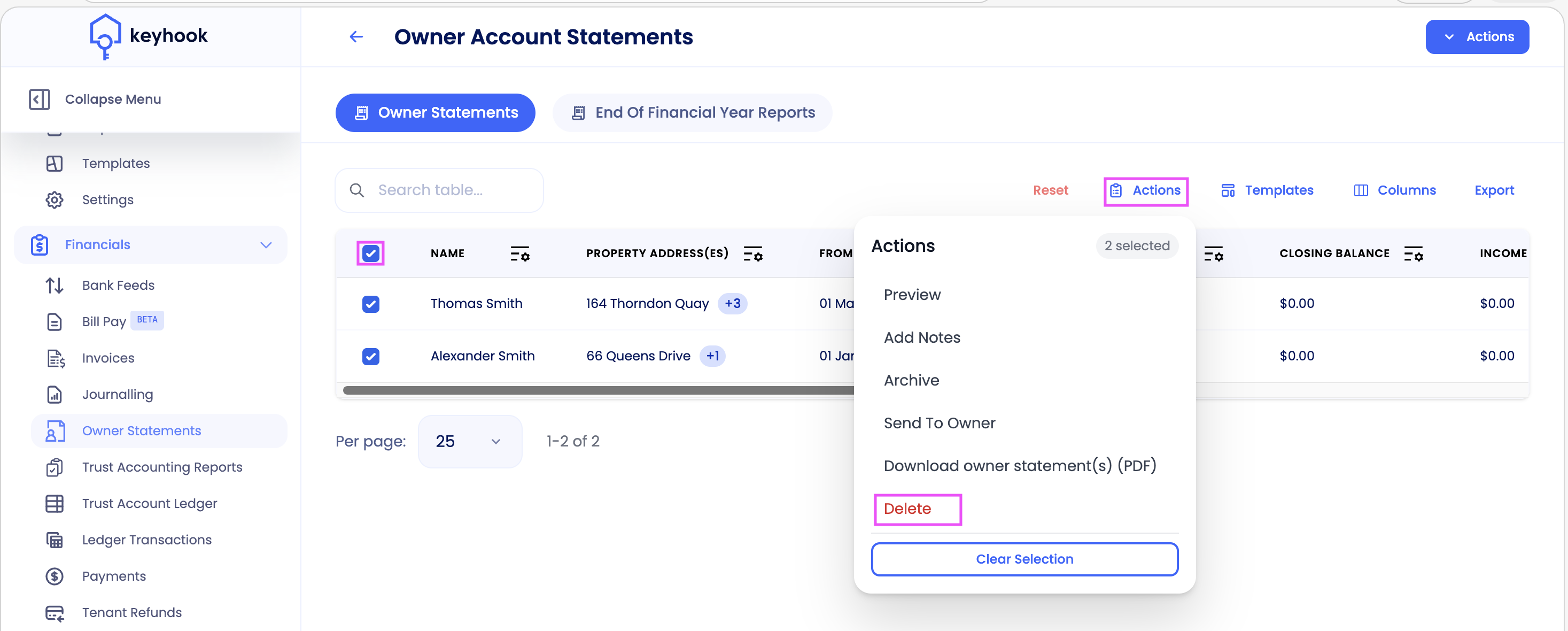
Select any old reports already in the list and use Actions → Delete to remove them from this section
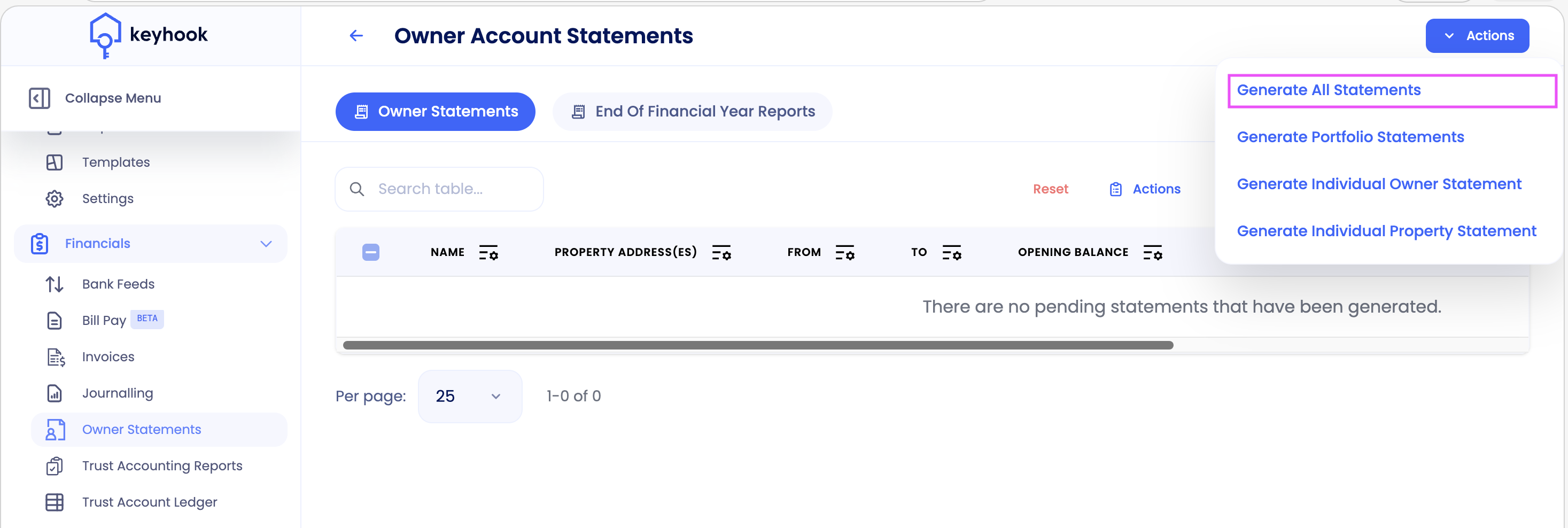
Generate All (top right, under the big blue Actions button) and choose your date range.
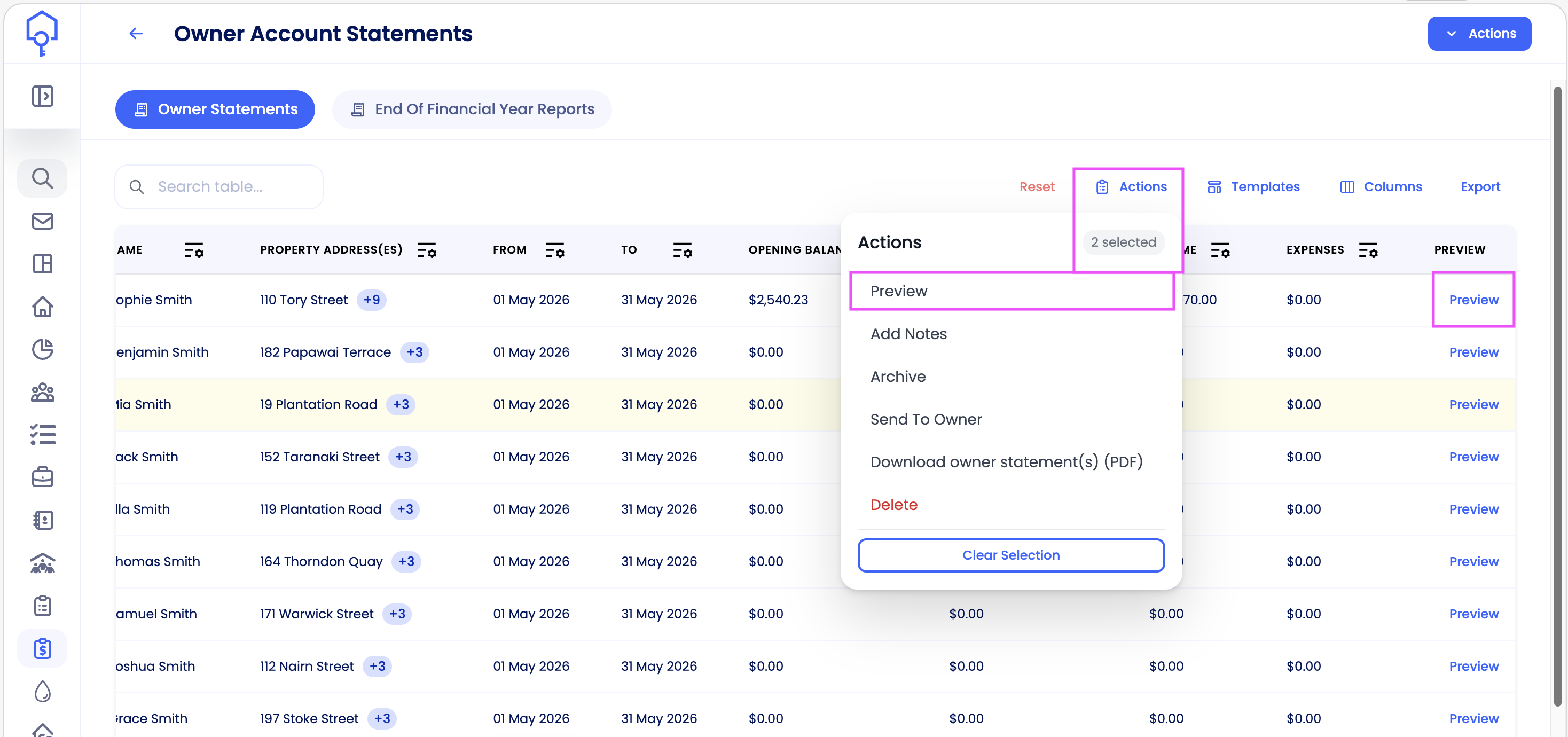
Preview a few statements at random to sanity-check. The Empty column flags owners with no transactions.
Add notes under the Actions button, notes appear at the top of the owner's statement.
Tick all statements, or sort by tags to select a group, then use the small actions on the left and click Send to Owner.
Detailed steps
Before you start
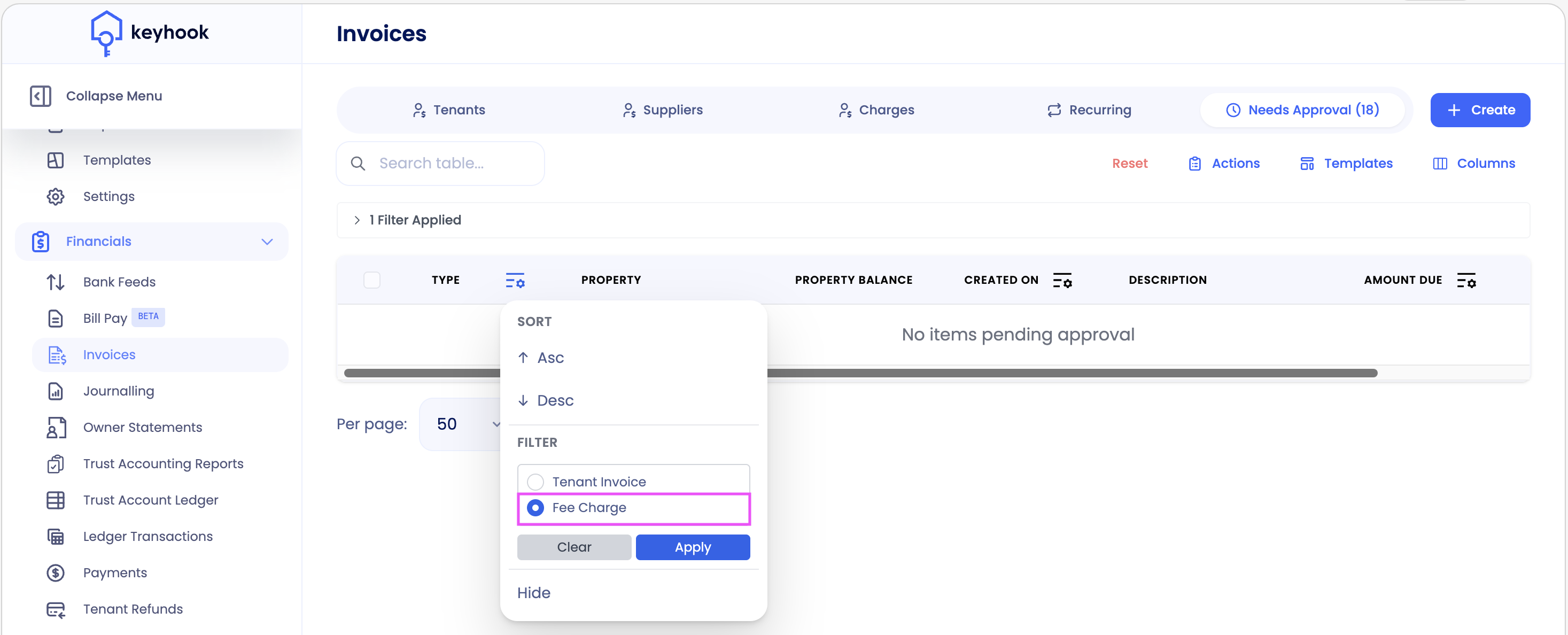
Navigate to Financials → Invoices → Needs Approval.
Click on the Type filter to change to Fee Charge and Apply. Click into any charges and approve them if they are ready to be approved.
Delete old reports
Navigate to Financials → Owner Reports.
Select the tick box to select all → select Actions → Delete.
Generate the reports
Click Actions → Generate All and choose your date range — typically the first receipt date through the last bank-matched receipt for this payment run.
Optional - check the results
Once the reports generate, preview a few at random to confirm they look right.
Either:
In bulk → Tick the owner(s) on the left, select Actions → Preview
Individually → Scroll to the right till you see the Preview column, select the preview for the statement you would like to check
Optional - Filter out blank statements
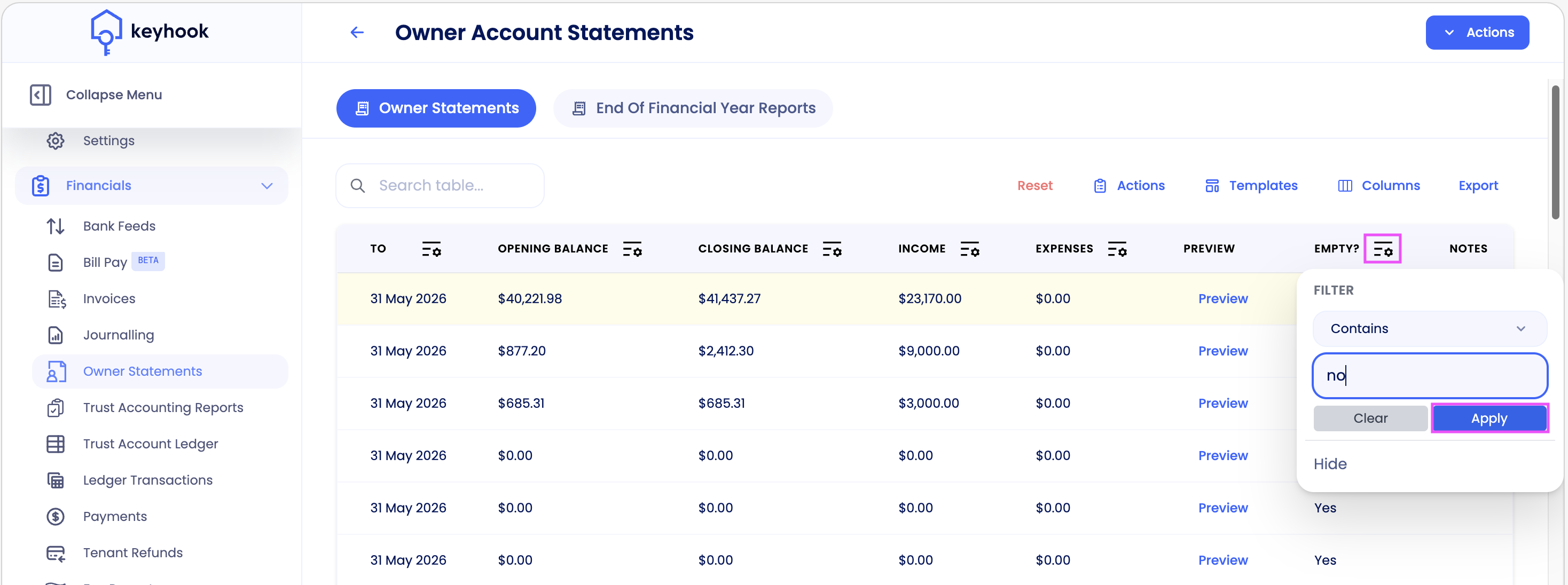
The Empty column flags owners with no transactions for the period. If you only want to send statements that have amounts showing, click the Empty? filter, set it to contain the value No, then click Apply.
Adding Notes
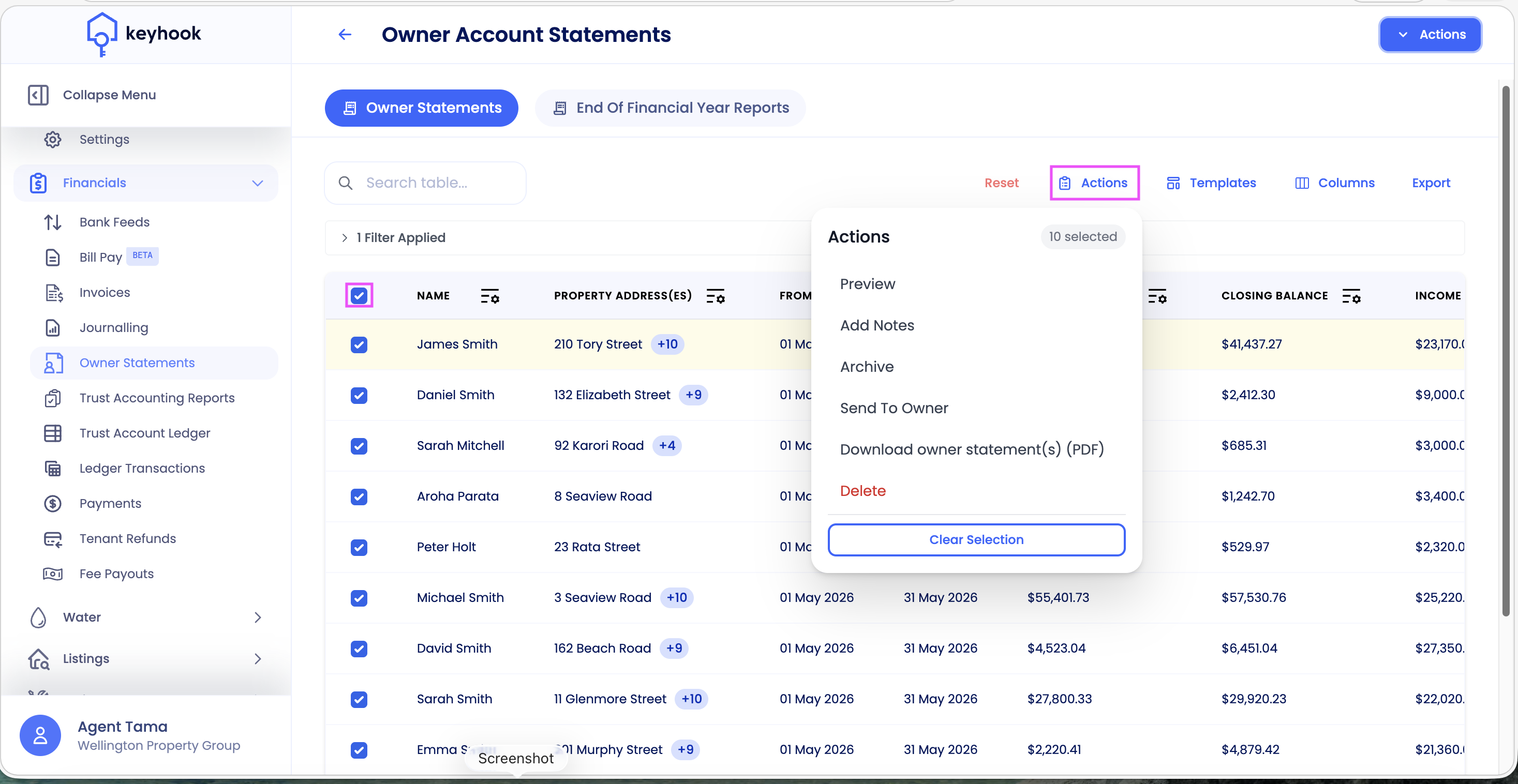
Click Actions → Add Notes, this will allow you to add a note to all owner statements. Notes show at the top of the Owner Statement.
Send the statements to owners
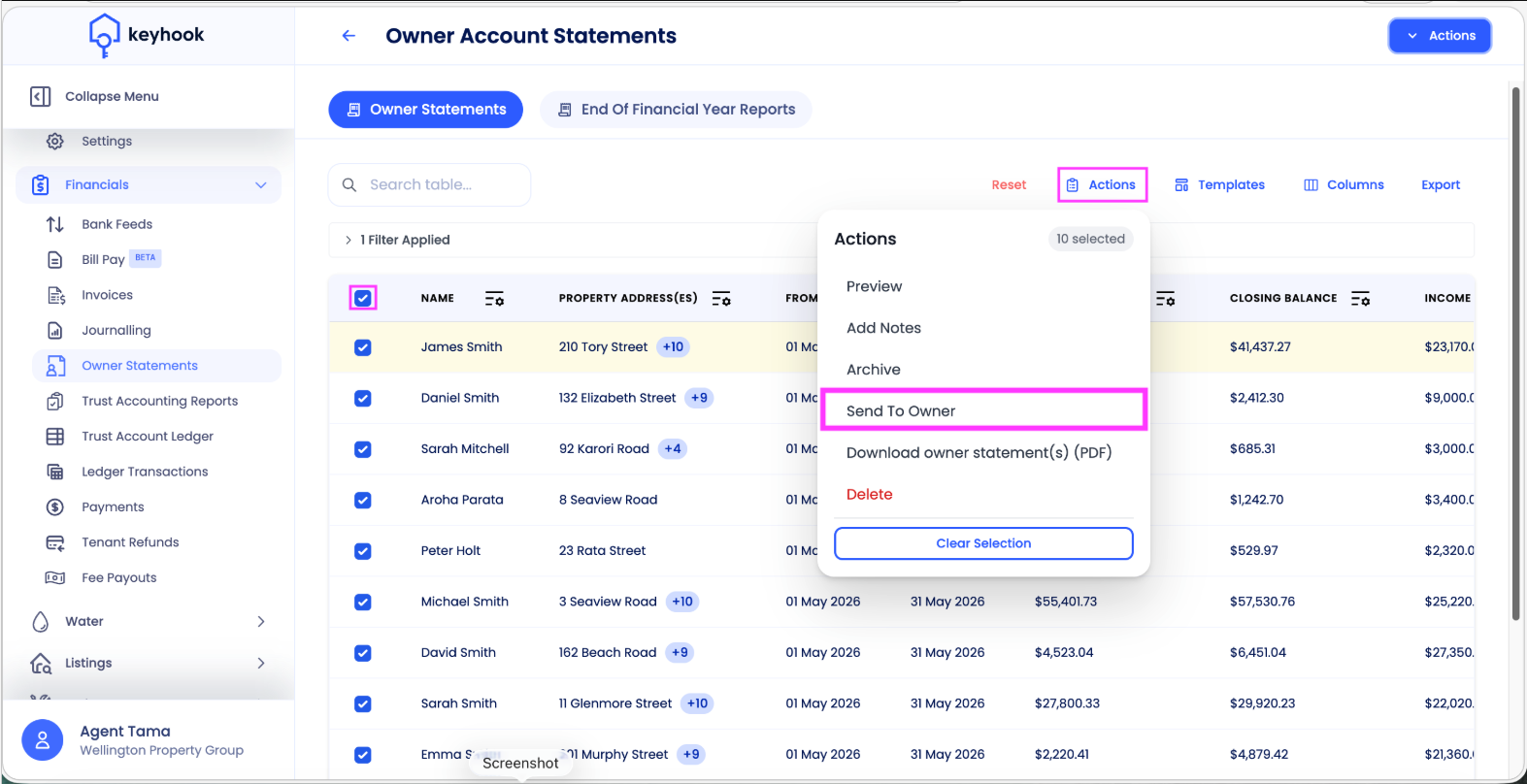
Once you've checked the reports and added any notes, tick the whole list — or sort by tags to select a specific group — then use the small actions on the left and click Send to Owner.
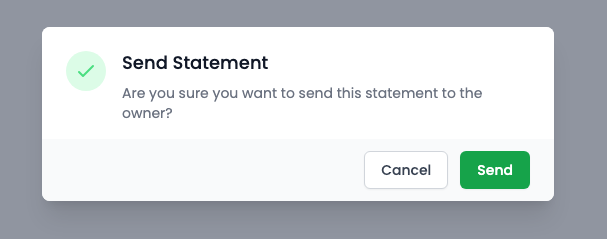
Confirm you would like to send these statements to all owners selected.
Frequently Asked Questions
What does the email look like?
You can preview or edit the email template at any time. Go to Emails → Templates and click the Account Summary template, then make any changes you'd like. For step-by-step instructions, see this help article.
How do I know the email was sent to the owner?
Once the email has sent, it appears in the owner's timeline. There can be a slight delay between the email being sent and it showing in the timeline.