

To create a listing on Keyhook and publish it to the listing sites, navigate to the relevant property. Let's look at the steps:
Step 1: Navigate to Property
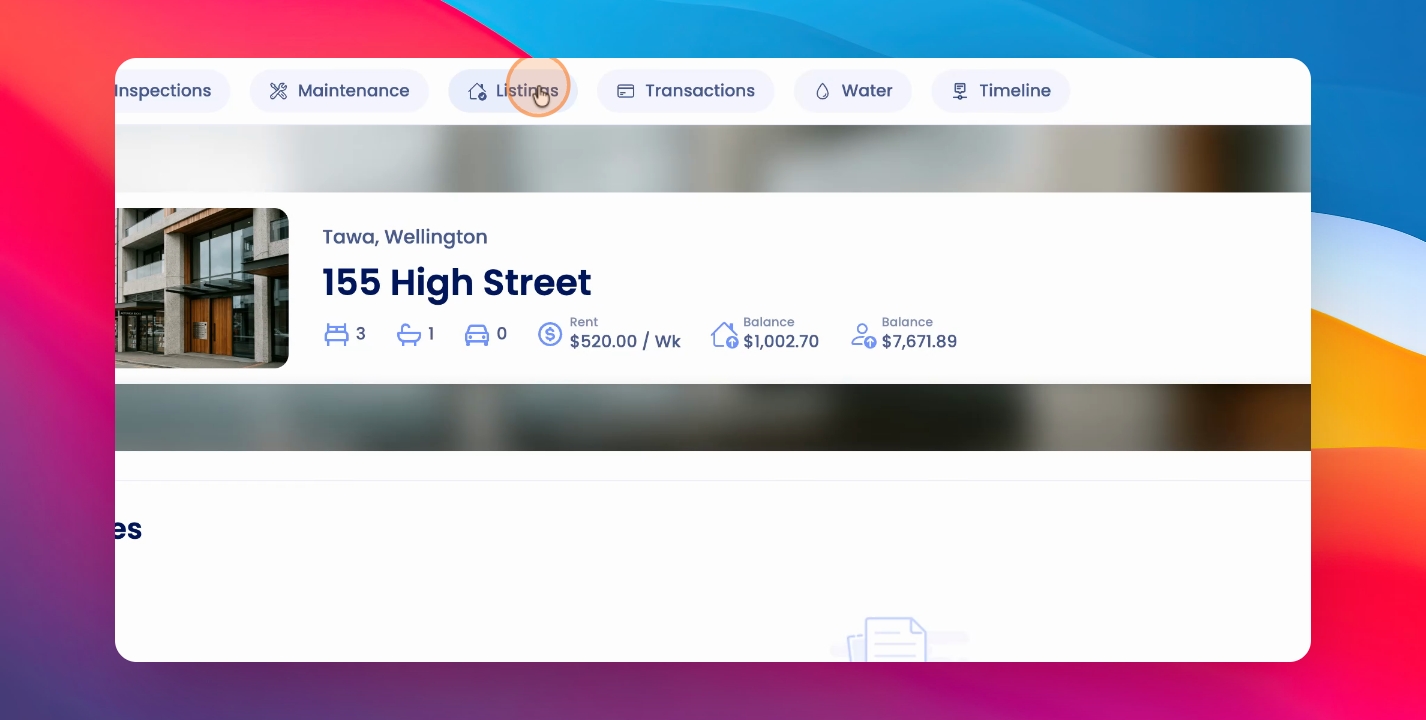
You can do this using the shortcut command K or control K. Once at the property, click the Listings tab at the top of the screen.
Step 2: Click Actions
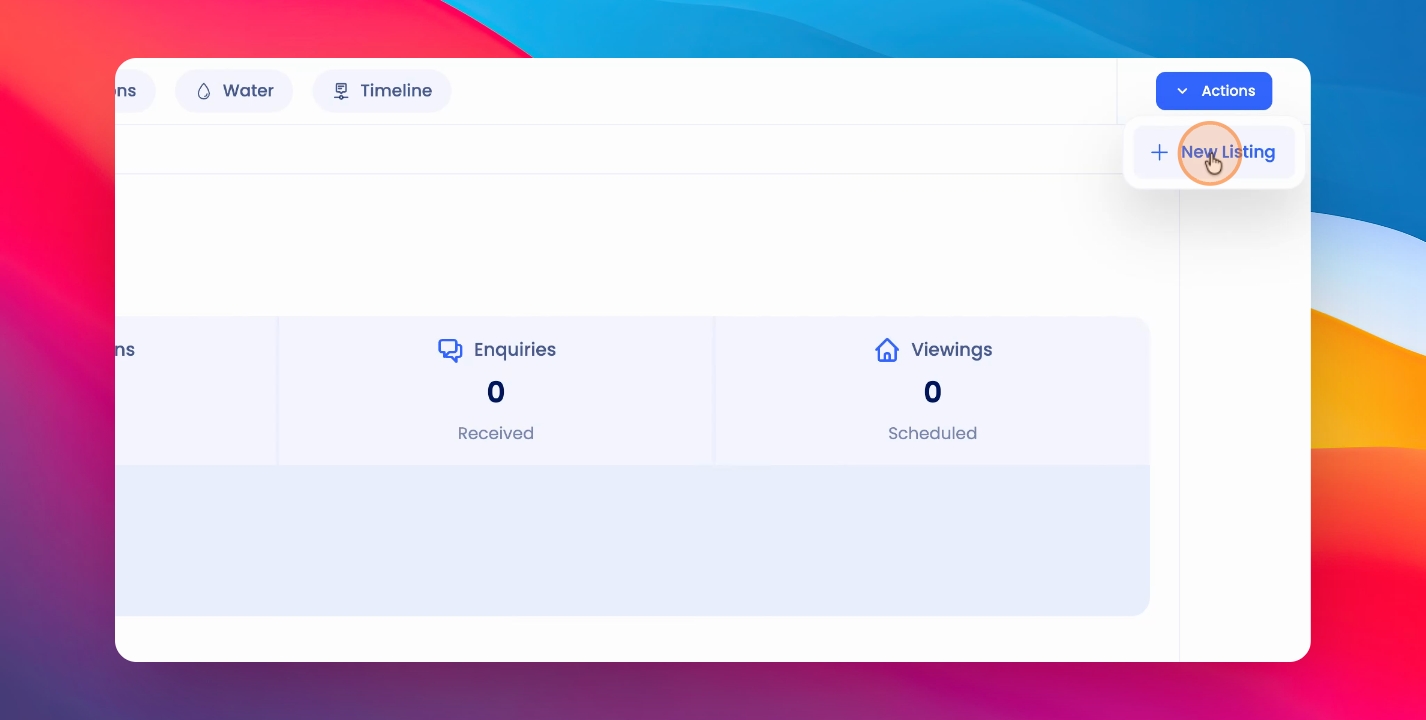
To create a new listing, click the Actions button at the top right hand corner.
Step 3: Select New Listing
Click New Listing.
Step 4: Review Details
The details of your listing will have saved from the previous listing for the same property. Click Next to review and confirm the details displayed.
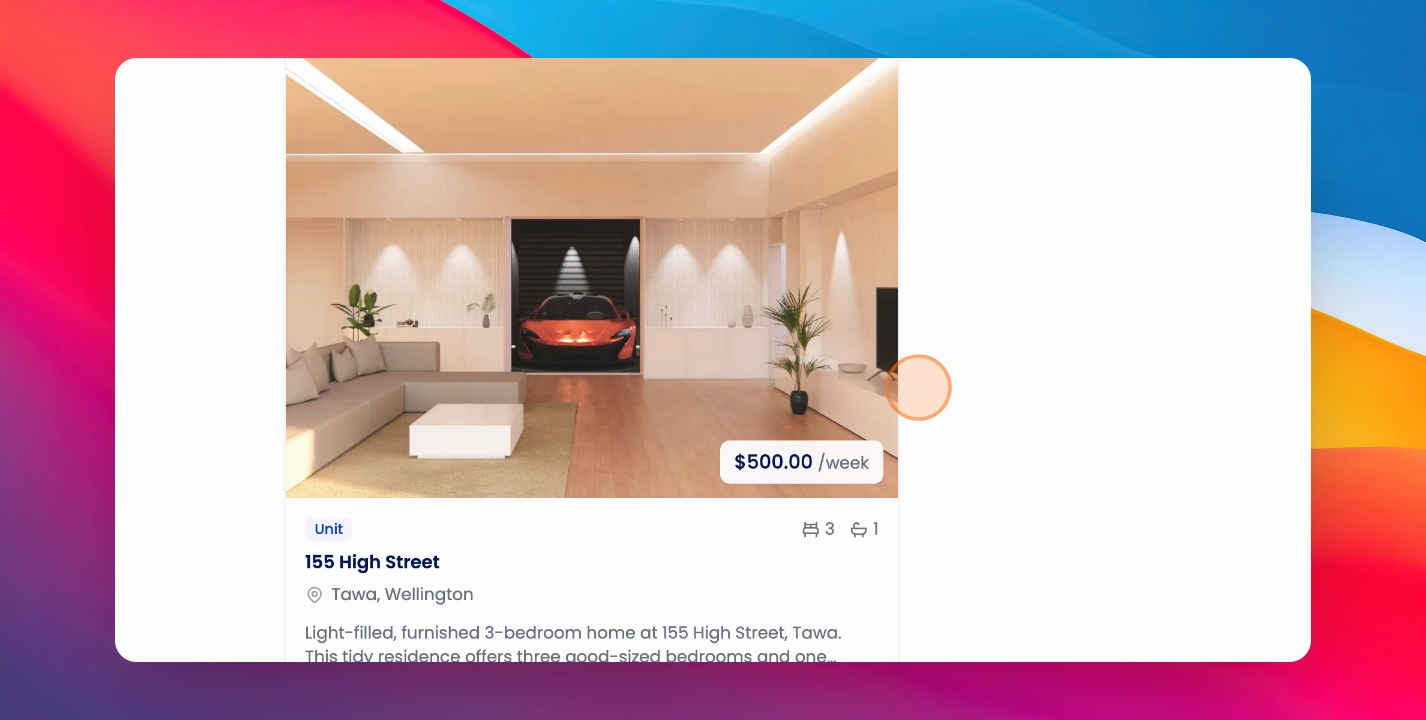
Step 5: Preview Listing
You can click the Preview card to preview your listing.
Step 6: Publish Listing
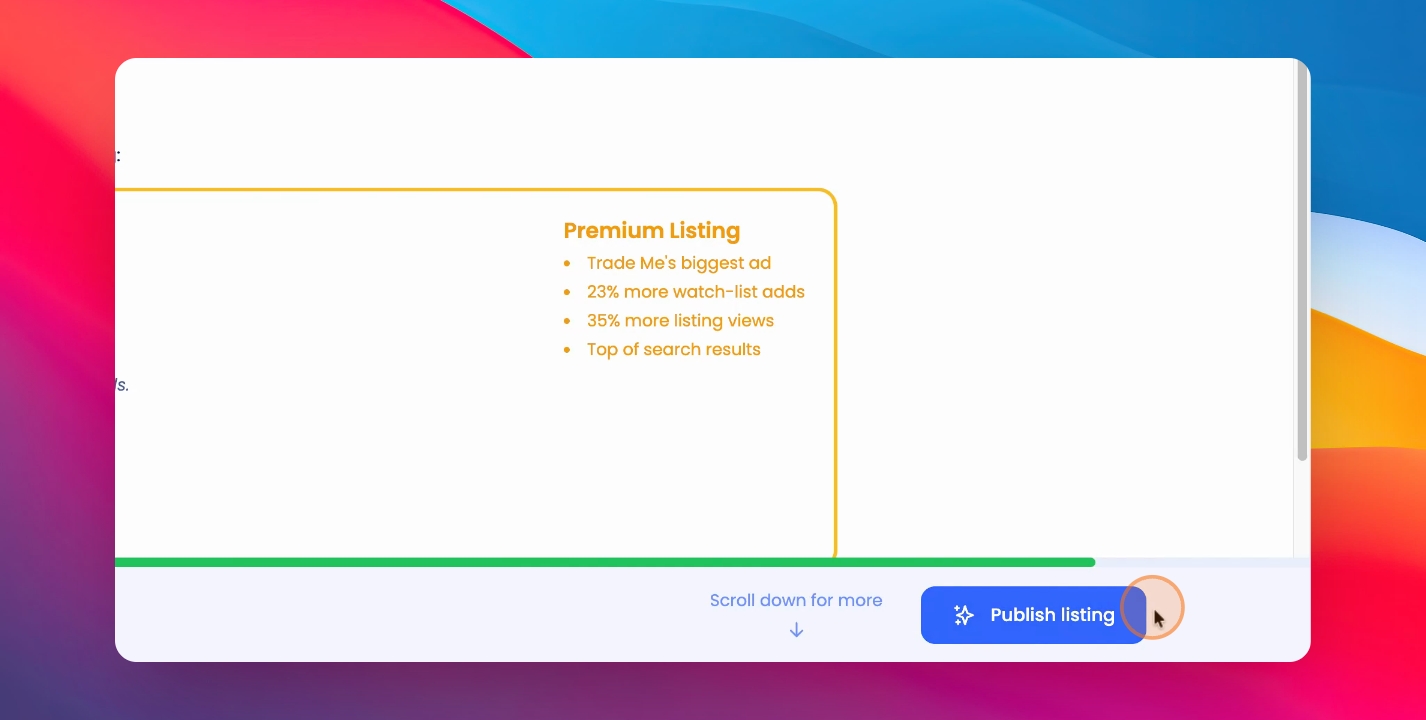
Click Next to proceed, select where you would like this listing to be posted, and click Publish Listing.
Step 7: View Published Listings
To view published listings, go to Listings in the navigation bar and visit the relevant listing.
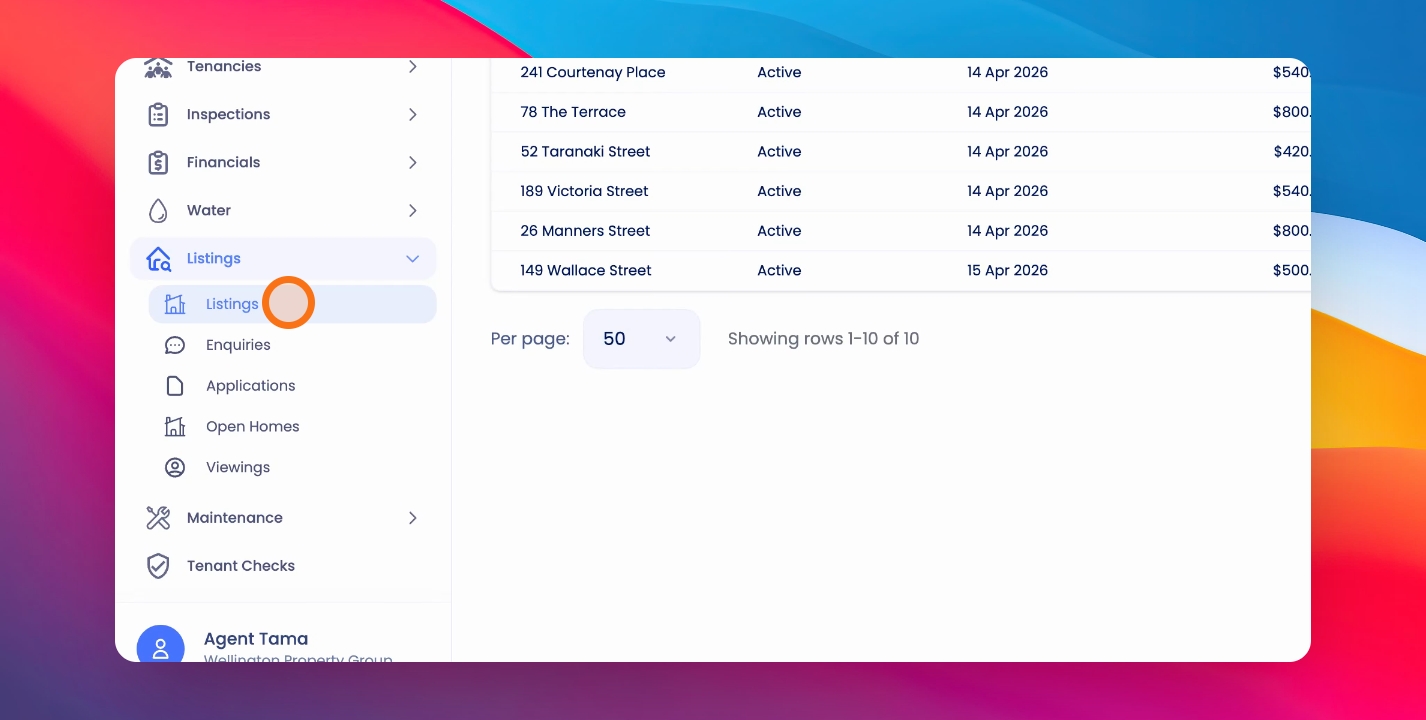
This is where you find your inquiries and applications.