

TL;DR
Click Manage Tags and Select or Deselect The Desired Tags.
Let's Do It Together!
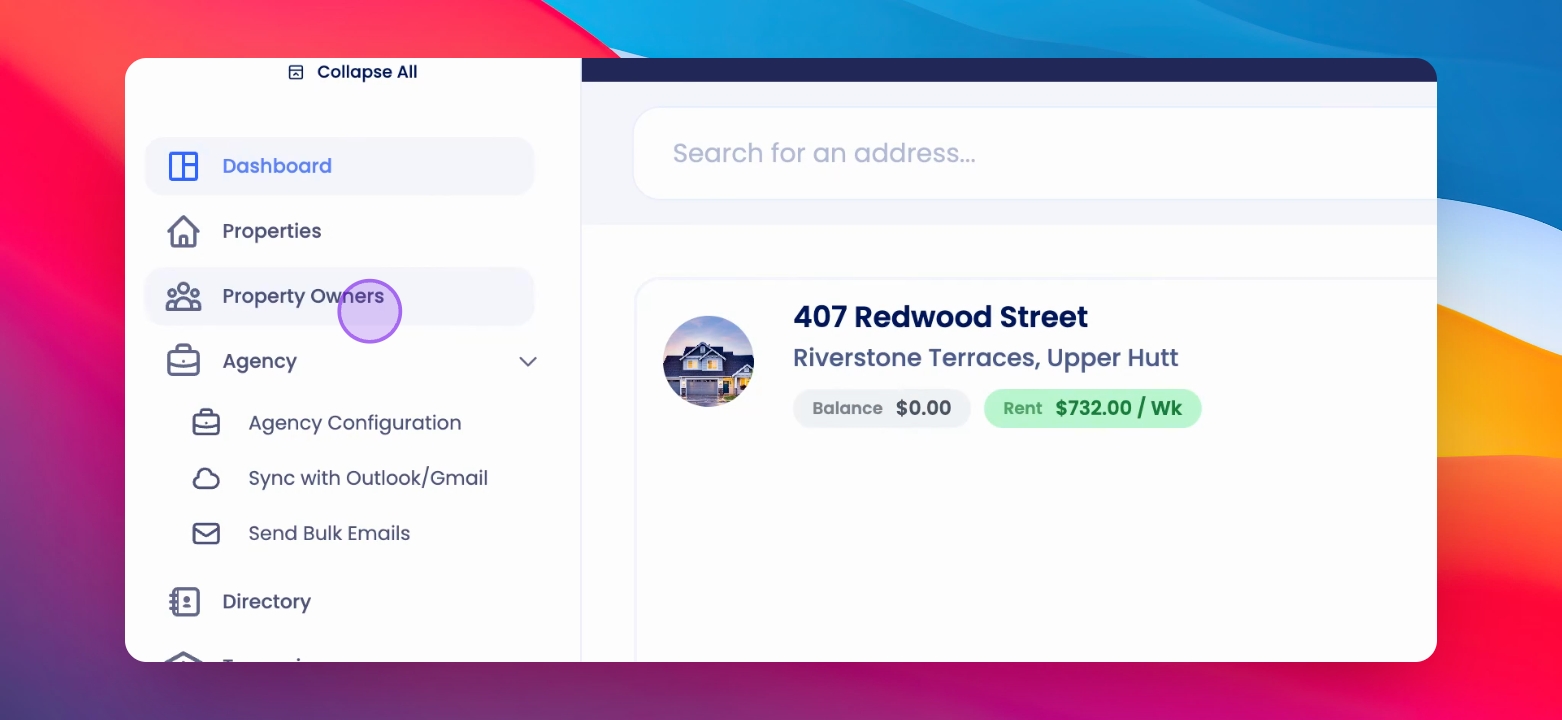
Step 1: Open Property Owners
Click on Property Owners to view the list of owners.
The list of property owners is displayed.
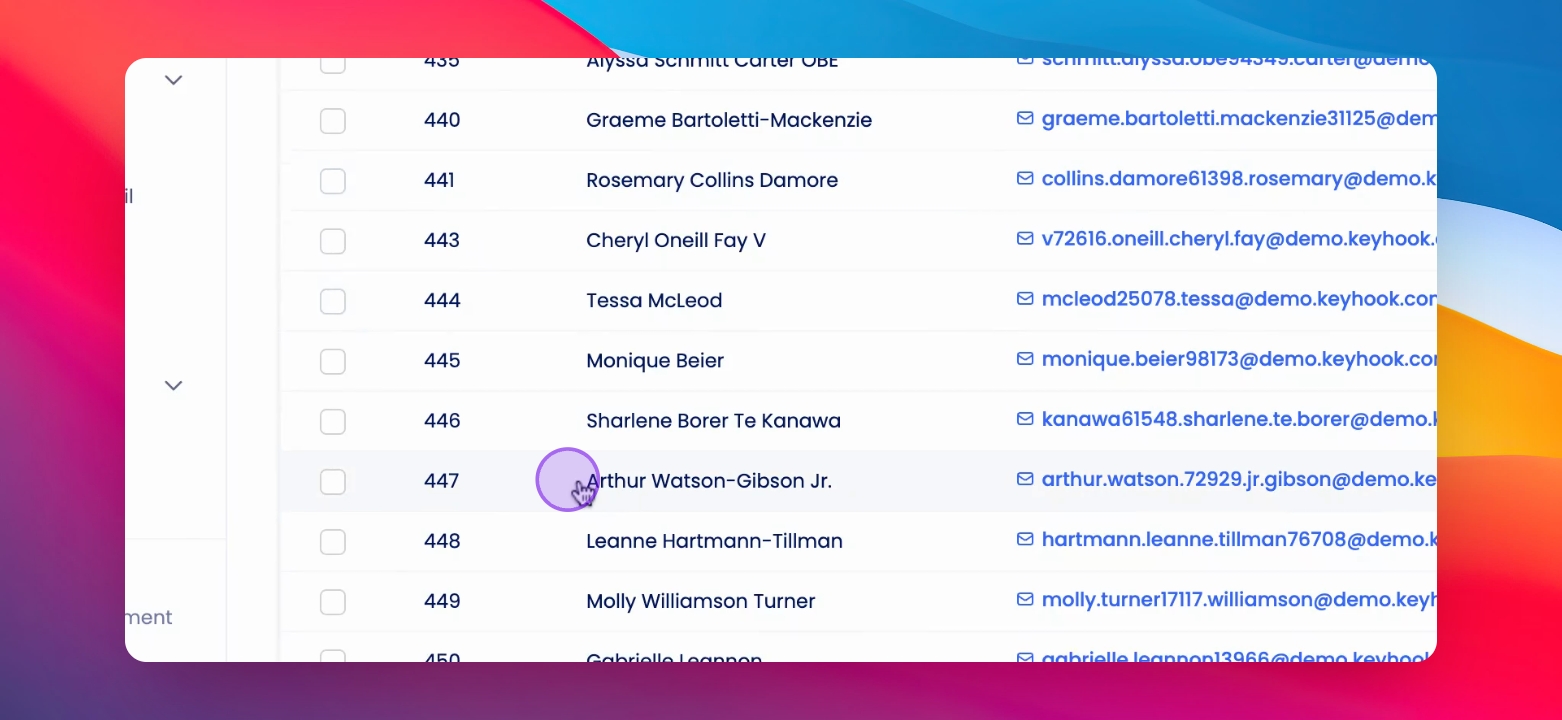
Step 2: Select Property Owner
Select the property owner you wish to assign a tag.
The selected property owner's details are shown.
Step 3: Navigate to Personal Information
Scroll down to the personal information section.
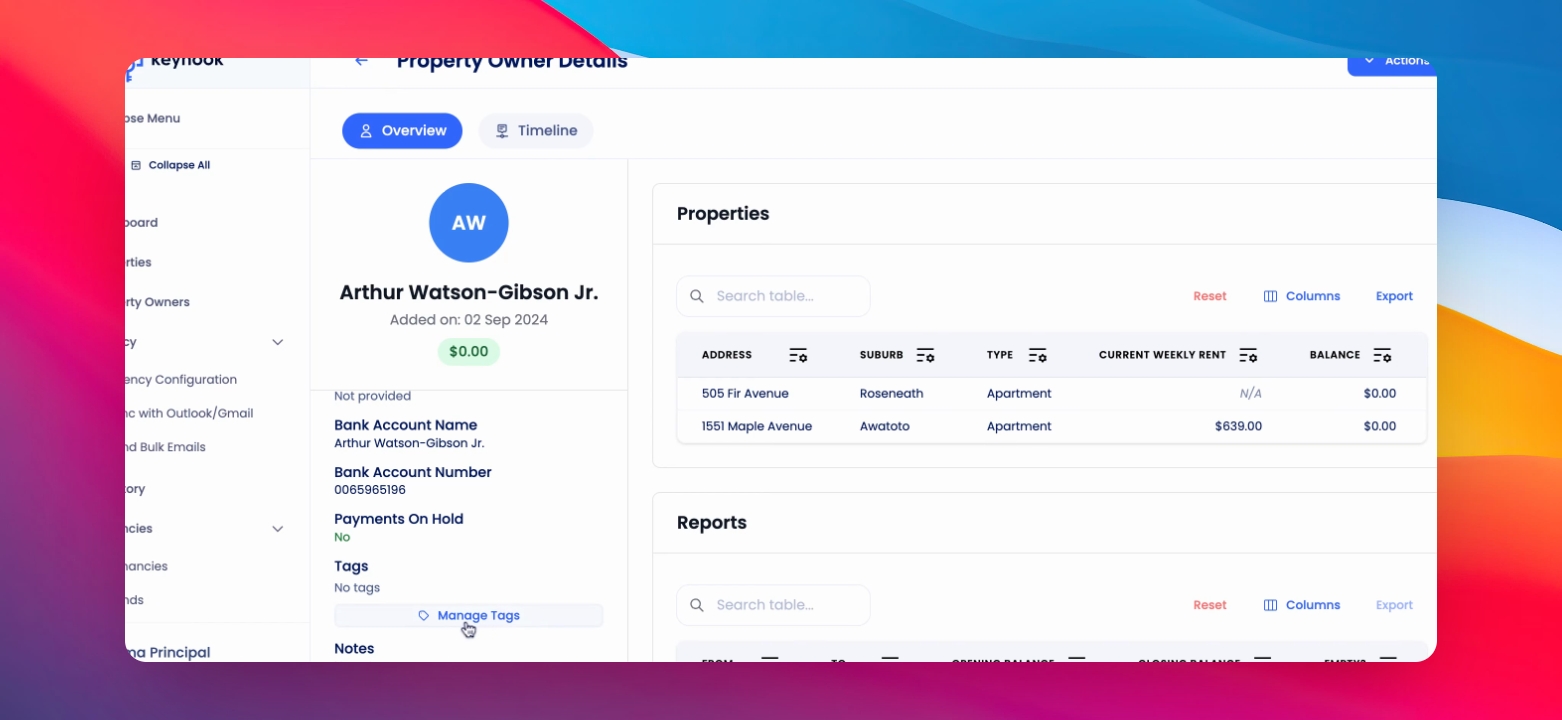
Step 4: Manage Tags
Click on Manage Tags.
Step 5: Assign Tag
Assign the created tag you wish to use for the property owner.
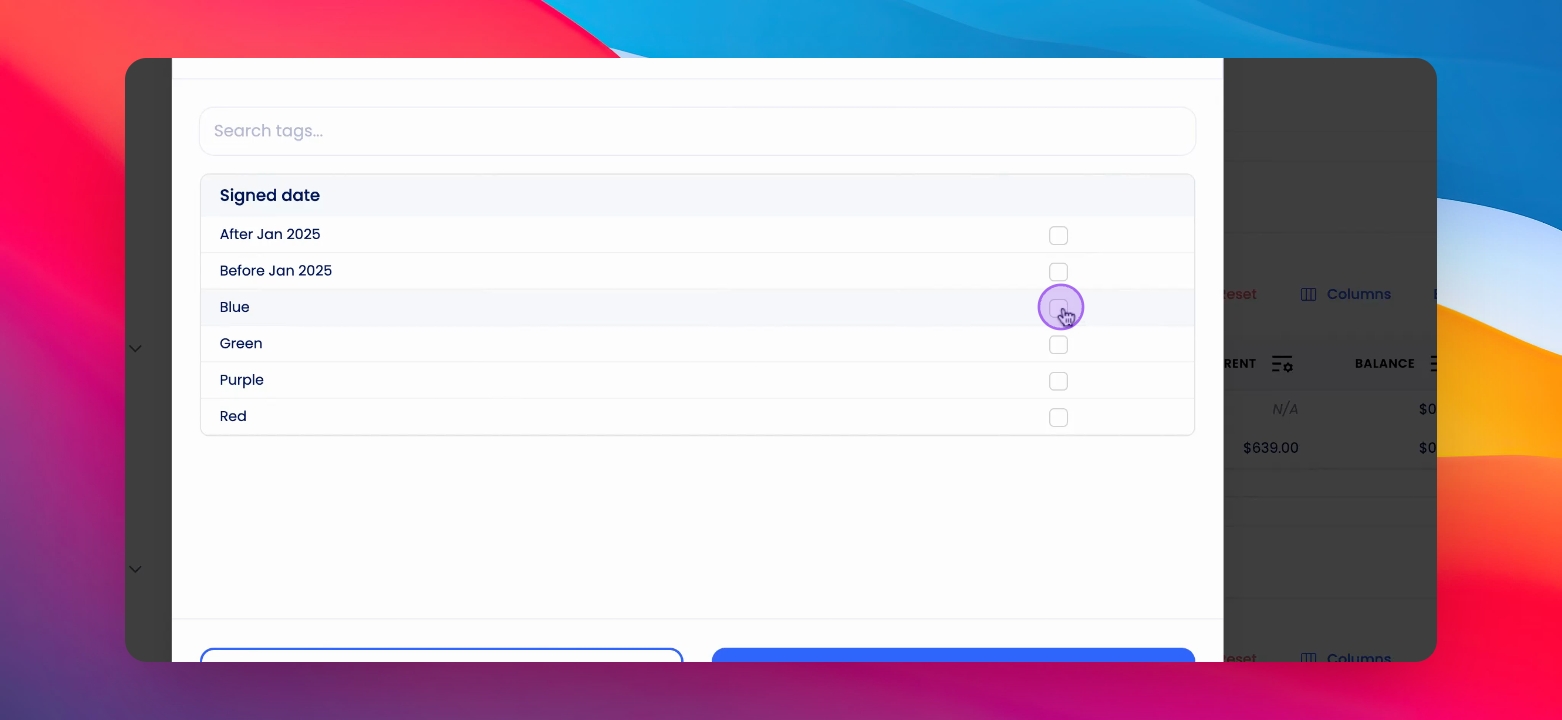
Step 6: Save Changes
Click Save to confirm the tag assignment.
The tag is successfully assigned to the property owner.
Step 7: Filter by Tags
Go back to the list to use the tag as a filter.
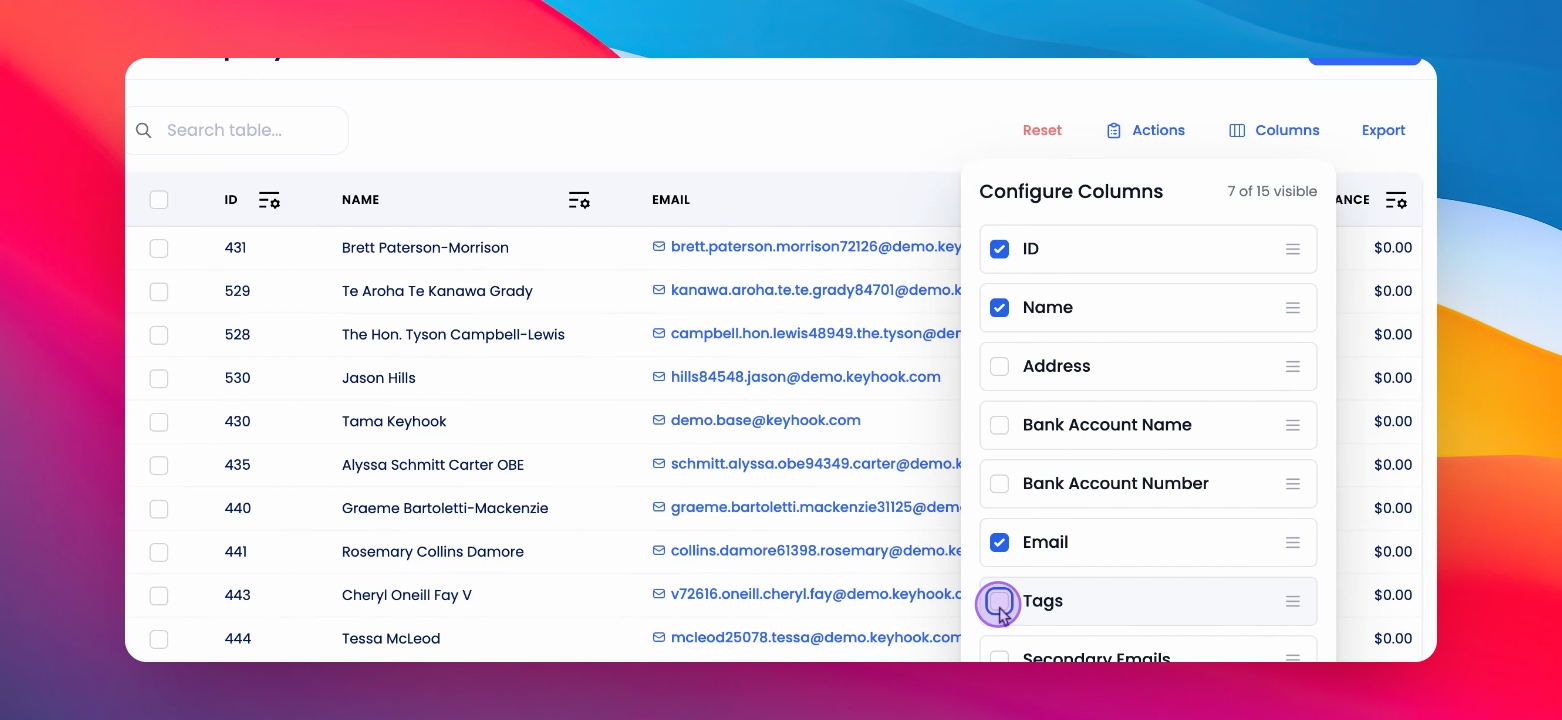
Step 8: Select Tags Column
Ensure tags is selected in the columns.
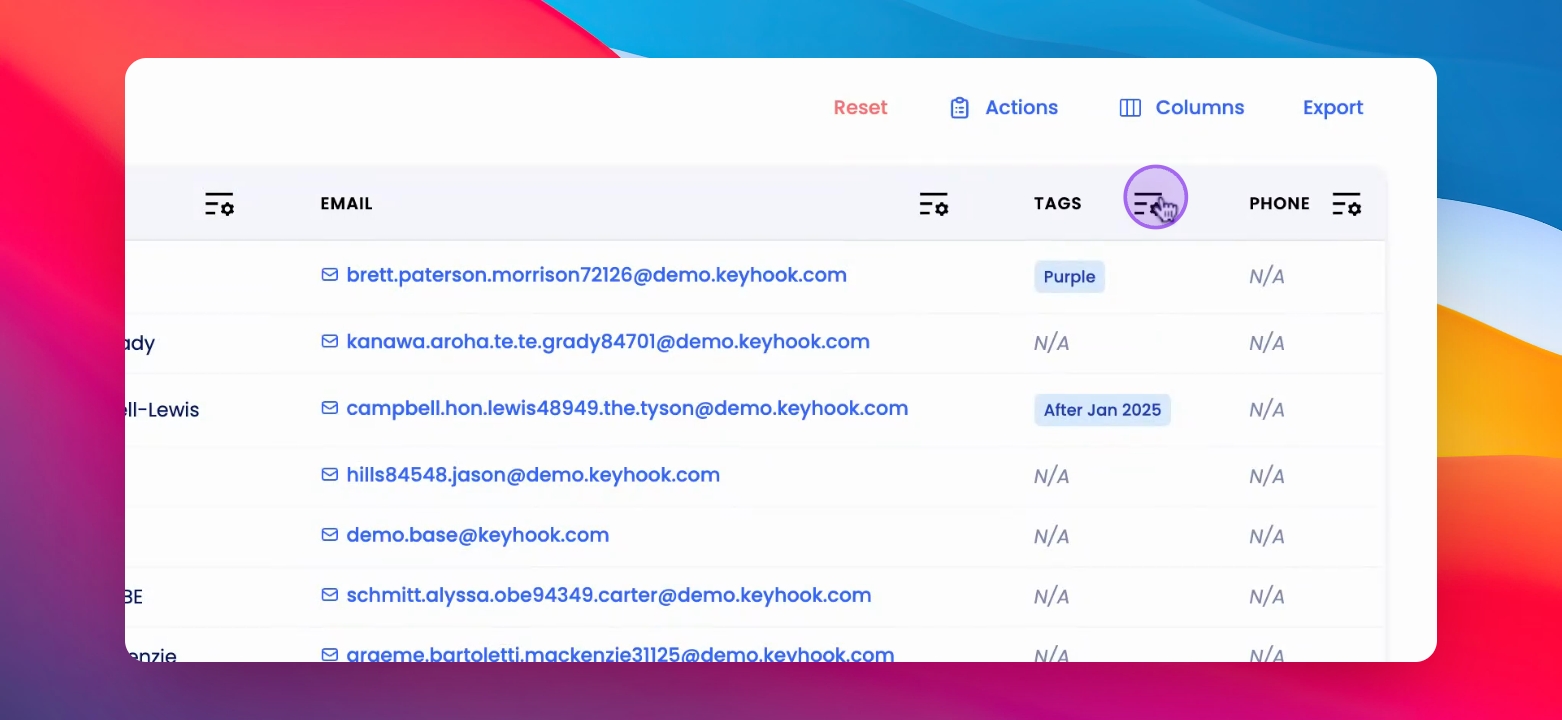
Step 9: Open Filter Section
Click on the Filter section.
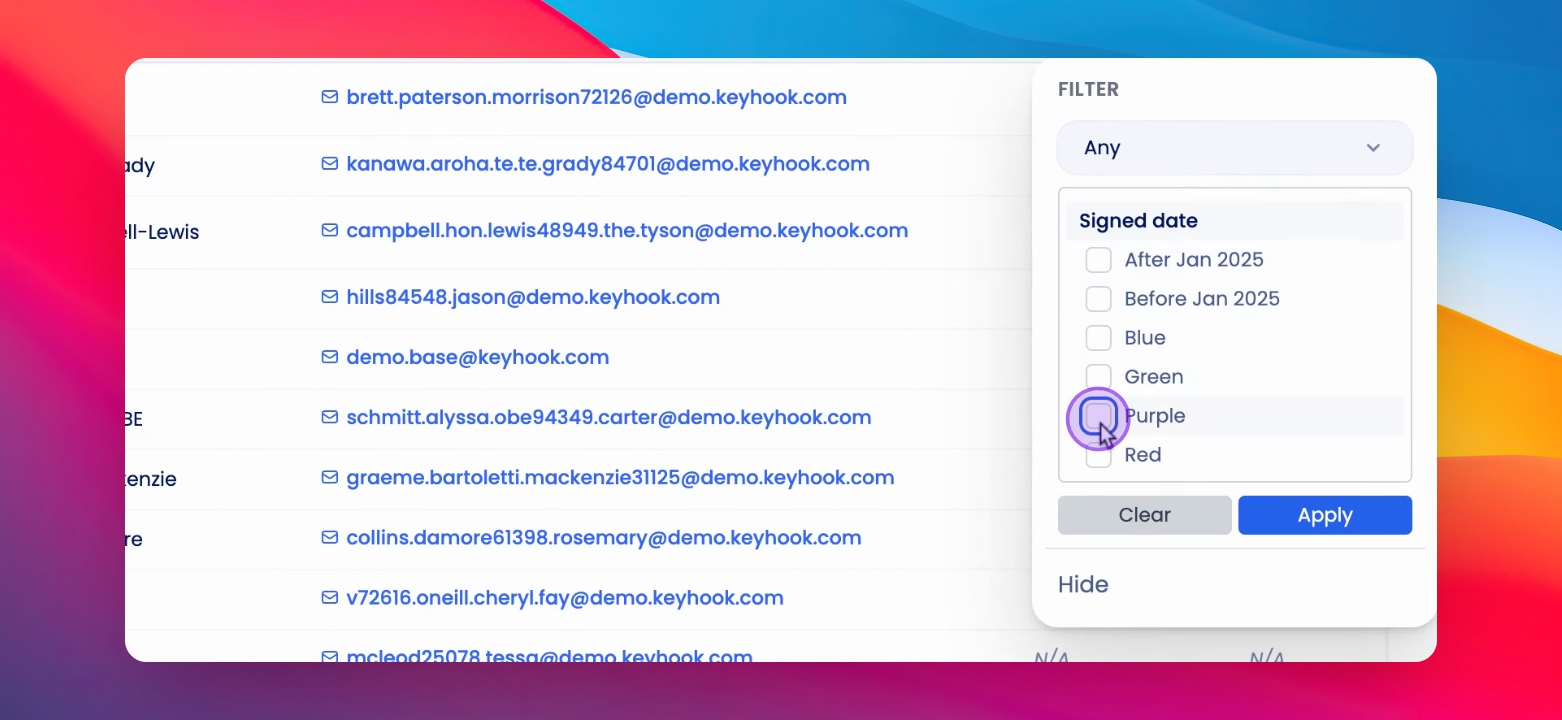
Step 10: Choose Tags to View
Select the tags that you wish to see in the filtered results.
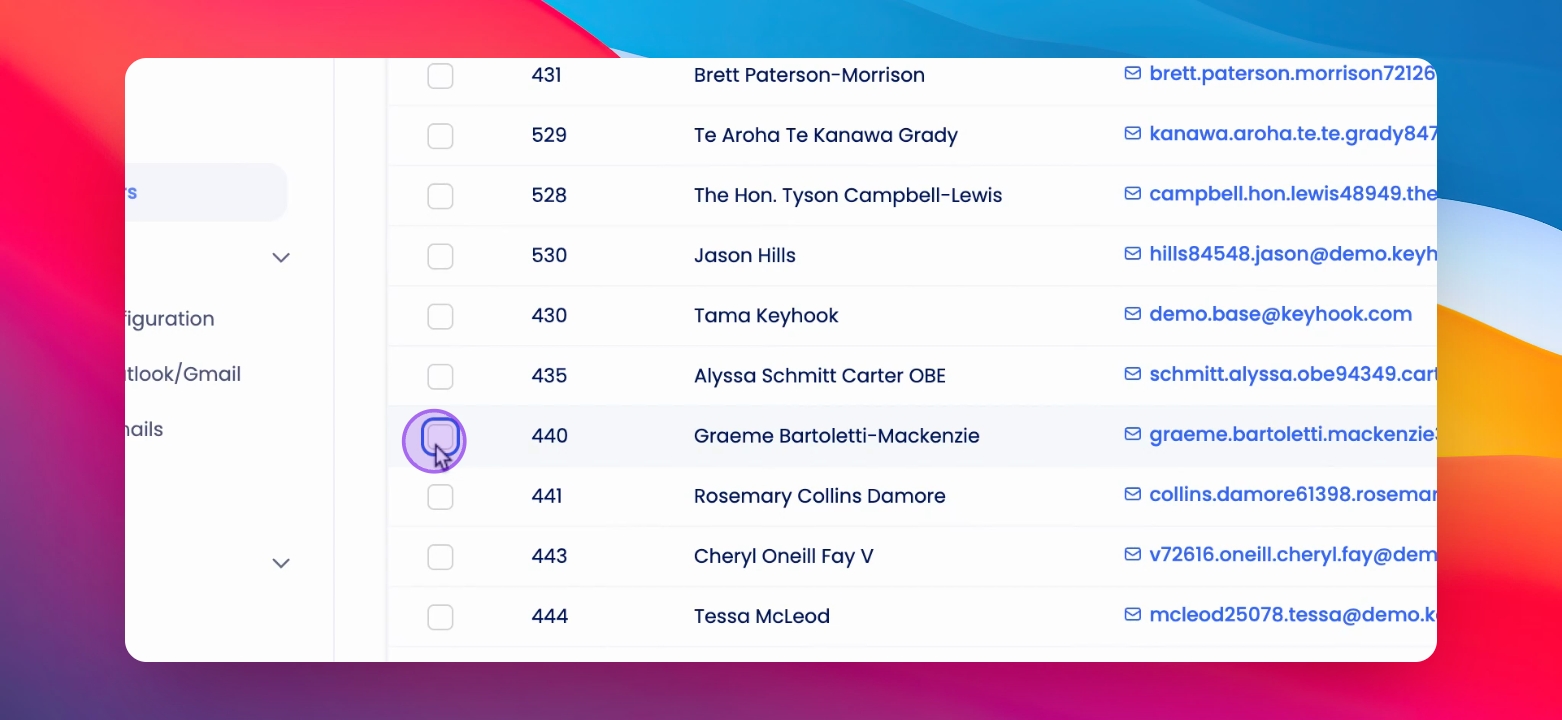
Step 11: Bulk Assign Tags
Select the property owners you wish to assign tags to.
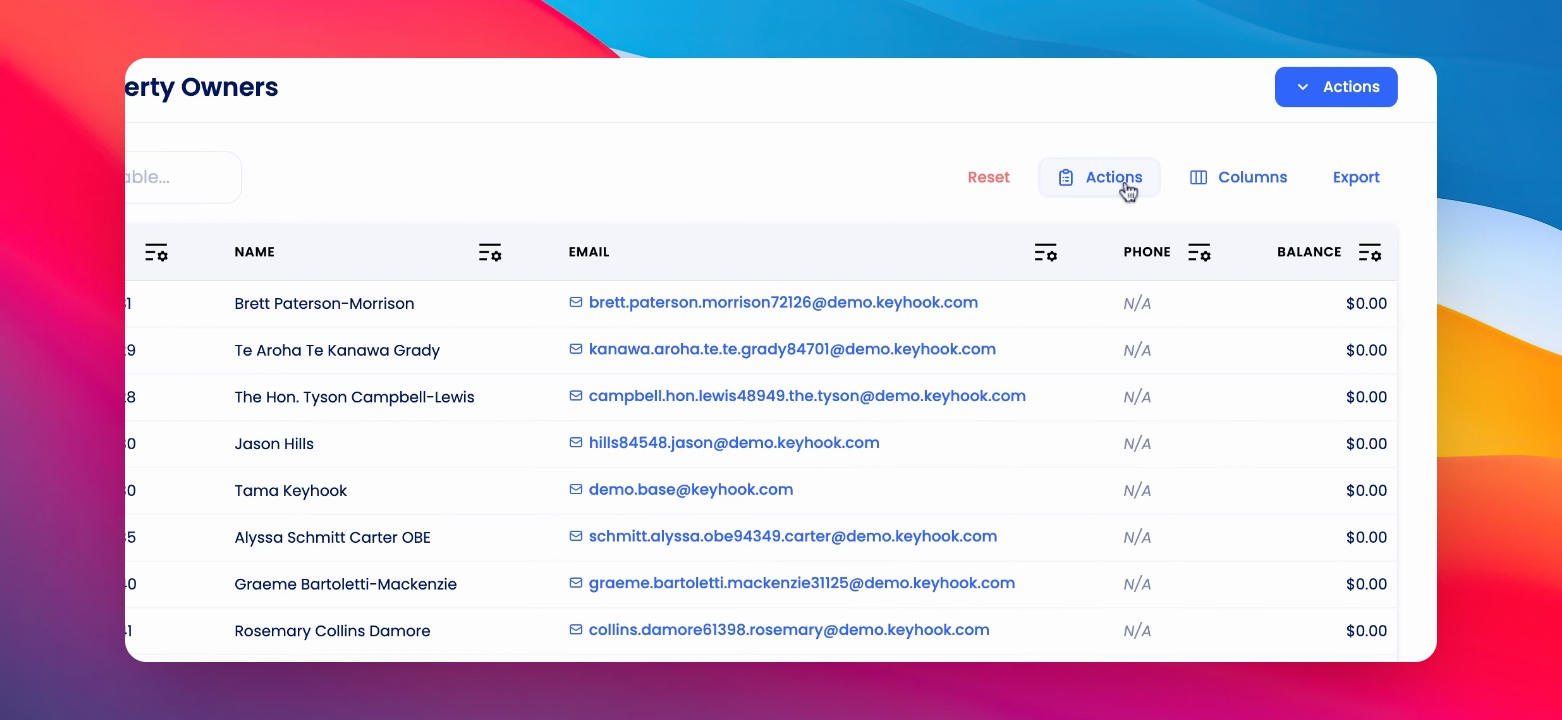
Step 12: Click Actions
Click on Actions.
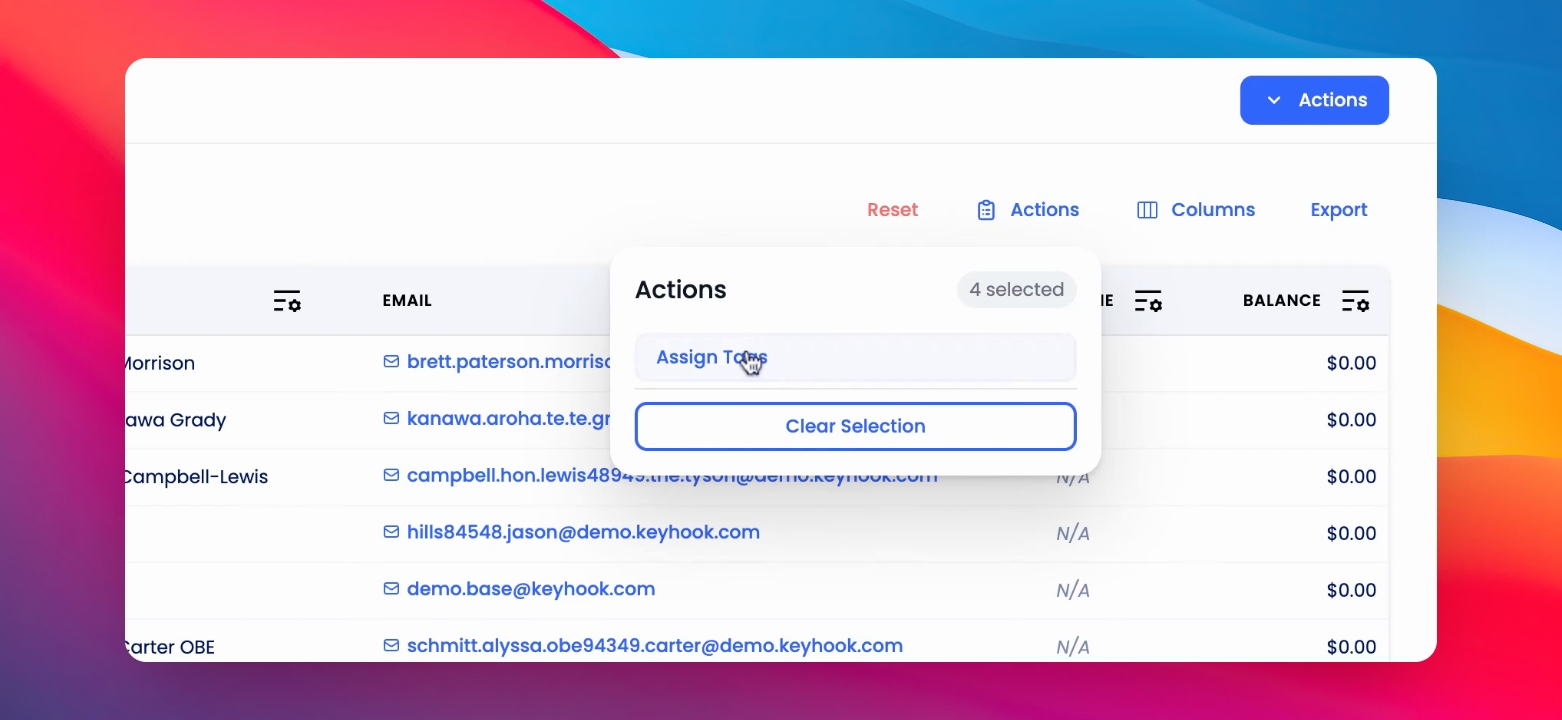
Step 13: Assign Tags to Multiple Owners
Click on Assign Tags.
Step 14: Select Tag for Assignment
Select the tag you wish to assign to the selected property owners.
Click on this link to give a feedback: Support Article Feedback Form