

Step by step guide
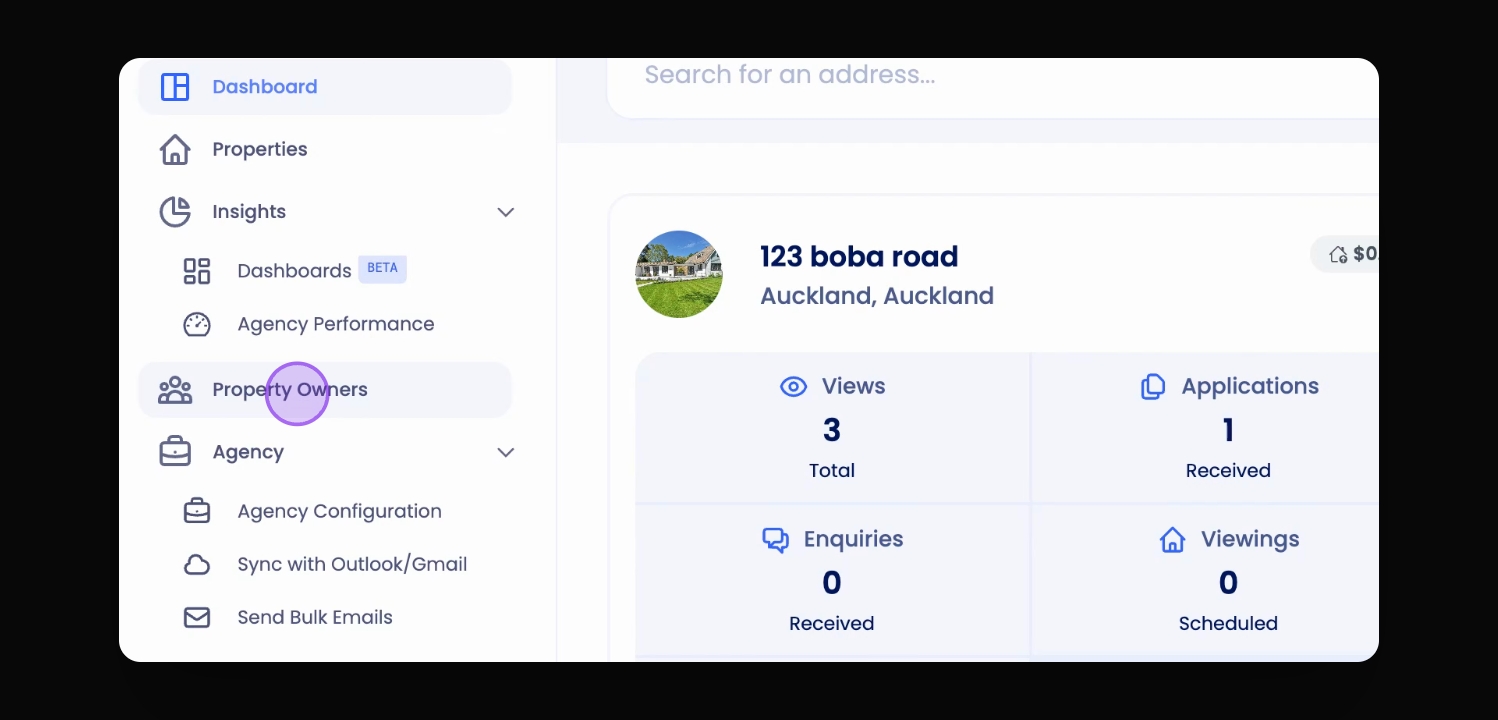
Step 1: Open Property Owners Menu
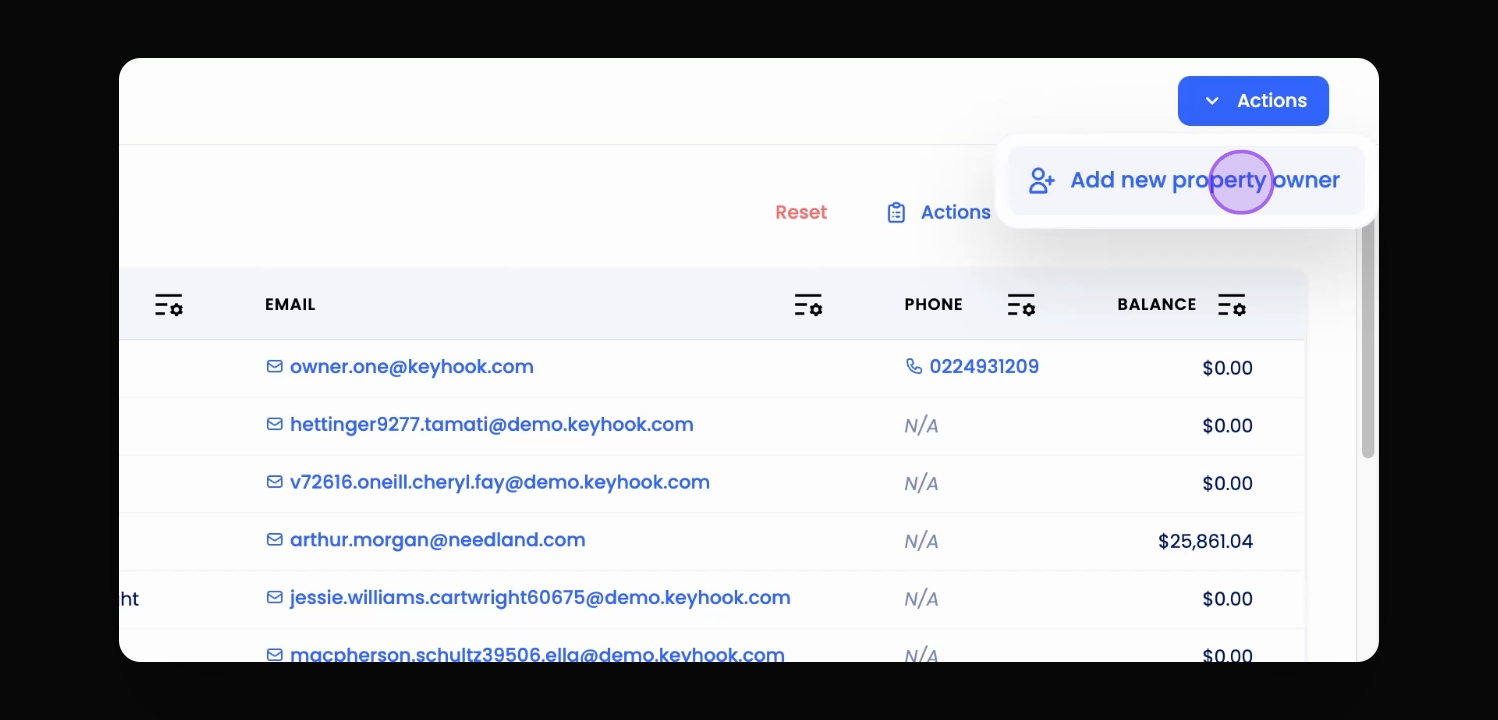
You can see the Action button at the top right of the screen.
Step 2: Select Add New Property Owner
The form for adding a property owner appears.
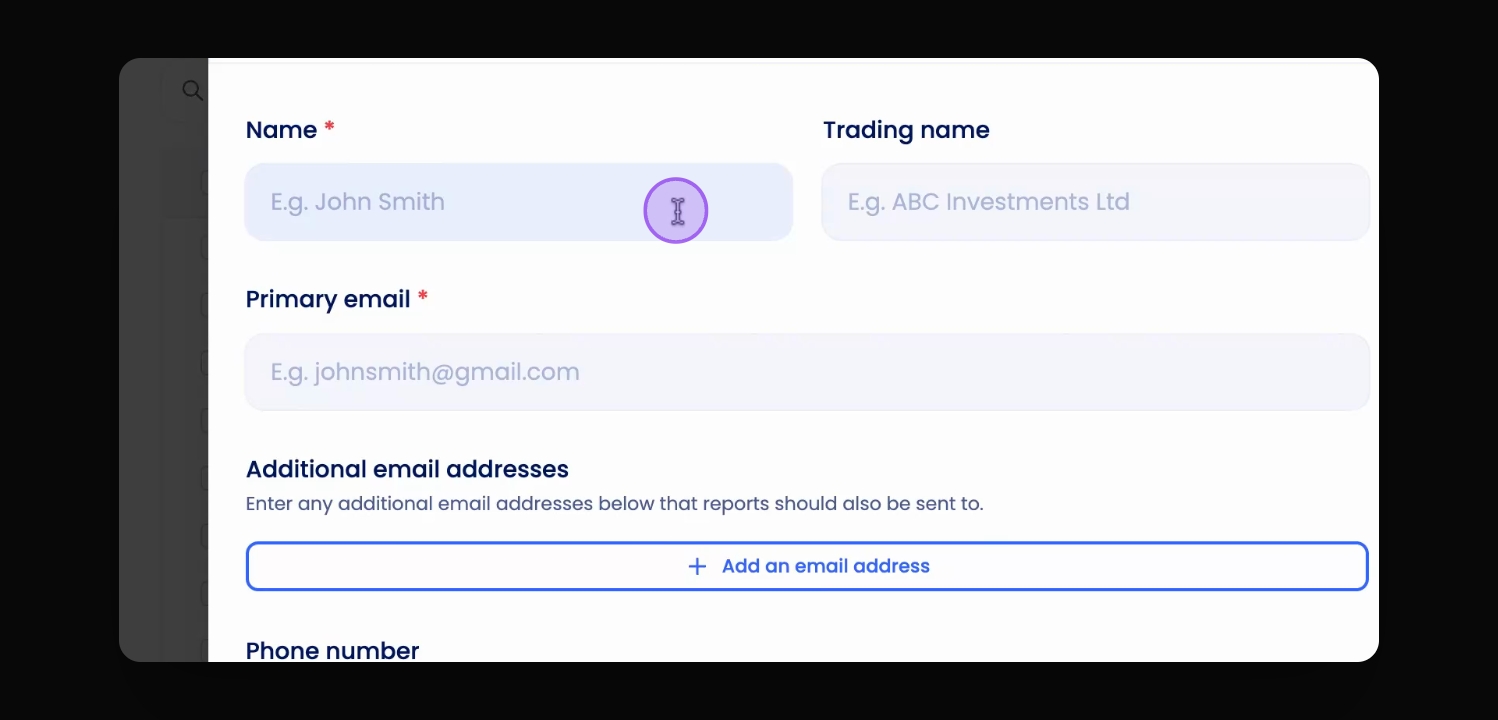
Step 3: Fill Out the Form
All relevant information of the property owner is entered.
Step 4: Optionally Add Additional Email
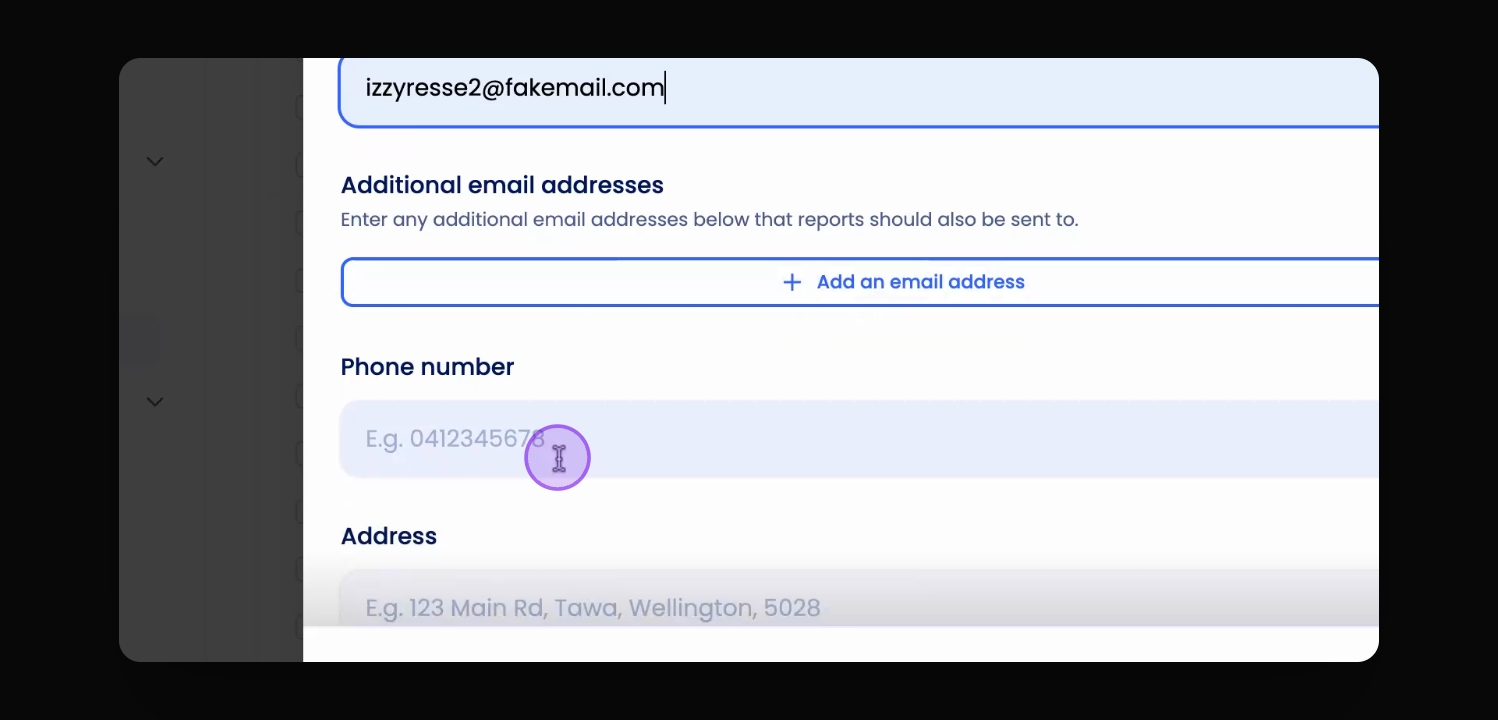
Step 5: Fill in Phone Number
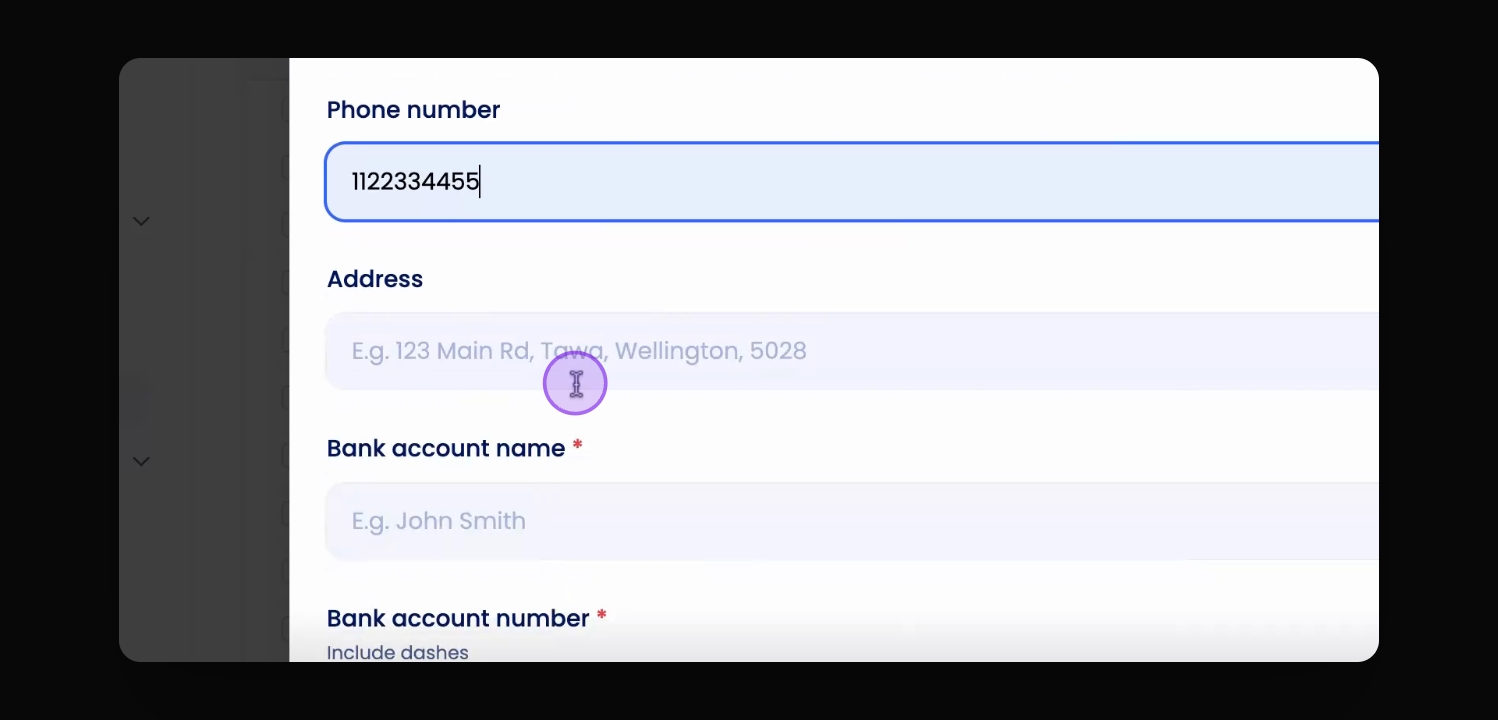
Step 6: Provide Bank Account Name and Number
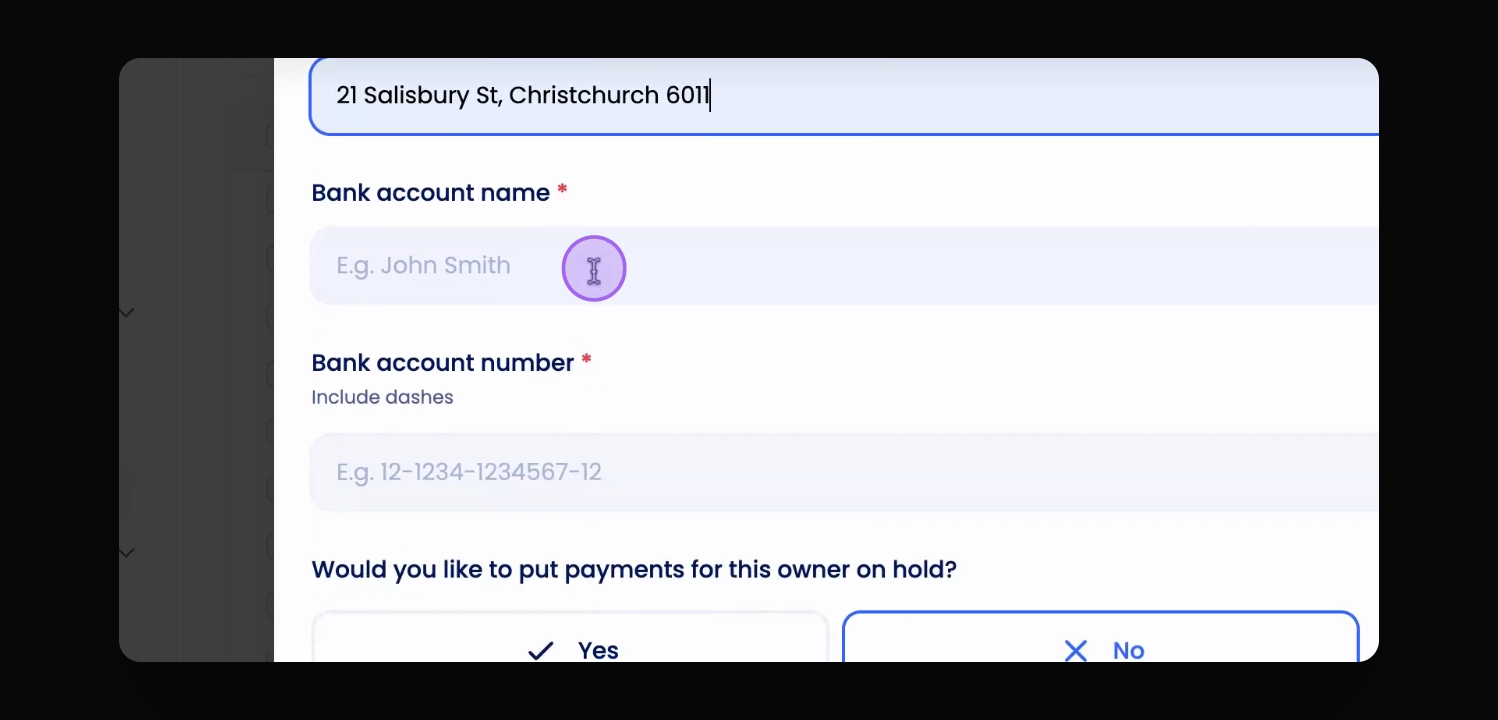
Step 6: Provide Bank Account Name and Number
Step 7: Optionally put payments on hold for the specific owner
Here you would need to provide a reason for why you want to hold owner payments. Holding payments will prevent the owner from receiving rent payments from the tenant.
Step 8: Add Notes
You can add additional notes for later references.
Step 9: Save the Information
The property owner's information is saved successfully.