

Let's do it together!
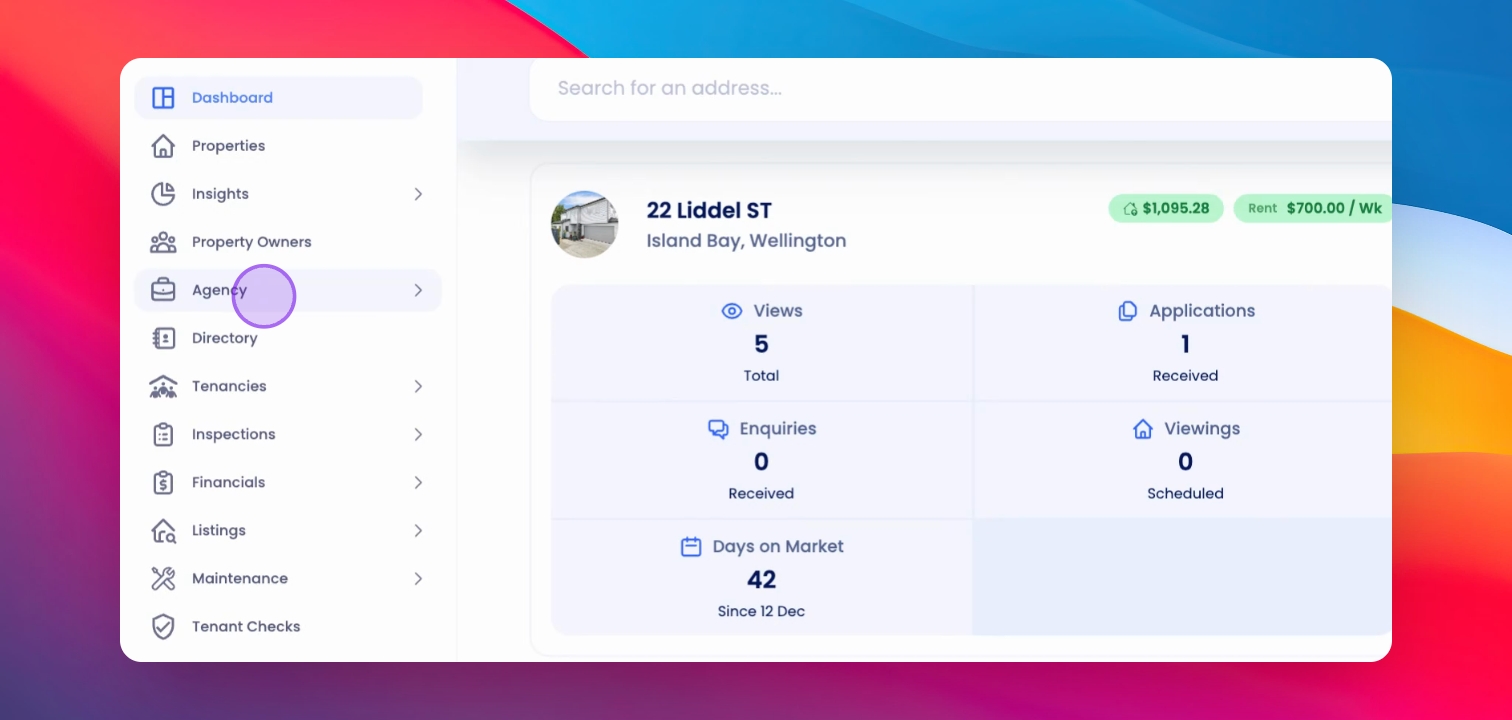
Step 1: Open Agency
From the left-hand menu, click on Agency to access email synchronization options.
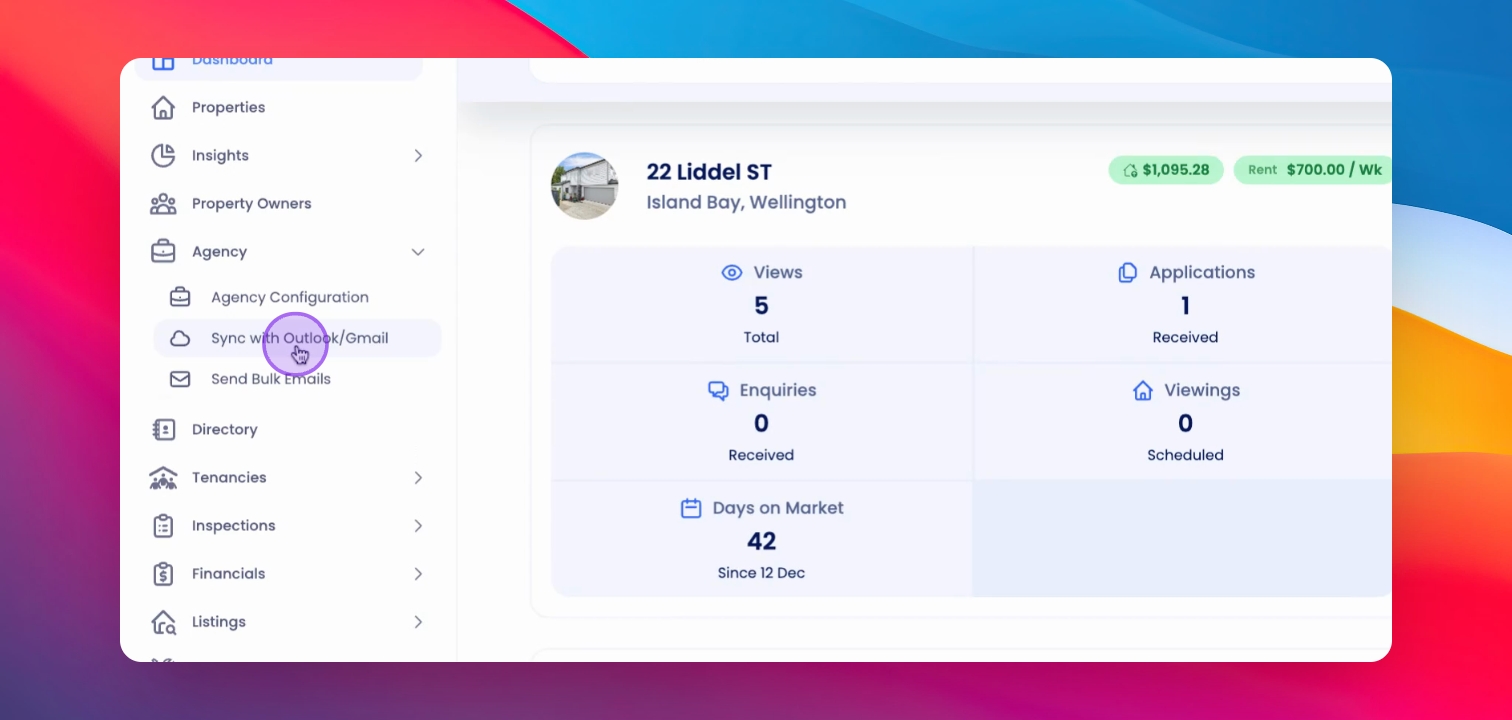
Step 2: Sync Accounts
Select Sync with Outlook or Gmail to manage your synced accounts.
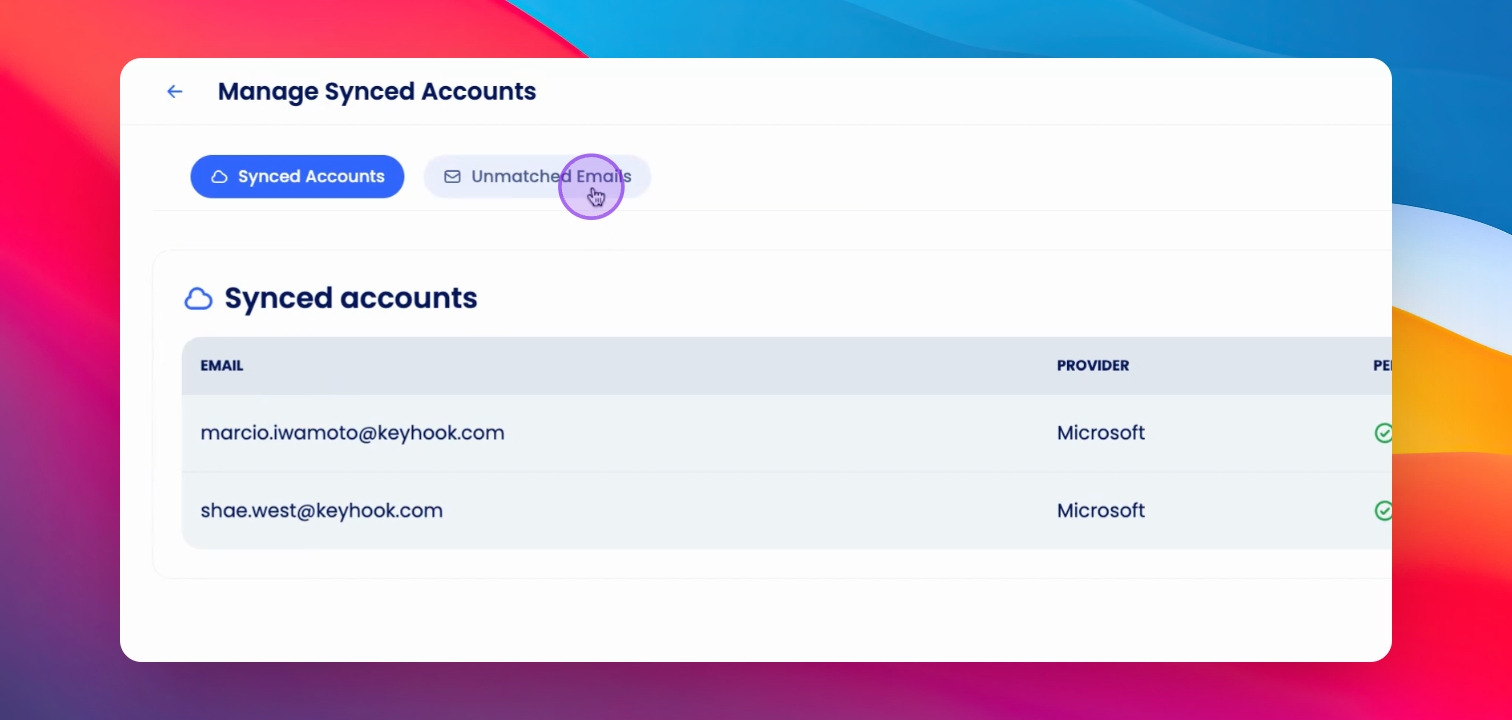
Step 3: Access Unmatched Emails
Click on Unmatched Emails at the top of the screen to view emails that could not be matched.
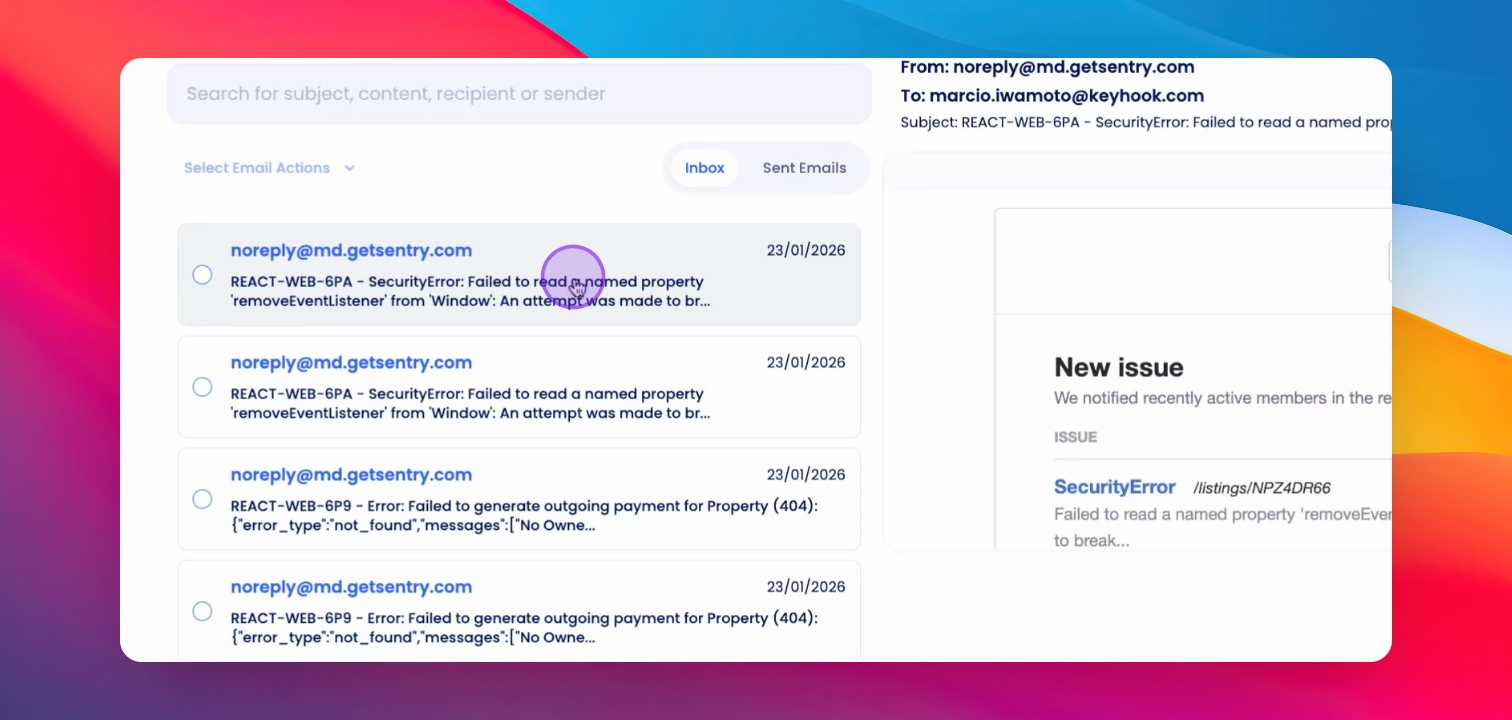
Step 4: Preview Emails
Click on an email to preview its contents and confirm its correct timeline assignment.
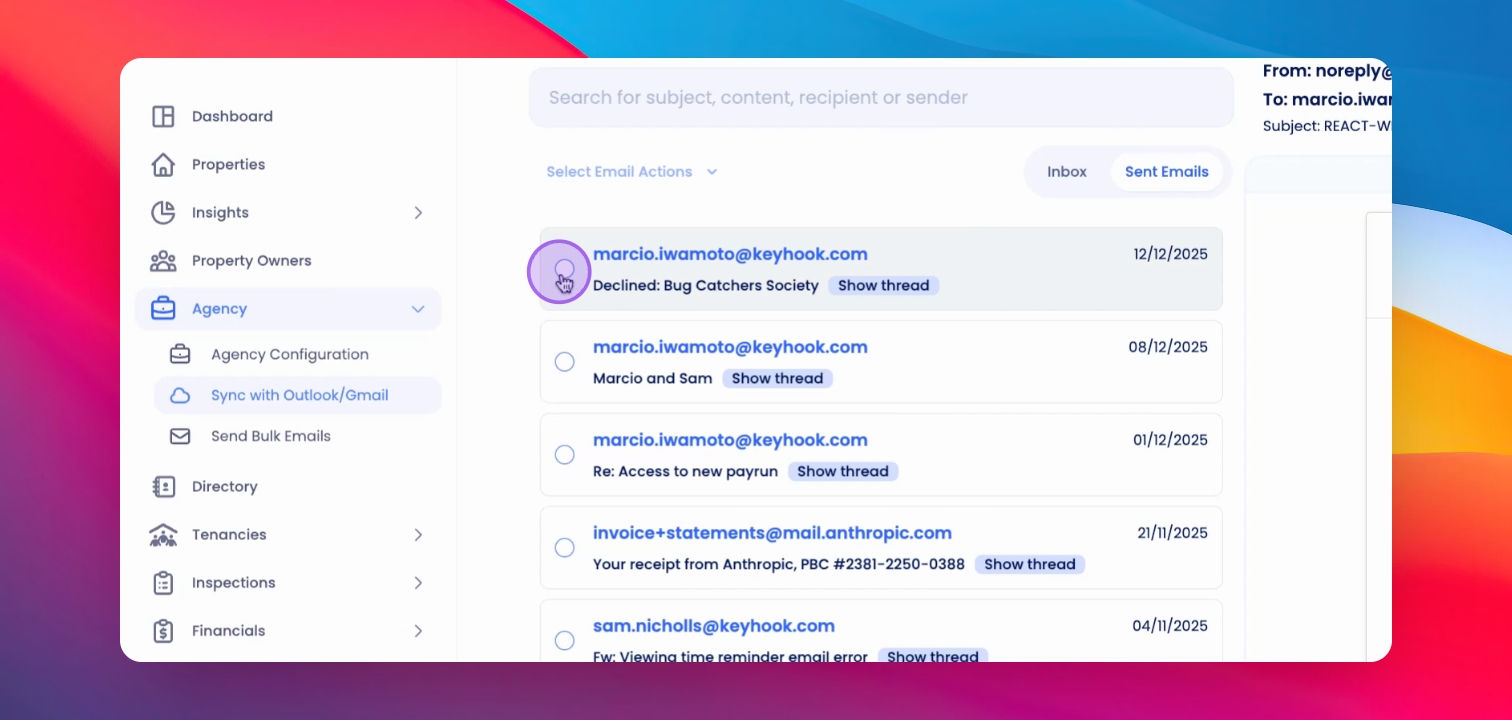
Step 5: Select Email
Use the radio button beside the email to select it for the next action.
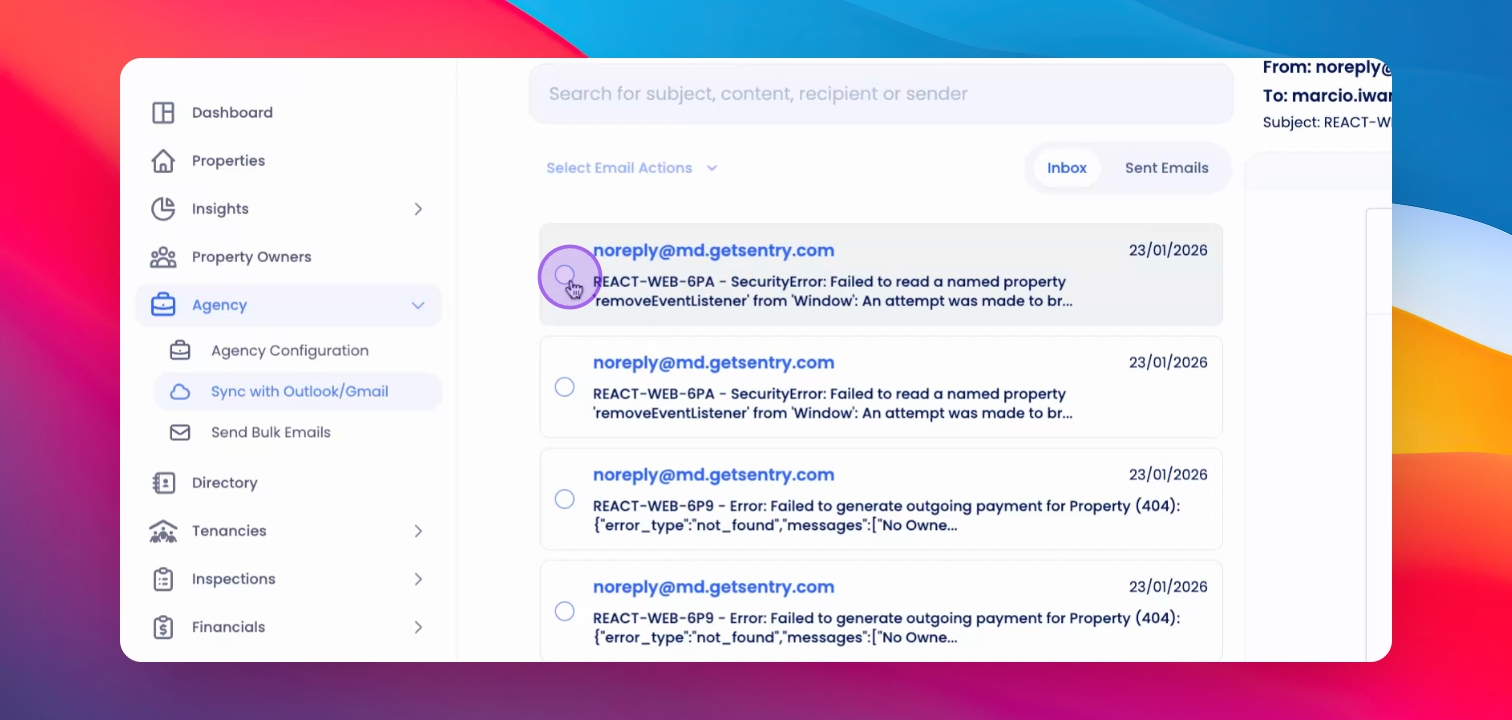
Step 6: Choose Action
Click on Selected Email Actions to either move or delete the email.
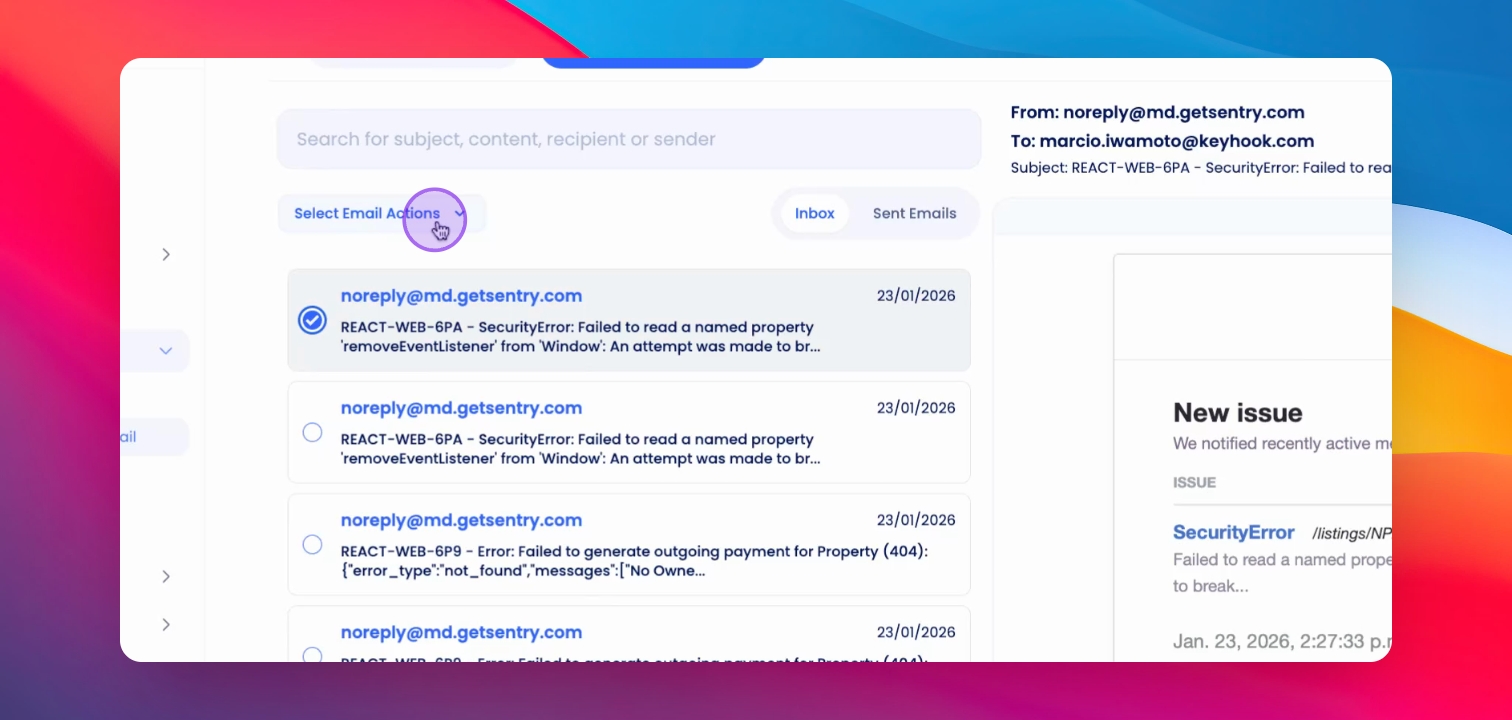
Step 7: Move to Timeline
Select Property Owner from the dropdown list to move the email to that timeline.
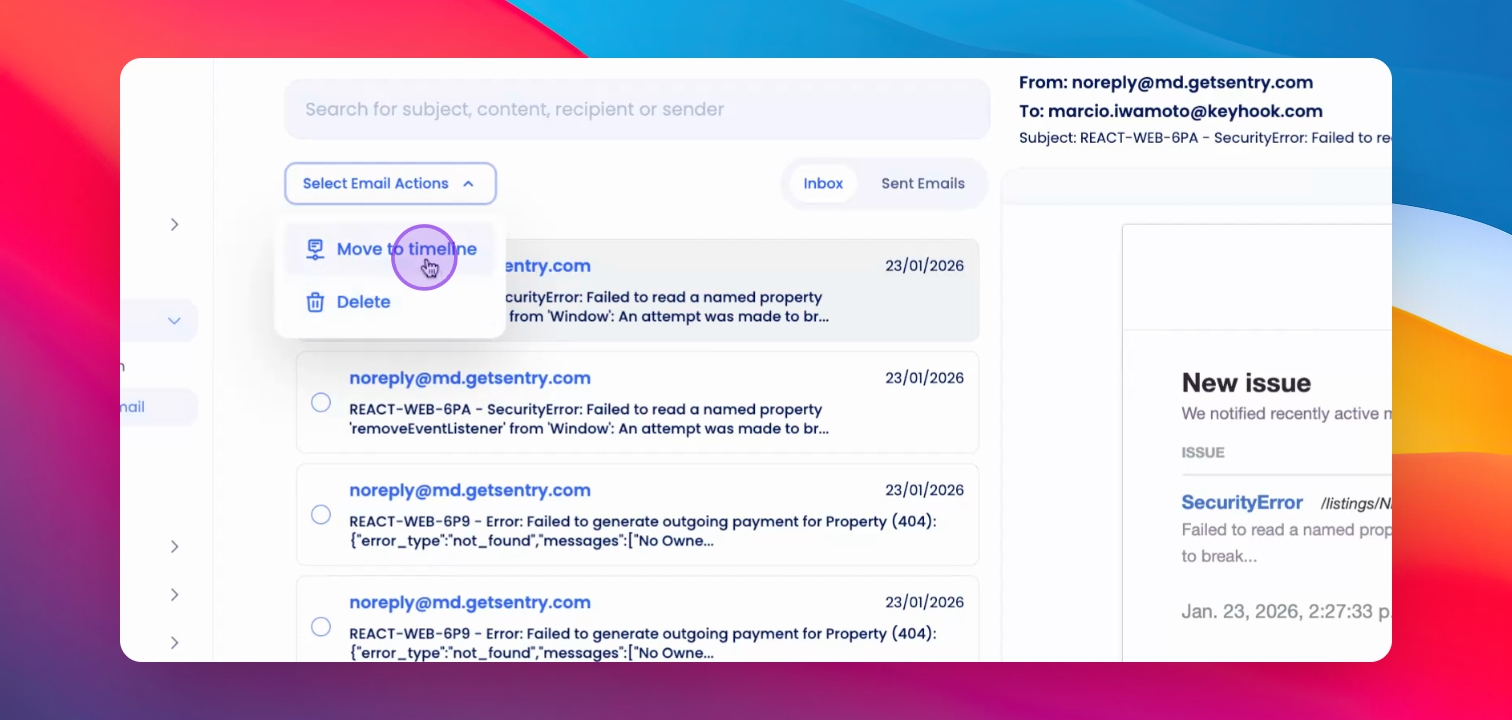
Step 8: Select Owner
Search for and select the relevant property owner, choosing either single or multiple owners if applicable.
Step 9: Confirm Addition
Click Add to finalize the move of the email to the selected timeline.
Step 10: View Sent Emails
If needed, switch to Sent Email View to locate emails sent to property owners.
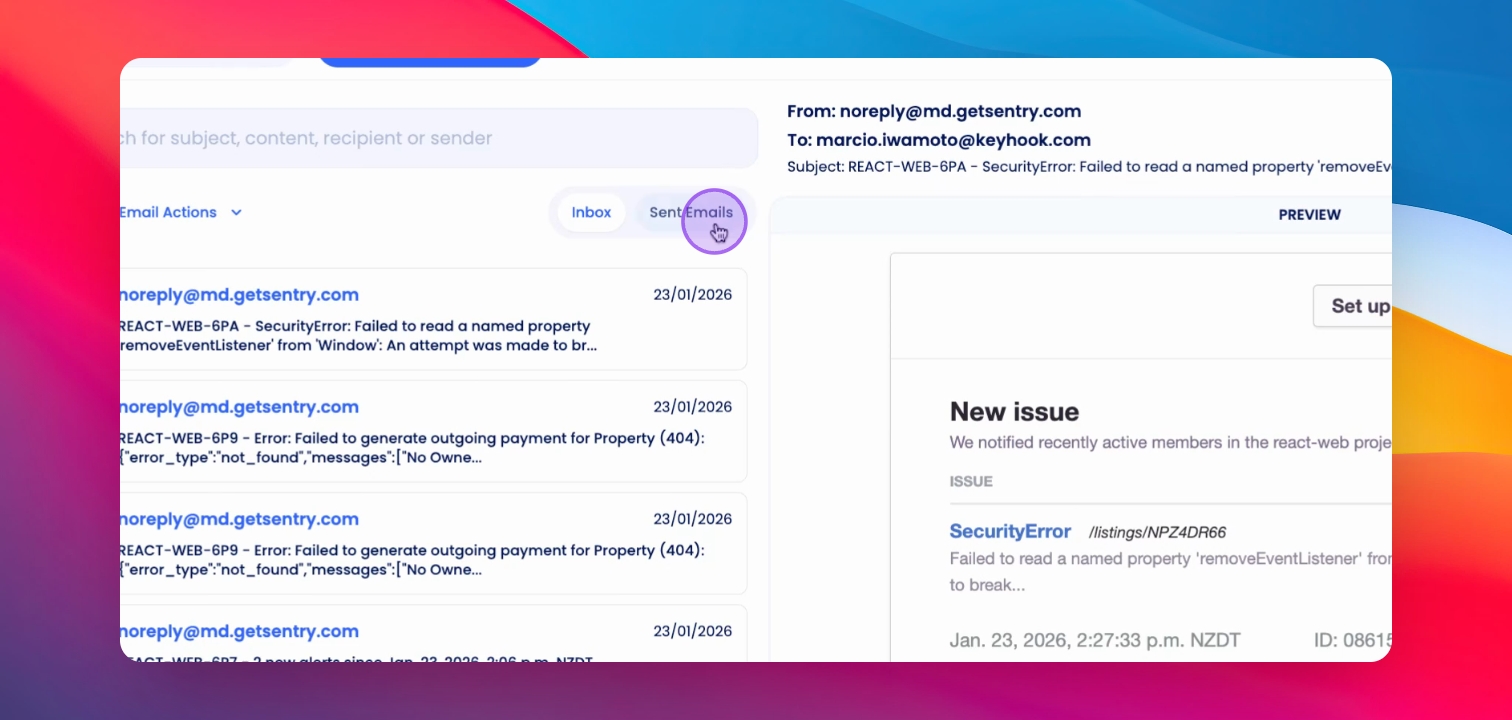
Step 11: Move Sent Emails
Select the email, preview it, and move it to the appropriate timeline using the same steps.
If you need more help or have any questions, just reach out to us at support@keyhook.com — we're always here to help!
Click on this link to give a feedback: Support Article Feedback Form