

TL;DR
Let's Do It Together!
Step 1: Access Property
Go to a property you want to manage.
Step 2: Setup Property
Select Setup Property from the property menu.
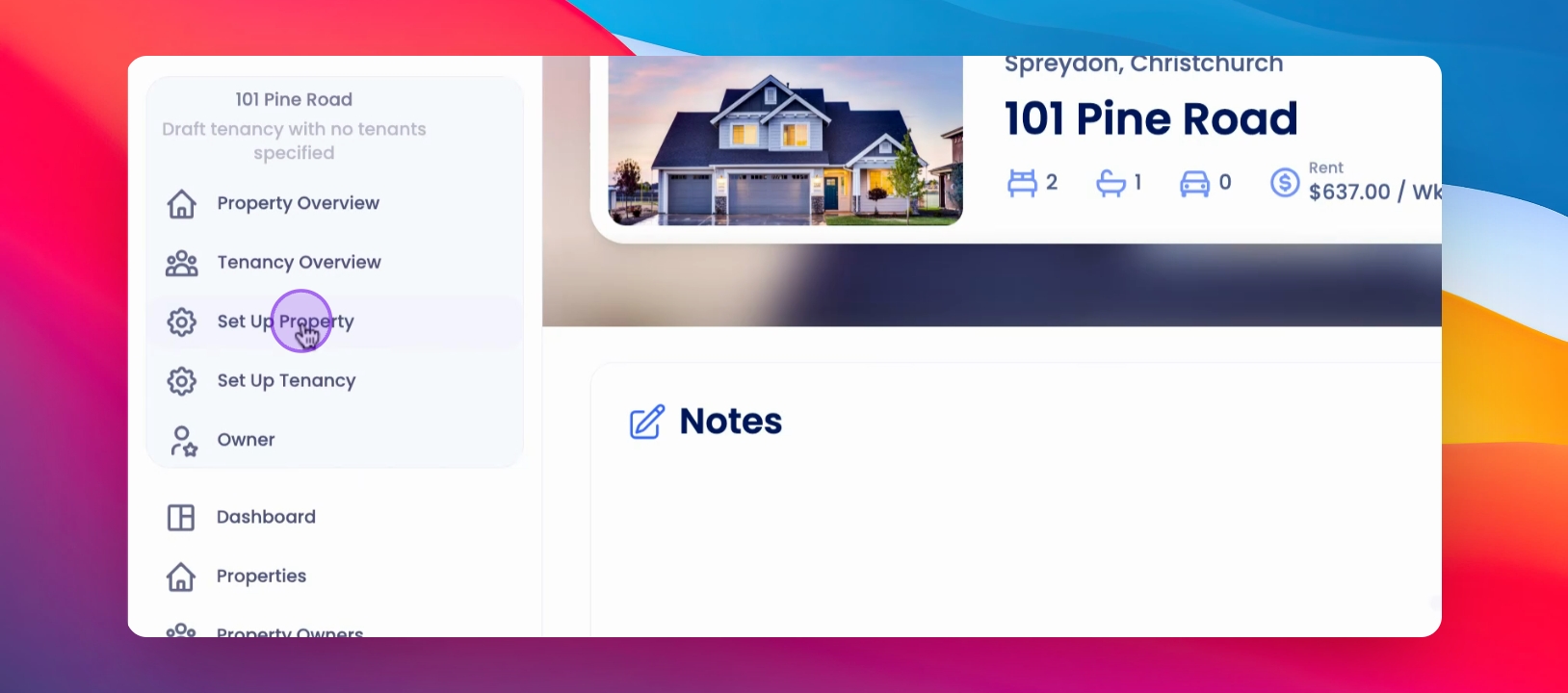
Step 3: Manage Tags
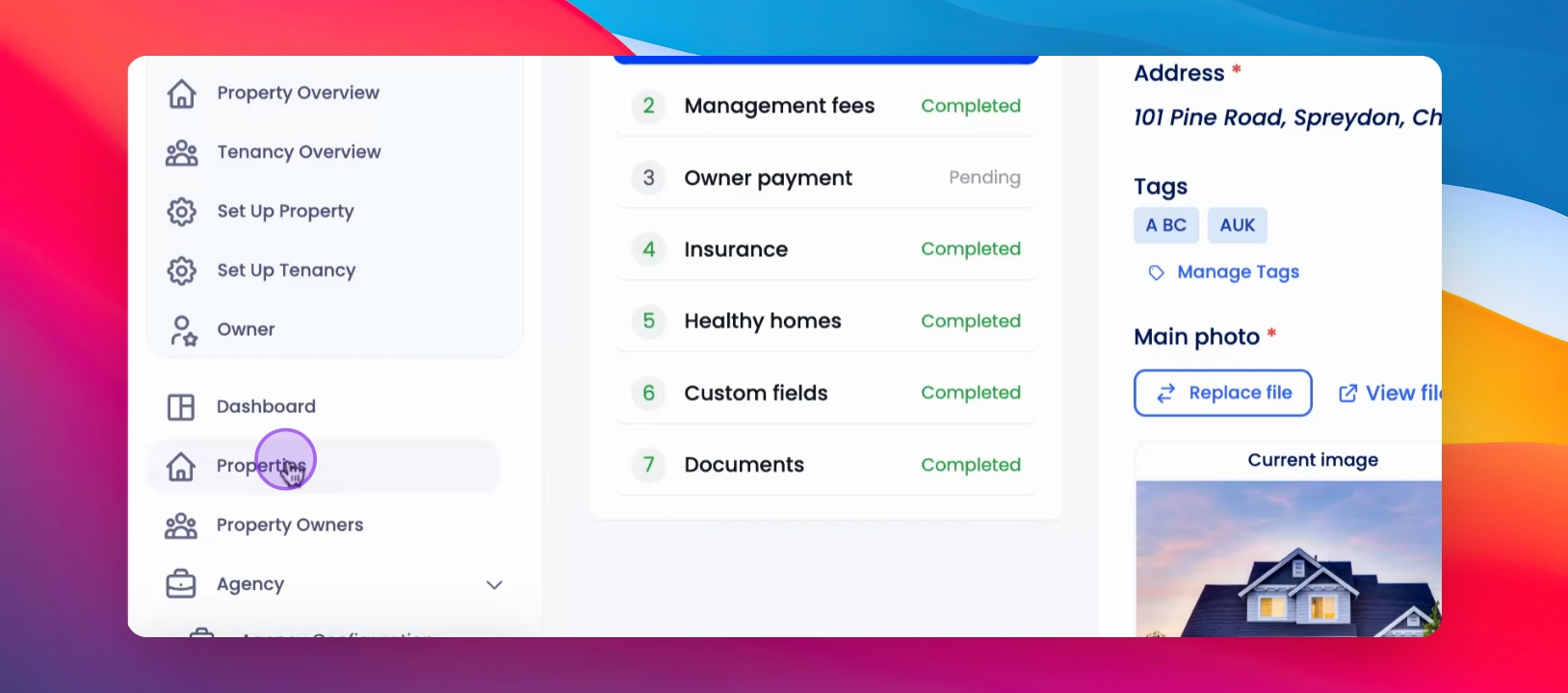
Click on Manage Tags in the General Property Details.
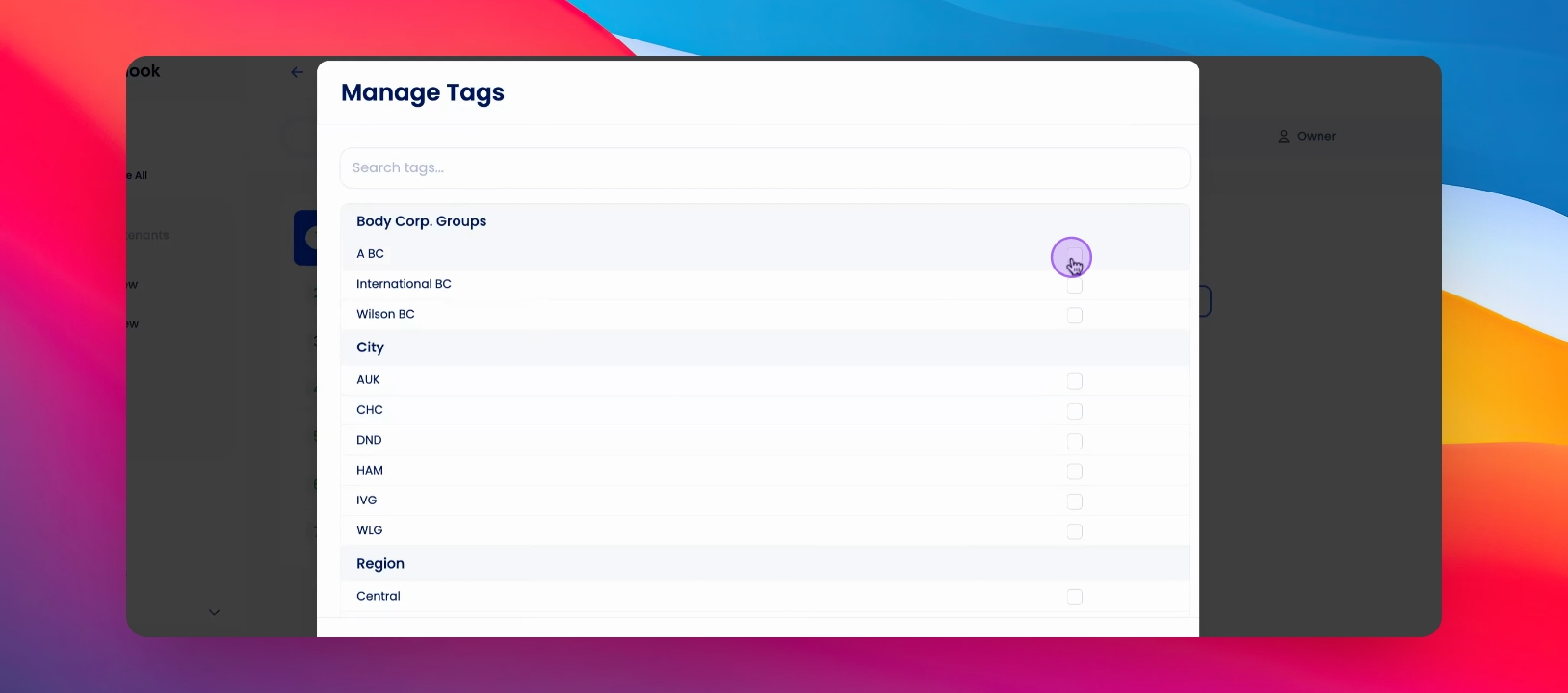
Step 4: Add Tags
Add the tags of your choice.
Tags are successfully added.
Step 5: Open Properties Table
Go to the Properties table to search and filter tags.
Step 6: Open Columns Menu
Click the Columns button.
Step 7: Select Tags
Ensure that you have tags selected.
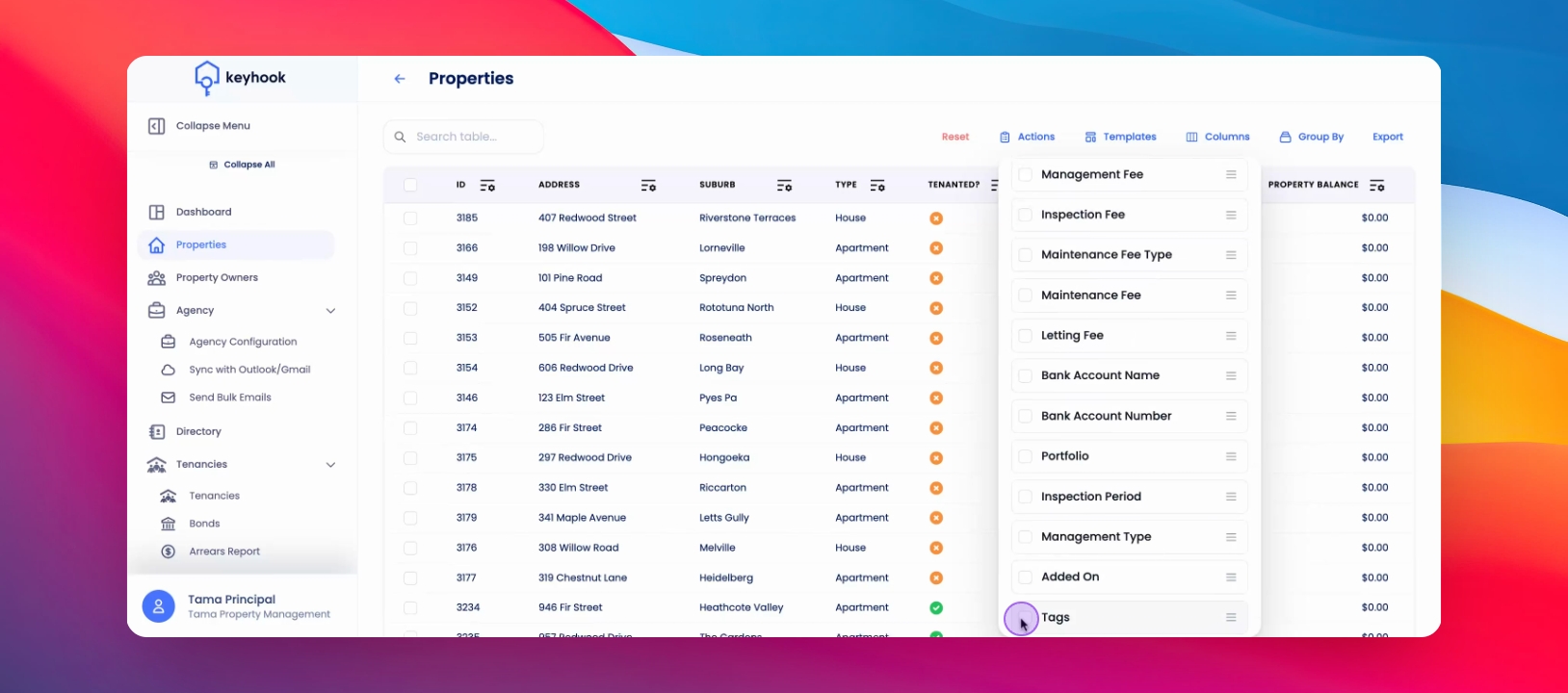
Step 8: View Tags
Now you can view tags on the table.
Step 9: Filter Tags
Click the filter icon to filter tags.
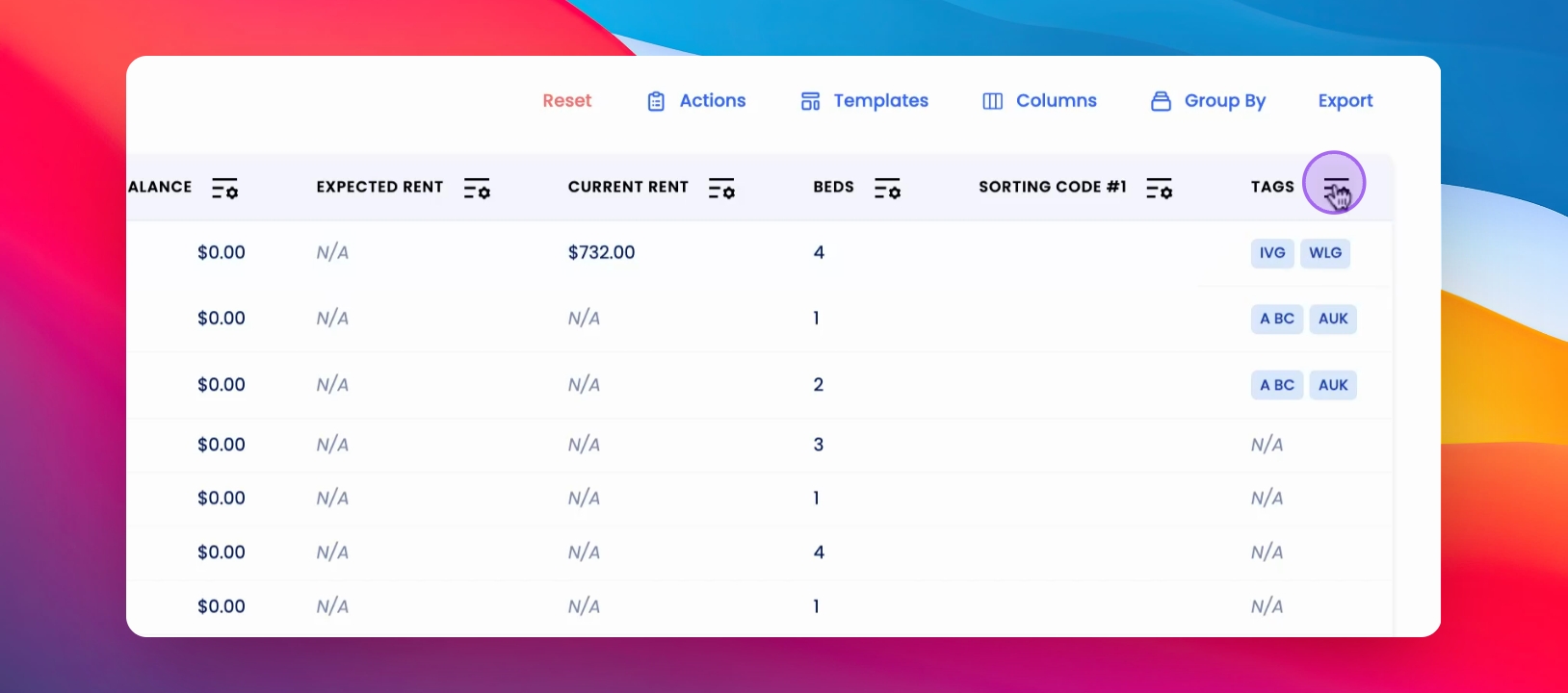
Step 10: Select Tags to View
Select the tags you wish to view.
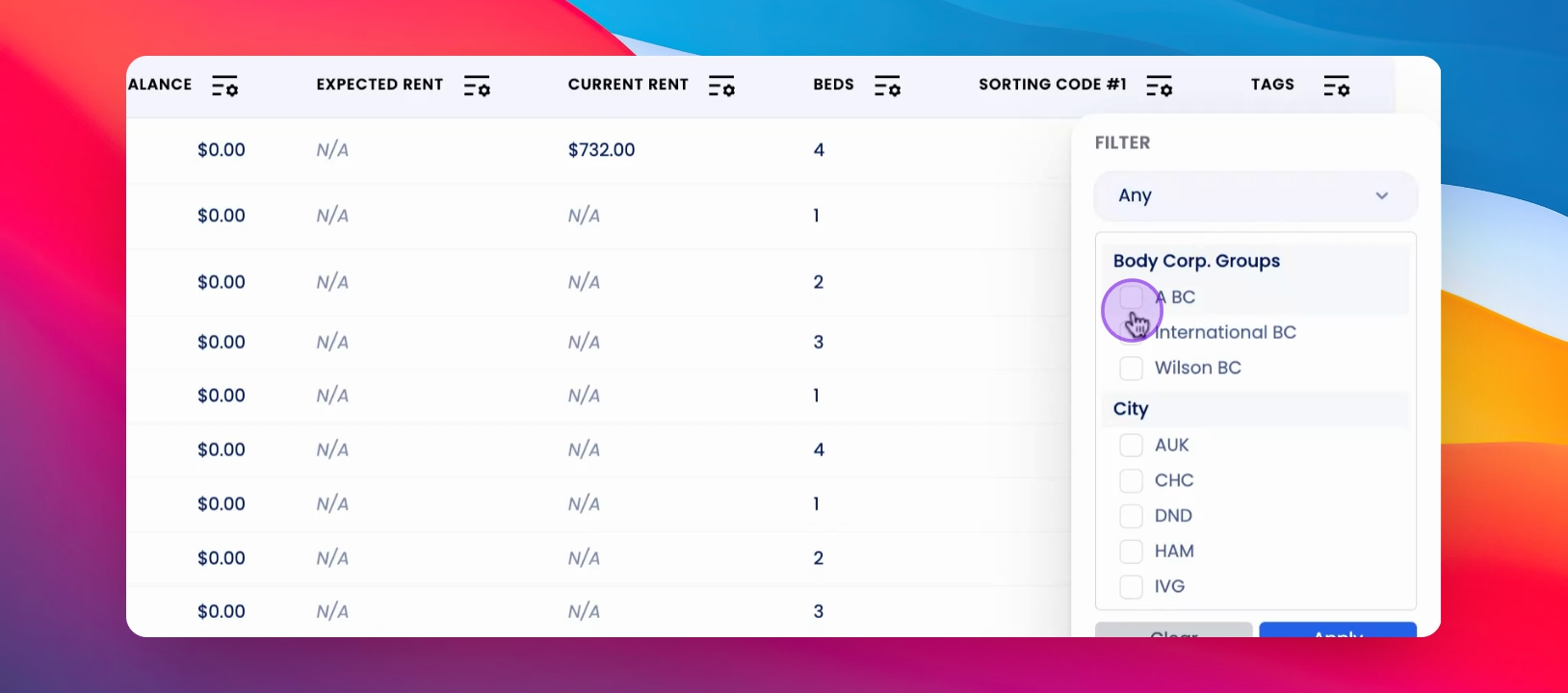
Step 11: Bulk Assign Tags
Select Multiple Tenancy Properties for bulk tag assignment.
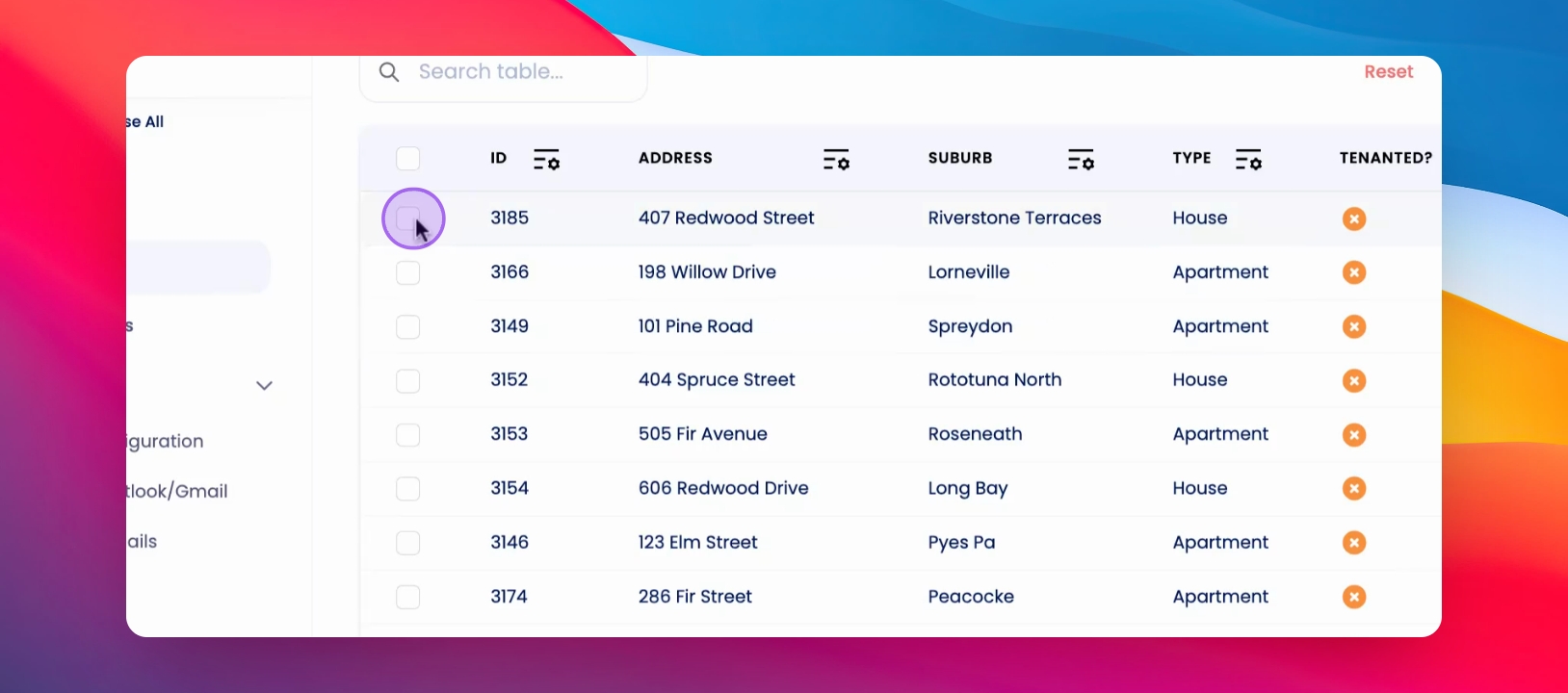
Step 12: Click Actions
Click Actions to proceed with tag assignment.
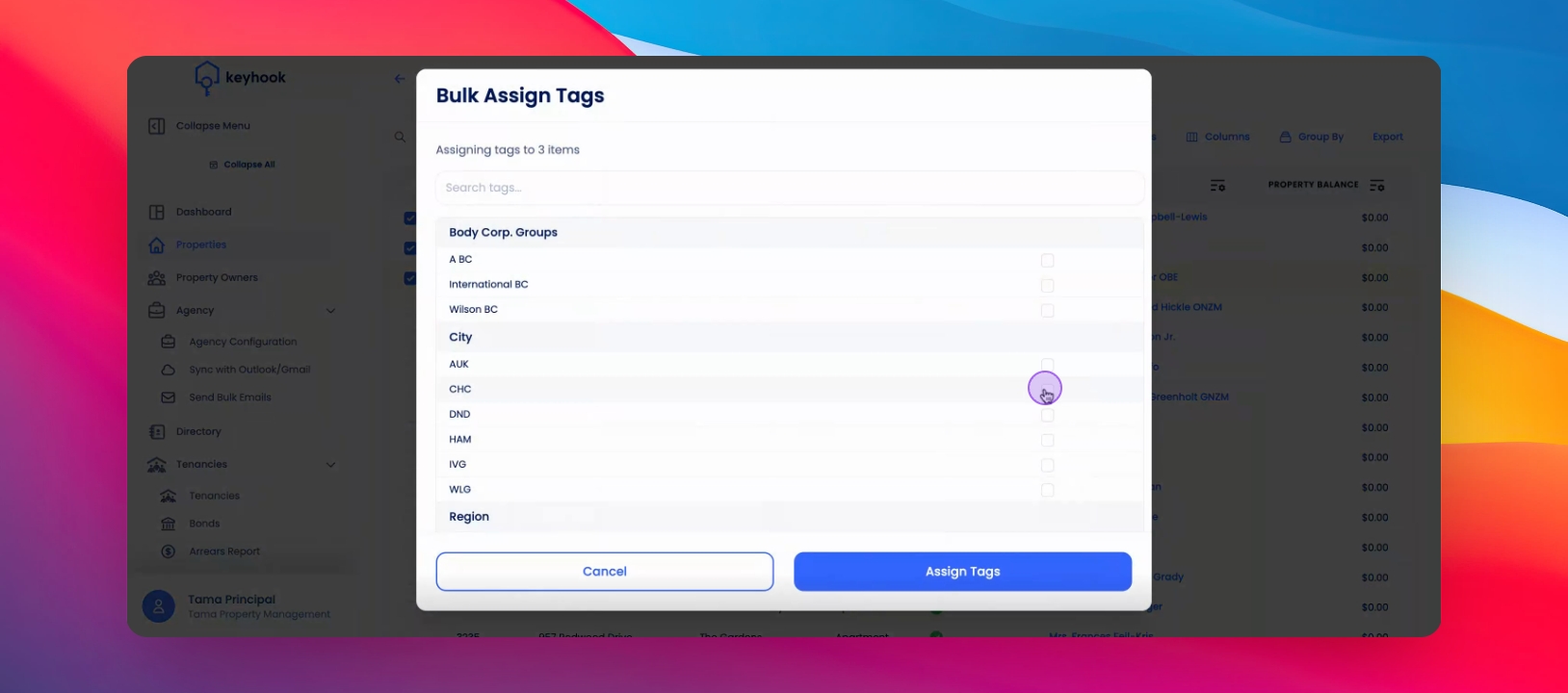
Step 13: Assign Tags
Click Assign Tags and choose the tags you want.
Tags are successfully assigned to the selected properties.
If you need more help or have any questions, just reach out to us at support@keyhook.com — we're always here to help!
Click on this link to give a feedback: Support Article Feedback Form